
24/7 Customer Support

Free returns

Same-day & Next-day Delivery

Quality Guaranteed

Unlock Your Welcome Offers: FREE Delivery | Up to 80% OFF | Free 30-day JoyPlus trial
Download the APP
A wireless mouse can make a laptop or desktop setup tidier, more portable and easier to use. However, the wrong model may bring connection dropouts, uncomfortable hand positioning, noisy clicks or an inconvenient charging routine.
Before choosing a wireless mouse, look beyond colour and advertised DPI. The most useful comparison points are connection type, shape, sensor performance, battery arrangements and compatibility with your devices.
A large DPI number does not automatically mean a smoother or more useful cursor. DPI controls sensitivity: higher settings move the pointer further with less physical movement, while lower settings can offer more controlled selection.
For office work, browsing and study, adjustable settings between roughly 800 and 2,400 DPI may be sufficient. Creative applications and gaming can benefit from wider adjustment ranges, but only if the sensor and software support your preferred control style.
A wireless mouse may connect through Bluetooth, a USB receiver or both. Bluetooth is convenient for laptops and devices with limited ports, while a 2.4GHz USB receiver can be useful for desktop PCs and systems without reliable Bluetooth.
Check whether the receiver is included, whether your computer has a USB-A or USB-C port, and whether the mouse supports your operating system. A multi-device mouse can be particularly practical if you regularly switch between a work laptop, personal computer and tablet.
A slim mouse is easy to carry, but may not suit long desk sessions. A larger ergonomic wireless mouse can provide more palm support, although it may take up more room in a laptop bag.
Also check whether the product uses replaceable batteries, a rechargeable battery or another charging system. A rechargeable wireless mouse reduces the need to keep spare batteries available, but you should still check charging time, cable type and whether it can be used while charging.
Choose Bluetooth when you want to preserve USB ports or pair with a compatible laptop, Mac or tablet. Choose a USB receiver mouse when you prefer simple plug-and-play connection, especially with a desktop PC.
Some models provide both options. This gives you more flexibility, but confirm the supported operating systems. Compatibility may differ between Windows, macOS, ChromeOS, iPadOS, Android and Linux.
Most modern models use an optical computer mouse sensor. Performance depends on the sensor, surface and firmware, not just the maximum DPI figure. A mouse mat may still be useful on reflective, transparent or uneven surfaces.
Adjustable DPI is helpful if you move between spreadsheets, design work and games. For gaming, also consider polling behaviour, button response and the wireless mode rather than relying on sensitivity alone.
Right-handed, left-handed and ambidextrous designs suit different users. A silent click mouse can be more considerate in libraries, shared offices and video meetings, while programmable buttons may speed up browser navigation or repetitive work.
If you work for several hours at a time, look for a shape that allows your hand to rest naturally. A detachable wrist rest or thumb support may be useful, but these features also increase the product’s size and weight.
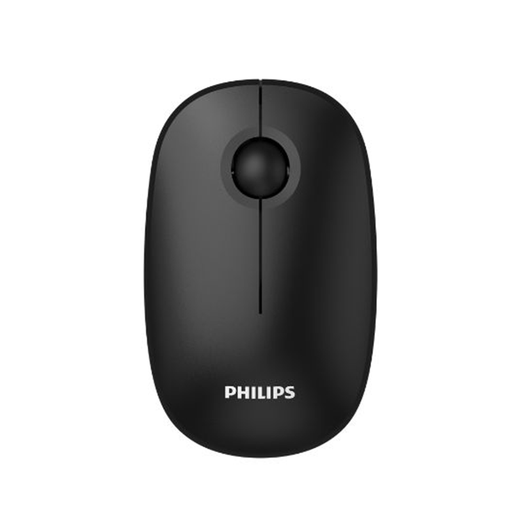
Why This Fits Their Persona: A straightforward option for home workers, students and everyday laptop or PC use where quiet operation and a USB connection matter.
Its listed 2.4GHz connection, USB receiver and silent-click design make the basic setup and noise level clear before purchase.
1600 DPI optical tracking, quiet clicking and support for laptop and PC use.

Why This Fits Their Persona: Suited to professionals, creatives and home-office users who spend extended periods working across documents, applications or multiple computers.
The specification lists Bluetooth Low Energy, a Logi Bolt receiver, multi-device pairing and USB-C charging, so connection flexibility is not left ambiguous.
8000 DPI optical sensor, seven programmable buttons and a listed battery life of up to 70 days.

Why This Fits Their Persona: A practical match for desk-based workers who prioritise a vertical shape, wrist support and a rechargeable setup.
The detachable wrist rest and vertical form are clearly specified, while the rechargeable battery avoids routine disposable-battery purchases.
Bluetooth 5.3 and 2.4GHz connectivity, up to 4000 DPI adjustment and six buttons.
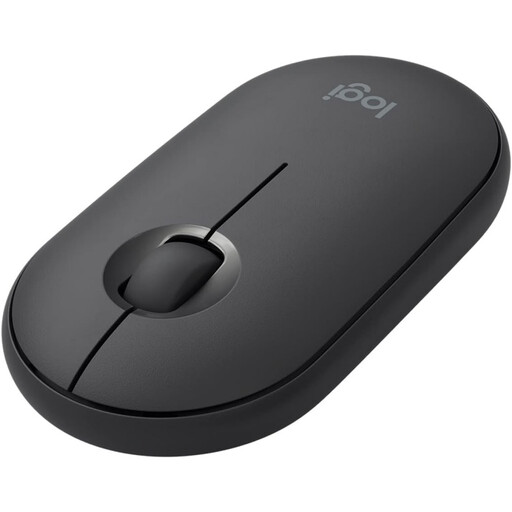
Why This Fits Their Persona: Its low-profile form is suitable for commuting, cafés, libraries and flexible working where bag space and quiet operation are important.
The compact, ambidextrous shape addresses portability, while the quiet-click design is more suitable for shared environments.
Slim construction, ambidextrous handling and wireless connection options that vary by model.
We have compiled a complete, real-time list of products that fully satisfy these strict selection criteria and UK safety regulations.
Neither connection is universally preferable. A Bluetooth mouse keeps USB ports free and suits compatible laptops, tablets and Macs. A USB receiver mouse can be simpler with desktop PCs and may be preferable where Bluetooth pairing is unavailable. Dual-mode models provide both options.
Battery life varies with usage, sensor settings and the product design. Some listed models provide weeks or months of typical use, but treat manufacturer figures as usage estimates rather than guarantees. Check whether the mouse can operate through a USB cable while charging if uninterrupted work is important.
Yes, if the mouse supports both devices and their operating systems. A multi-device mouse may store several Bluetooth pairings, while a dual-connection model can use Bluetooth with one device and a USB receiver with another. Confirm the switching method before buying, particularly if you regularly move between Windows and macOS.