Lecturers who need basic slide control
If moving forwards and backwards through slides is the main task, tactile controls and a receiver you can keep with the remote may matter more than app-based features.


Choose a USB-receiver presenter for straightforward slide control if the teaching computer has a compatible port. A model offering both Bluetooth and USB gives you another connection option when computers vary between rooms; for hybrid lectures or screen-based pointing, consider a digital pointer, but check whether its companion software can run on the teaching computer. Logitech notes that low-power red lasers can be less noticeable on LCD and plasma displays.
If moving forwards and backwards through slides is the main task, tactile controls and a receiver you can keep with the remote may matter more than app-based features.
Switching between a personal laptop and institution-provided equipment makes connection options and available ports worth checking before choosing a remote.
If students also watch a shared screen, or the room uses a TV or LCD display, on-screen pointing may be more useful than relying solely on a red laser.
For lecture slides, start with the controls you need, then check how the remote connects to each teaching computer and whether your audience can see its pointer.
Choose it when: You mainly need physical next and back controls on a computer with a compatible USB port.
Bear in mind: The receiver needs a suitable port, and a red laser may be harder to see on some screens.
Choose it when: You move between computers and want two ways to connect; Logitech specifies both options for the R500s.
Bear in mind: Bluetooth can involve pairing, so allow time to set up on an unfamiliar teaching computer.
Choose it when: On-screen pointing matters for shared slides or display-based lectures.
Bear in mind: Logitech Spotlight 2 uses Logi Options+ for its digital pointer and highlighting, so software access matters.
| Concern | What to check | Who this matters to |
|---|---|---|
| Basic slide control | Check for forward and back buttons you can operate without looking down, and compare the stated range with the room. | I want to move away from the lectern without losing my place in the slides. Around 45% of consumers put dependable basic control first. |
| Computer connections | Match the receiver connector to the available ports; if considering Bluetooth, check the teaching computer's compatibility. | When I change rooms or laptops, I need a connection method that works with the computer in front of me. Connection flexibility comes first for around 33% of consumers. |
| Pointer visibility | Check the room's display type and, for digital pointing, whether the required app can be installed and used. | Students watching a shared screen need to see what I am pointing at, not just hear me describe it. Around 22% of consumers prioritise pointing for hybrid or screen-based lectures. |
A USB-receiver remote needs a compatible connection on the computer used for the lecture. A USB-C-only laptop should not be assumed to accept every receiver directly.
Check the receiver connector against the actual teaching computer. If computers vary between rooms, consider whether a presenter with both USB and Bluetooth would help.
If the connectors do not match, you may need a compatible adapter or hub.
Logitech notes that low-power red lasers can be less noticeable on LCD and plasma displays. A pointer that works for one in-person setup may not serve viewers watching shared slides.
Check the lecture-room display and whether you need to point on-screen for remote viewers before choosing between a laser and a digital pointer.
Logitech Spotlight 2 enables its digital pointer and highlighting through Logi Options+, making computer compatibility and installation permissions relevant.
Confirm that the app can be used on the teaching computer before depending on those features during a lecture.
UK government guidance says unwanted electrical products and batteries should not go in household rubbish.
Use an appropriate electrical-waste or battery collection route when the presenter or its batteries are no longer needed.
Its presenter range includes a basic USB-receiver model, a dual-connection model and an app-enabled digital-pointer model.
The 33374EU is a conventional USB-receiver presenter for slide navigation.
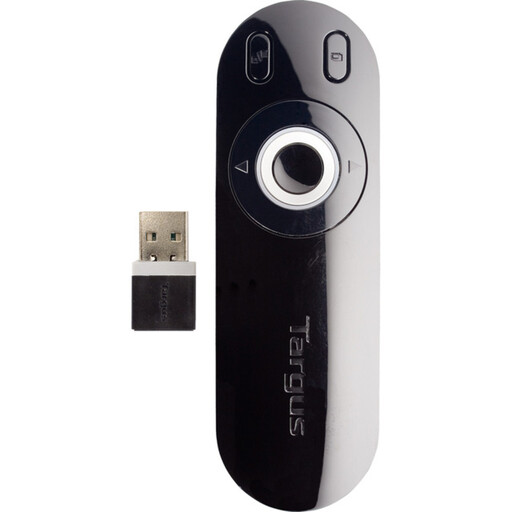
The AMP13EU is a USB-receiver presentation remote intended for conventional slide control.
This laser presentation remote is a choice to consider for in-person lecture slides when a physical pointer suits the room. Check its connection against the computer you will use.
 No image available
Consider this remote for in-person slide navigation where a laser pointer suits the display. Check its receiver connector and the teaching computer's ports before buying; a red laser may be less noticeable on LCD or plasma screens.
Choose a red laser if it is permitted and visible on the surface used for your in-person lecture. For a shared screen or an LCD or plasma display, consider an on-screen pointer: Logitech notes that low-power red lasers can be less noticeable on those displays, while Spotlight 2 offers digital pointing through Logi Options+.
No: a USB-receiver presenter needs a compatible port on the computer used for the lecture. Targus states that its AMP13EU requires a USB port; Logitech R500s offers a Bluetooth Low Energy connection as well as a USB receiver. Check the particular remote's connector and the computer's compatibility.
Not all of them do. Logitech says the R400 receiver needs no software installation, and Kensington describes its 33374EU as requiring no driver. Logitech Spotlight 2, however, uses Logi Options+ for digital highlighting and pointing, so check whether you can use that app on the teaching computer.
Use an appropriate electrical-waste or battery collection route rather than household rubbish. UK government guidance says unwanted electrical products and batteries should not be put in household rubbish.