For regular email, documents, browser work and video calls, start with a laptop that supports your work applications and fits your screen, camera, audio and desk needs; meeting-app minimum requirements alone are not a buying target. Consider a higher-performance configuration when demanding local software, large files or sustained multitasking require it, or an external display and dock when a fixed desk needs more screen space and connections. Before buying a personal laptop for employer access, confirm which devices, operating systems and management controls your employer permits.
Who needs which setup?
Your usual applications and where you work are more useful starting points than a single specification for every home worker.
Routine home and hybrid office workers
If your day centres on documents, email, browser applications and video meetings, check software support and call equipment, then choose a screen and connections that suit both your desk and any travel. Microsoft’s Teams requirements and Zoom’s meeting requirements establish compatibility basics, not a specification for every working day.
Workers with demanding local software
Large files, development tools, creative applications or virtualised environments can change which processor, memory, storage and graphics configuration you need. Use the requirements of the particular applications you run rather than assuming routine office-use advice covers them.
Workers buying a personal device for employer access
Ask whether personal laptops are permitted before choosing a model. The National Cyber Security Centre advises organisations to define allowed tasks, services and data, alongside minimum device standards and management controls for bring-your-own-device access.
What should you check before choosing?
Confirm employer access and essential software first, then match the laptop and any desk accessories to the work you actually do.
| Priority | What to check | Your needs |
|---|
| Work access |
Ask which operating systems, versions and processor platforms your employer accepts. Confirm permitted tasks and any device-management requirements; the National Cyber Security Centre identifies these as BYOD policy decisions. |
I need to know that a personal laptop can access the work systems I use, and what controls I would have to accept. |
| Application compatibility |
Check every required work application against the exact operating system and processor platform. For calls, Microsoft lists Teams client requirements, while Zoom lists a connection, speakers, microphone and webcam among its requirements. |
My documents, browser tools and meeting software all need to work on the same device. |
| Workload |
List the applications and files you use concurrently. Check specialist software requirements for processor, memory, storage and graphics; Microsoft notes that apps and added hardware can exceed Windows 11 installation minimums. |
Routine office work may be enough for my day, or I may regularly run demanding local software and large projects. |
| Desk connections |
Match the exact laptop’s display outputs and charging support to your monitor, dock and cables. Microsoft’s multiple-monitor guidance calls for checking the PC or dock connections before configuring displays. |
At a fixed desk, I want room for side-by-side work and a practical way to connect my peripherals. |
| Portability and calls |
Choose built-in screen size with travel frequency in mind. Check camera, microphone and audio equipment for your meeting setup rather than relying on processor specifications alone. |
If I move between home and another workplace, the laptop still needs to be practical to carry and use for calls. |
What can go wrong?
-
Treating minimum requirements as a work specification
Microsoft’s Teams client and Windows 11 requirements set different baseline thresholds. Neither tells you how your full mix of open apps, files and calls will run.
Check the requirements of specialist applications and consider the tasks you perform at the same time before choosing a configuration.
-
Buying before checking personal-device rules
A capable laptop may still be unsuitable for employer access if personal devices or particular tasks are restricted. National Cyber Security Centre guidance calls for organisations to define permitted access and device controls.
Ask your employer about approved platforms, management, authentication and access methods before buying for work.
-
Assuming any dock will run the intended desk setup
A monitor arrangement depends on the laptop’s outputs as well as the dock, cables and displays. Microsoft advises checking connections to the PC or dock when setting up multiple monitors.
Match the exact laptop and dock specifications to your monitor inputs, charging needs and peripherals.
-
Choosing an operating system before checking work software
Support for a meeting app does not establish support for an employer’s specialist, older or managed applications.
Confirm the required apps, approved operating-system versions and any processor-platform restrictions with your employer before choosing a model.
Relevant laptop lines
These manufacturer examples show configurations worth comparing against your requirements; a brand name alone does not establish employer compatibility.
Lenovo
The ThinkPad E14 Gen 7 is an example of a compact, work-oriented laptop line to consider for home and hybrid use.
- Lenovo describes the E14 Gen 7 with an FHD hybrid infrared camera and a discrete TPM.
- Intel vPro remote management is optional on the cited E14 Gen 7 line. Check the exact configuration and your employer’s requirements.
HP
HP’s EliteBook listings include Windows 11 Pro business-laptop configurations for workers considering that platform.
- HP Store UK lists differing EliteBook memory and storage configurations, including 14-inch options with 16GB RAM.
- The listed specifications vary by model; confirm the particular configuration and employer software requirements.
Apple
MacBook Air is an option to assess if your employer supports macOS and your desk connections suit its ports.
- Apple UK lists 13-inch and 15-inch MacBook Air choices and specifies Thunderbolt 4 (USB-C) ports on the cited models.
- Apple’s hardware specifications do not confirm support for your employer’s applications, device management or particular dock.
Joybuy laptop options
These laptops cover general-purpose home-work choices and one configuration to consider for demanding local work. Compare each with your applications, employer rules and desk setup.
 No image available
ASUS Vivobook 15 X1504VA, 15.6-inch, Core 5 120U, 24 GB, 1 TB SSD
A general-purpose option to assess for home-office work with several applications or local files. The named configuration has an Intel Core 5 120U, 24 GB memory and a 1 TB SSD; confirm work-software approval and the connections your desk needs.
View on Joybuy
 No image available
HP OmniBook X Flip 16-as0004na, 16-inch touchscreen, 16 GB, 512 GB SSD
Consider the larger built-in touchscreen and 2-in-1 format if you use the laptop in different positions at home. This Windows 11 Home configuration names an Intel Core Ultra 5 226V and 16 GB memory; check employer approval and your intended desk connections.
View on Joybuy
 No image available
Apple 13-inch MacBook Air (2026), M5, 24 GB, 1 TB SSD, Midnight
A 13-inch option for home and hybrid work when your required applications and employer controls support macOS. This variant names an M5 chip with a 10-core CPU and 10-core GPU; check the exact monitor and dock arrangement before choosing it for a fixed desk.
View on Joybuy
 No image available
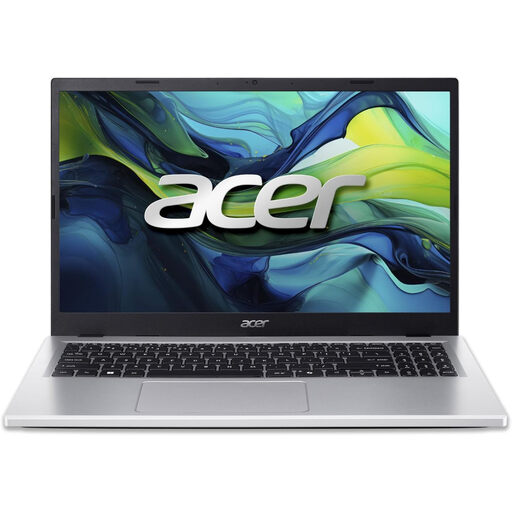
Acer Aspire Go 15 AG15-71P, 15.6-inch Full HD, 8 GB, 256 GB SSD
Assess this Windows 11 Home laptop against a routine office workload before committing to its 8 GB DDR5 memory and 256 GB NVMe SSD. Its named processor is the Intel Core i5-13420H; check simultaneous-app and storage needs, as well as employer approval.
View on Joybuy
 No image available
ASUS ProArt P16 H7606WW-SE006W, 16-inch 4K OLED, RTX 5080, 64 GB, 2 TB SSD
Consider this Windows 11 Home configuration only after checking whether demanding local applications call for its AMD Ryzen AI 9 HX 370, NVIDIA GeForce RTX 5080 16GB and 64GB RAM. For frequent video meetings, confirm its camera and microphone, along with employer approval and dock compatibility.
View on Joybuy
Common questions
Do Teams, Zoom and office documents require a high-performance laptop?
Not on those tasks alone. Microsoft and Zoom publish baseline client requirements, but you should also check the applications and files you use at the same time; demanding local software can call for a different configuration.
Can I use any personal laptop to access my employer’s systems?
No: access depends on your employer’s rules. National Cyber Security Centre BYOD guidance advises organisations to define permitted tasks, data and device standards, so confirm approved platforms, software and management controls before buying.
Could a personal work laptop need management controls?
Yes, if your employer’s BYOD approach requires them. National Cyber Security Centre guidance treats device management as important to protecting work data; ask what controls apply and how they affect your personal device before enrolling it.
Does a USB-C port guarantee support for a dock and two monitors?
No. Check the exact laptop’s display-output and charging capabilities against the dock, monitor inputs and cables. Microsoft also advises checking physical connections to the PC or dock when configuring multiple displays.
Is Windows 11 eligibility enough to show a laptop suits my work?
No. Microsoft says applications and added hardware can require more than Windows 11 installation minimums; your employer’s access rules and the requirements of your particular work software also matter.


