Dual-monitor desk sharers
You need each laptop to support the intended number of external monitors at the resolution and refresh rate you use. Apple Support notes that a computer’s ports and model determine its external-display options.


Choose monitor input switching if you only need to change the picture, or a KVM if the keyboard and mouse must follow the active laptop. A dock can bring displays, peripherals and possibly charging onto one cable for a compatible laptop, but it will not increase that laptop’s supported number of external displays. Check both laptops’ exact ports and display limits before choosing equipment for the shared desk.
You need each laptop to support the intended number of external monitors at the resolution and refresh rate you use. Apple Support notes that a computer’s ports and model determine its external-display options.
You want the same controls, and perhaps other USB peripherals, to move with the active computer. Dell Support’s monitor KVM guidance makes the required video and USB connections an important model-level check.
One laptop may have USB-C or Thunderbolt while the other uses a different video output. Check each machine’s actual video and charging capabilities rather than assuming an adapter or a USB-C-shaped socket supplies them.
Start with what each laptop can output. Use monitor inputs for picture-only switching, a KVM when controls must switch too, or a dock for fewer connections to a compatible laptop; separate adapters may make more sense when the computers have different ports.
| Concern | What to check | Who this matters to |
|---|---|---|
| External displays | For each laptop, check the supported monitor count and the required resolution and refresh rate through its intended video connection. Apple Support notes that a supported hub does not raise a MacBook Air model’s maximum display count. | If I use two monitors, I need both laptops to drive the arrangement I intend to keep. Around 36% of consumers put display capability first. |
| Shared peripherals | Check whether video, keyboard and mouse must switch together, and whether a webcam or other USB devices must follow. Confirm the KVM’s video and USB connections for both computers. | Changing the picture is not enough if I then have to move my keyboard, mouse or webcam cables. Around 29% of consumers make peripheral switching their primary concern. |
| Existing connections | Check whether both laptops can use available monitor inputs with suitable cables or adapters, and whether selecting an input manually meets your needs. | If I only need to change which laptop appears on screen, I would rather use connections I already have. For around 21% of consumers, avoiding new desk hardware comes first. |
| Charging and expansion | Confirm that the laptop accepts charging through its host port and compare its power requirement with what the particular dock delivers. Check the required USB and network connections separately. | When I reconnect a laptop, I want its desk peripherals and power on one cable where the computer supports it. Around 14% of consumers prioritise charging and port expansion. |
A matching plug shape does not establish either function. StarTech.com says USB-C video using DisplayPort Alt Mode requires support across the host port, cable and connected device; charging also depends on the laptop and dock.
Check the exact laptop’s video-output and charging specifications, then check the full dock-and-cable connection path.
Outputs on a dock cannot override a laptop’s own external-display limit. Apple Support makes this distinction for supported hubs and daisy-chaining on MacBook Air.
Note each monitor’s intended resolution and refresh rate, then compare the complete setup with both laptops’ specifications and the dock or KVM’s stated modes.
Selecting another video input changes the picture, not necessarily the computer receiving keyboard and mouse input. Dell Support describes KVM as a feature of select monitors that needs the appropriate connections.
If peripherals must follow the picture, check for documented monitor KVM functionality and USB upstream connections, or consider an external KVM.
Otherwise, moving the peripherals may still involve separate USB cables or manual reconnection.
A dock or KVM with an unsuitable supplied plug or lead creates a practical obstacle even when its computer connections match.
Check the supplied power configuration and seller documentation for where you will use it. Great Britain and Northern Ireland should not be assumed to have identical product-supply requirements.
Relevant when considering a monitor that handles both picture selection and shared keyboard-and-mouse control.
Relevant when considering a standalone KVM for an existing desk with several displays or computers.
Relevant to USB-C docks and adapters when the laptop’s video connection needs careful checking.
Relevant when comparing dock connections for displays, peripherals and host charging.
These products cover connections for one compatible laptop and a monitor option for selecting a picture source. Choose a KVM route separately if the same keyboard and mouse must switch between both computers.
 No image available
Consider this dock if one laptop has a compatible USB-C video connection and you want to connect desk displays through it.
The title identifies dual HDMI 4K connections and 100W Power Delivery pass-through. Check the simultaneous display modes, delivered charging power and supplied power lead against your setup; this is not a substitute for KVM switching.
 No image available
This hub is an option for expanding one laptop’s connections if its USB-C port supports the video functions you need.
Its title lists two HDMI outputs, USB-A and USB-C data ports, RJ45, SD/TF and a USB-C PD input. Confirm the HDMI modes available when outputs are used together and the power delivered to the laptop; the hub is not identified as a KVM.
 No image available
Consider this adapter for one compatible USB-C laptop when its desk needs both display connections and USB ports.
The title lists two HDMI connections, DisplayPort, USB, RJ45, PD, card readers and audio. Confirm which display outputs can operate together at your required modes and how charging works with your laptop; it does not establish two-computer switching.
 No image available
This is a connection-expansion option for one laptop after you have checked its host-port compatibility.
The title lists HDMI 4K60Hz, USB and SD/TF connections. Confirm the required host connection and any charging pass-through before relying on it for your desk; it is not identified as a KVM.
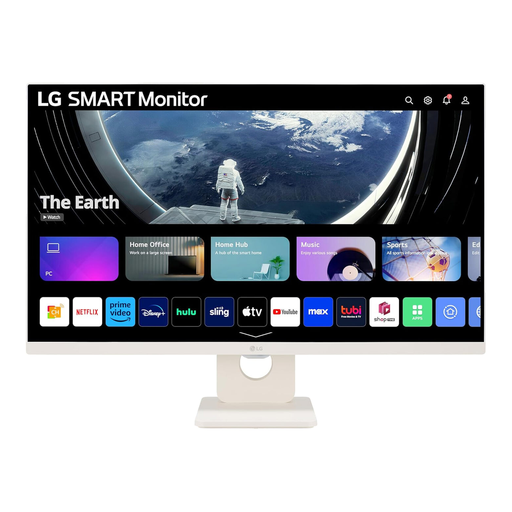 No image available
Consider this monitor for picture-source switching if both laptops can connect to its available video inputs.
The title specifies a 27-inch Full HD 1080p display with a 100Hz refresh rate. Check the inputs and their supported modes for both computers; if keyboard and mouse must follow the selected laptop, confirm documented KVM and USB upstream functionality rather than assuming it.
Check each exact model’s external-display limit, required resolution and refresh rate, host video functions and USB-C charging support. StarTech.com explains that DisplayPort Alt Mode video needs a compatible host, cable and connected device; the connector shape alone is not enough.
A dock does not increase the laptop’s documented maximum external-display count. Apple Support specifically notes this limitation for supported hubs and daisy-chaining on MacBook Air, so check the display specification for your exact computer before choosing a multi-monitor dock.
Input selection is enough for picture-only switching when both laptops have compatible paths to available monitor inputs. If the keyboard and mouse must follow the displayed computer, check for a monitor with documented KVM support and the necessary USB connections, or use a suitable external KVM.
Check that its supplied plug and lead suit your socket, and review the seller’s supply and safety information for where you will use it. UK government electrical-equipment guidance covers Great Britain; do not assume the same supply requirements apply in Northern Ireland.
Look for an appropriate electrical-equipment collection or retailer take-back route rather than putting it straight into ordinary household waste. UK government guidance on waste electrical and electronic equipment describes routes intended to encourage recovery, reuse and recycling.