Choose a dedicated scheduling panel if people need to check availability and reserve a workshop at its entrance. Choose a conventional monitor if a coordinator manages bookings from a computer, or if the screen only shows a timetable; the computer and booking application must supply that content. Before choosing a panel, check that it works with the office’s booking platform and deployment setup.
Who needs the display?
People booking at the workshop door
People who need to see whether a workshop is free and reserve it at the entrance should consider a dedicated scheduling panel. Microsoft Learn describes Teams panels as touch devices mounted outside meeting spaces for viewing room details and reserving available space.
Booking coordinators at shared desks
Staff who maintain calendars and change workshop schedules from a computer need a readable desk display with connections that suit their host device. For regular display screen equipment use, the workstation arrangement matters as well as the monitor.
IT teams equipping shared spaces
Teams deploying several displays need to check the existing booking platform, network arrangements and device management before selecting hardware. Microsoft Learn sets out platform and licensing requirements for Teams-panel deployments.
What matters when choosing?
Decide whether people must book at the door, work on the calendar at a desk or simply read a timetable. That choice determines whether to assess scheduling panels or conventional monitors.
| Concern | What to check | Who this matters to |
|---|
| Booking at the door |
Check that the panel supports the existing calendar platform, room setup and required booking actions. |
If I need to reserve a free workshop at its entrance, a timetable I can only read will not complete the booking there; around 40% of consumers put door-side self-service first. |
| Calendar work at a desk |
Check screen resolution, computer connections and whether the exact configuration suits the workstation. |
When I maintain a crowded calendar, I need space to read schedules and make changes from my computer; roughly 30% of consumers prioritise desk-based booking work. |
| Connections and deployment |
Confirm required ports and network arrangements; for a Teams panel, check platform support and the applicable licence route. |
If I am equipping several shared spaces, each display needs to fit the devices and booking service we already use; around 20% of consumers place deployment fit first. |
| Read-only visibility |
Check that the timetable will be legible, the host computer can supply it and the display can be mounted as intended. |
I only need people to see the workshop timetable because bookings are made elsewhere; roughly 10% of consumers put a simple information display first. |
Buying pitfalls
-
Buying a monitor for door-side self-service
A conventional monitor can show a calendar from a connected computer, but it does not by itself provide the reservation controls or visible room-status interface of a dedicated scheduling panel.
Map the booking journey before choosing hardware. If people must reserve an available workshop at its entrance, check scheduling-panel options against the booking platform.
-
Assuming any touchscreen works with the booking service
A suitable screen size or touch input does not establish compatibility with a Teams-panel deployment or another room-calendar system.
Record the calendar platform, actions users need to take, network method and management requirements. Then check the exact device edition and licence route.
-
Confusing RoomPanel with RoomPanel E2
Yealink says its original RoomPanel was discontinued from 31 December 2024 and identifies RoomPanel E2 as its replacement. The similar names should not be treated as the same product.
Check the complete model name, platform edition and support status before ordering.
-
Relying on a monitor label instead of assessing the workstation
For workers who use display screen equipment daily for continuous periods of an hour or more, the Health and Safety Executive says the UK display screen equipment regulations apply. The screen is only one part of the workstation.
Assess screen position, glare, seating and desk layout for regular desk users. Check the exact monitor bundle too: Dell UK lists a P2425H configuration without a stand.
Relevant brands to consider
Logitech
Logitech’s Tap Scheduler is a purpose-built room scheduling device rather than a conventional desk monitor.
- Logitech says Tap Scheduler shows meeting details, supports reservations and uses coloured LEDs to indicate availability at a distance.
- Check its compatibility with the office’s booking software and deployment requirements before choosing it for a workshop entrance.
Yealink
Yealink’s RoomPanel E2 family is relevant to dedicated meeting-space scheduling; Microsoft lists the RoomPanel E2 Series among its Teams-panel options.
- Yealink describes RoomPanel E2 as an 8-inch scheduling panel with programmable RGB illumination.
- Yealink says the original RoomPanel was discontinued from 31 December 2024. Check the complete model name and required platform edition.
Samsung
Samsung’s ViewFinity S60UD is a desk-monitor reference for staff managing bookings from a computer.
- Samsung Business UK specifies QHD resolution, USB-C with 90W charging, LAN and a built-in KVM switch for the 24-inch S60UD.
- Those workstation features do not make it a door-side Teams booking panel; check the connected computer and booking application.
Dell
Dell’s P2425H is a conventional-monitor reference for a connected desk computer or read-only timetable.
- Dell UK specifies a 23.8-inch FHD IPS display for the cited P2425H configuration.
- The cited configuration is sold without a stand. Check the exact bundle, mounting arrangement and display inputs before choosing it.
Joybuy monitors for booking work
These conventional monitors are options for a coordinator viewing workshop bookings from a connected computer. They are not substitutes for a dedicated panel when people need to reserve a workshop at its entrance.
 No image available
ASUS ProArt PA278CV IPS WQHD monitor
For desk-based calendar work, use this conventional monitor with a connected computer and booking application.
IPS WQHD display. Check the computer connection and workstation arrangement before purchase.
View on Joybuy
 No image available
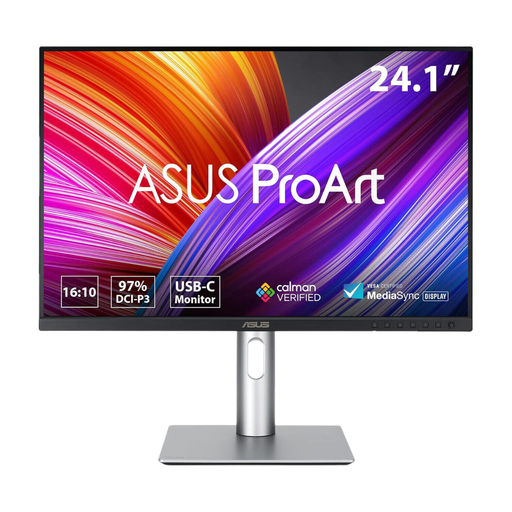
ASUS ProArt PA248CRV IPS WUXGA monitor
This conventional desk monitor can display the booking calendar supplied by a connected computer.
IPS WUXGA display. Check the intended computer connection and exact configuration for the workstation.
View on Joybuy
 No image available
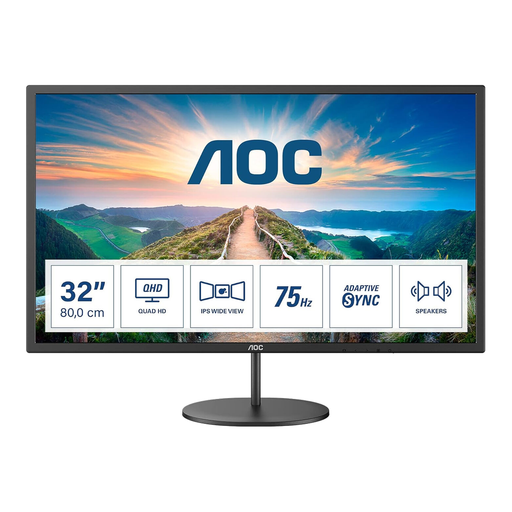
AOC Q32V4 31.5-inch 2K IPS monitor
A coordinator can use this larger conventional screen to view a calendar from a connected computer.
31.5-inch IPS display. Confirm its exact pixel resolution, computer connection and fit on the intended desk.
View on Joybuy
 No image available
CRUA 32-inch 1500R curved QHD monitor (Black)
This is a conventional screen for a booking calendar supplied by a connected computer, not a room-booking panel.
Its named specifications include 2560 × 1440 resolution, HDMI and DisplayPort inputs, and VESA 100 × 100 mm mounting. Check that the curved screen fits the desk and intended viewing position.
View on Joybuy
Common questions
Do we need a dedicated panel just to show workshop bookings?
No. A conventional monitor can show a calendar from a connected computer if people only need to read it or a coordinator updates it elsewhere. A dedicated scheduling panel is the relevant choice when people must check availability and reserve space at the workshop entrance.
Will an ordinary touchscreen monitor work as a Microsoft Teams booking panel?
Do not assume that it will. Microsoft treats Teams panels as dedicated devices with deployment requirements; check the exact device’s Teams support and the organisation’s room-calendar configuration before purchase.
What licence should we check for a Teams scheduling panel?
The licence depends on the room setup. Microsoft Learn states that a Teams Rooms setup needs a Teams Rooms licence for each meeting room, while a room with only a Teams panel can use a Teams Shared Device licence for the panel resource account. Confirm the intended assignment with the organisation’s Microsoft 365 administrator.
Does a booking coordinator’s desk monitor need a workstation assessment?
For workers using display screen equipment daily for continuous periods of an hour or more, the UK Health and Safety Executive says the display screen equipment regulations apply. Assess the whole workstation and how it is used, rather than relying on a monitor feature or comfort label alone.


