
24/7 Customer Support

Free returns

Same-day & Next-day Delivery

Quality Guaranteed

Unlock Your Welcome Offers: FREE Delivery | Up to 80% OFF | Free 30-day JoyPlus trial
Download the APP
A WQHD monitor can make a noticeable difference to a UK home office, creative workstation or gaming setup. With a resolution of 2560 × 1440, it offers more workspace and sharper detail than Full HD without placing the same graphics demand as 4K.
However, shopping by resolution alone can lead to an unsuitable purchase. As the Joybuy Product Recommendation Officer, I focus on the specifications that affect everyday use rather than relying on promotional language. Here are the main pitfalls to avoid before choosing from the available WQHD monitors.
A 165Hz, 180Hz or 320Hz gaming monitor can display motion more frequently than a 75Hz screen, but your computer must be capable of producing enough frames to benefit. A modest office laptop may not take advantage of 180Hz at 1440p, while a suitable gaming PC can make good use of it.
Also check which input supports the advertised rate. For example, some models provide their highest refresh rate through DisplayPort, while HDMI may be limited to a lower frequency.
A screen described as covering 120% sRGB or a wide DCI-P3 range may display vivid colours, but gamut coverage does not automatically mean accurate colours. For photo editing, graphic design or video editing, look for factory calibration, a stated Delta E value, and support for colour standards such as sRGB or Rec.709.
A QHD IPS monitor is often a practical choice for consistent viewing angles, but the specification sheet still matters.
A monitor may have an impressive panel yet offer only tilt adjustment. If your desk setup requires a particular height, portrait orientation or laptop connection, check the stand and ports before ordering.
USB-C is especially useful for a laptop workstation, but confirm whether it supports video, data and Power Delivery. A USB-C port that only handles data will not provide a one-cable setup.
A 27-inch WQHD monitor is a balanced option for desks where viewing distance is around arm’s length. Its 2560 × 1440 resolution provides clear text and useful room for split-screen work.
A 32-inch WQHD monitor creates larger interface elements and a more spacious viewing experience. It can suit spreadsheets, media and casual gaming, although text may appear slightly less dense than on a 27-inch model at the same resolution.
For multitasking, a 34-inch ultrawide monitor normally uses a 3440 × 1440 resolution and a 21:9 aspect ratio. This provides horizontal room for timelines, documents and multiple windows, but you need a sufficiently wide desk and graphics hardware that supports the native resolution.
IPS panels generally provide broad viewing angles and consistent colours across the screen. They are commonly selected for a monitor for photo editing or video editing. VA panels can offer stronger native contrast, which may suit films and darker games, although colour and motion behaviour varies by model.
Treat HDR10 or DisplayHDR 400 as compatibility indicators rather than guarantees of a cinema-style HDR experience. Peak brightness, local dimming and contrast also influence what HDR content looks like.
A 75Hz monitor is suitable for office work, browsing and casual gaming. A 165Hz gaming monitor or 180Hz gaming monitor can make camera movement and scrolling appear smoother when the graphics card can maintain a suitable frame rate. A 320Hz gaming monitor is aimed at competitive players with hardware capable of producing very high frame rates.
Look for Adaptive-Sync, FreeSync or compatible variable refresh rate support to reduce tearing when the frame rate changes. Response-time figures should be considered alongside panel type and real-world motion handling rather than viewed in isolation.
For long working sessions, an ergonomic monitor with height, tilt, swivel and pivot adjustment can make desk positioning easier. VESA 100 × 100 mm support is useful if you plan to use a monitor arm.
Check for HDMI and DisplayPort compatibility, the number of inputs, USB hubs, speakers and headphone outputs. A USB-C monitor with Power Delivery can reduce cable clutter for compatible laptops. Confirm the required wattage before relying on it to charge your device.
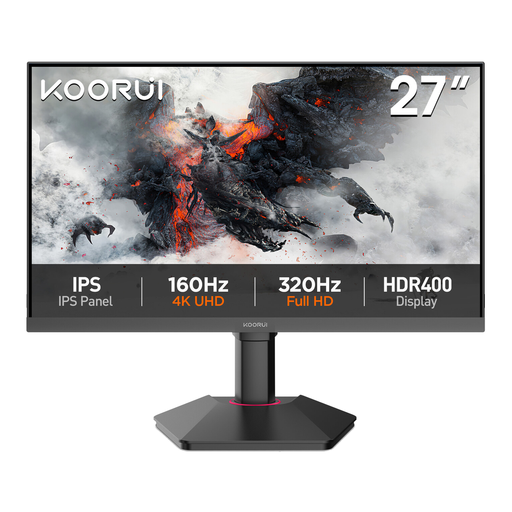
Why This Fits Their Persona: This 27-inch IPS display provides a practical WQHD workspace for home offices, study areas and everyday entertainment without requiring a large desk.
Its 75Hz refresh rate is clearly positioned for general use, while HDMI, DisplayPort and VGA offer compatibility with older and newer computers.
IPS panel, 99% sRGB coverage, Adaptive-Sync, VESA mounting and Flicker-Free and Low Blue Light modes.
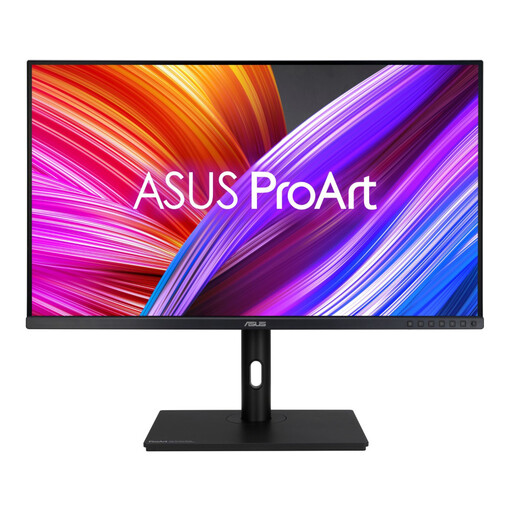
Why This Fits Their Persona: Photographers, designers and editors gain a larger 31.5-inch canvas for detailed work, timelines and multi-window layouts.
The specification lists factory calibration, Delta E < 2, 100% sRGB and 100% Rec.709, giving buyers more meaningful information than gamut claims alone.
Ergonomic height, pivot, swivel and tilt adjustment, plus four USB 3.2 hub ports and HDR10 support.
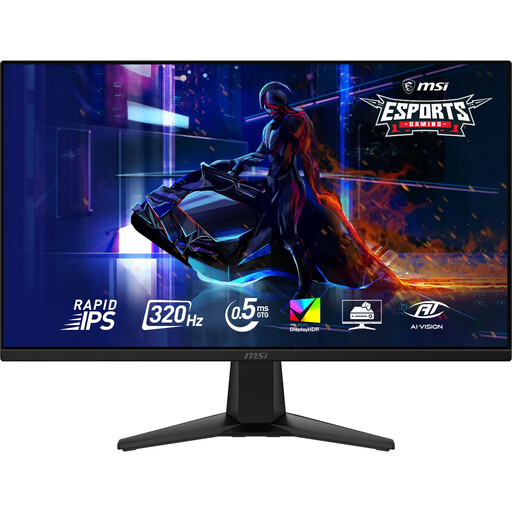
Why This Fits Their Persona: Competitive PC and console gamers who prioritise fast motion can use its high refresh rate and Adaptive-Sync features.
The product specification separates its 320Hz DisplayPort performance from its HDMI 2.1 connection, helping buyers plan around their device and cable requirements.
Rapid IPS panel, 0.5ms GtG response specification, VESA DisplayHDR 400 and console VRR support.
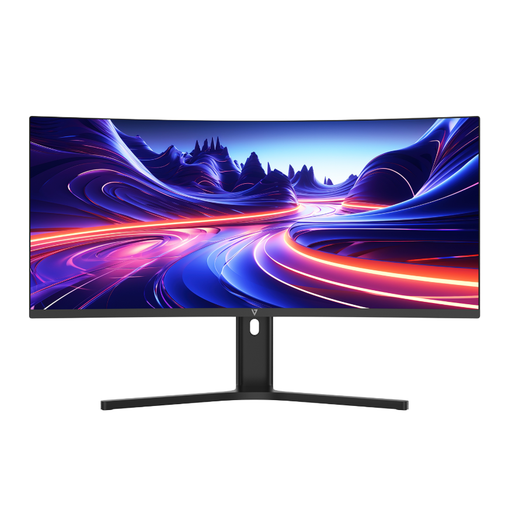
Why This Fits Their Persona: Its 21:9 layout suits UK home-office users handling spreadsheets, editing timelines or several applications at once.
The listing specifies 3440 × 1440 resolution, a height-adjustable stand and 65W USB-C Power Delivery rather than presenting width alone as the benefit.
1500R curved VA panel, Picture-by-Picture support, built-in speakers and USB-C laptop charging.
We have compiled a complete, real-time list of products that fully satisfy these strict selection criteria and UK safety regulations.
In most monitor listings, 1440p refers to the vertical resolution of 2560 × 1440, while WQHD describes the same resolution category. Ultrawide models use a wider format, commonly 3440 × 1440.
Requirements depend on the games and settings you use. Office applications and video playback are less demanding, while high-refresh gaming at 165Hz or above requires a graphics card capable of producing high frame rates at 2560 × 1440 or 3440 × 1440.
Running costs depend on wattage, brightness, HDR mode and daily usage. Check the typical power-consumption figure on the specification sheet and remember that a larger, brighter screen may use more electricity. Lowering brightness when appropriate can reduce consumption without changing the resolution.