Window-side newsletter writers
You regularly draft or proofread beside a bright window and want to keep text readable when daylight reaches the screen.


For writing a local newsletter beside a bright window, start with the exact screen: look for documented anti-glare or anti-reflection treatment as well as a brightness rating. Lenovo’s ThinkPad X1 Carbon configuration 21NS0171UK documents both; a MacBook Air offers a specified 500-nit display if macOS suits your workflow, but brightness alone will not settle the question of reflections. Check your keyboard, software and charging needs before choosing either route.
You regularly draft or proofread beside a bright window and want to keep text readable when daylight reaches the screen.
You take your writing to meetings or community venues, so carrying weight, typing comfort and a workable charging plan matter alongside the screen.
Your newsletter depends on particular software, fonts, shared files or peripherals. Keeping those tools working may matter more than a small difference in display specifications.
Check the screen against the light at your writing desk, then choose a Windows or macOS route that works with your newsletter tools. Portability and battery claims matter more if you also edit away from home.
Consider it when: Reflections are a frequent problem. Lenovo UK specifies both 500 nits and anti-glare and anti-reflection treatment for ThinkPad X1 Carbon configuration 21NS0171UK.
Bear in mind: Check the exact part number; those panel details should not be assumed for every X1 Carbon.
Consider it when: Your newsletter tools work on macOS and you want a compact MacBook Air with Apple’s specified 500-nit display.
Bear in mind: Assess the screen in your intended light rather than treating its brightness rating as a measure of reflection control.
Consider it when: You favour the XPS 13’s compact form and can check the display fitted to the configuration you intend to buy.
Bear in mind: Confirm its brightness, screen finish and charging arrangement. Dell UK states that a charger is not included with the current XPS 13.
| Concern | What to check | Who this matters to |
|---|---|---|
| Screen readability | Check the exact panel’s brightness in nits and whether its surface is described as anti-glare or anti-reflective. View a document in similar light if possible. | If daylight reflects across a page I am proofreading, I need to see the text without continually moving the laptop; around 42% of consumers put glare control first. |
| Writing comfort | Try the keyboard where possible and check its layout. Decide whether the screen leaves enough room for your document and reference material. | When I spend a long session drafting and checking layouts, the keyboard and working area shape my choice; around 25% of consumers prioritise writing comfort. |
| Portable use | Compare carrying weight, charger arrangements and the activity used for any stated battery-life figure. | If I revise the newsletter at meetings without easy access to a socket, I need a laptop and charging plan I can carry; around 17% of consumers put portable use first. |
| Workflow continuity | Confirm that your editor, fonts, shared files and printer work with the operating system you choose. | When contributors and templates already depend on particular tools, I want to keep that workflow intact; around 16% of consumers make compatibility their primary concern. |
A brightness rating describes the display’s light output; it does not tell you how much of the window you will see reflected in its surface.
Check both specifications for the exact panel, and try a document on screen in similar daylight if you can.
A manufacturer’s stated maximum applies to a named activity and may not reflect writing with the screen set as bright as you need it.
Read the battery-test description and plan how you will charge the laptop during longer sessions away from a socket.
Even a screen chosen with reflections in mind can face a difficult window angle.
Where practical, position the display so the window is not directly reflected in it, and adjust blinds or curtains when needed.
Fingerprints can make the screen distracting, while pressing hard or applying cleaning products can damage it. Avoid cleaning products on laptop displays.
Start with a dry microfibre cloth. For stubborn marks, use a lightly dampened, well-wrung cloth rather than applying liquid to the laptop.
The ThinkPad X1 Carbon Gen 13 Aura Edition offers a Windows route for writers who want documented display details for a particular configuration.
MacBook Air is a macOS route for writers whose existing newsletter tools work in Apple’s ecosystem.
The current XPS 13 is another compact Windows option to assess against your carrying and screen requirements.
These laptops offer different screen sizes and Windows or macOS routes for newsletter writing. Compare the exact display and your software needs before treating any one model as a fit for your window-side desk.
 No image available
Consider its larger screen for drafting documents, but confirm the exact panel’s brightness and finish for your window-side desk.
The named configuration has an Intel N150 processor, 8GB DDR4 RAM, a 128GB SSD and Windows 11 Home. Check the installed Windows edition and any app restrictions before relying on a particular newsletter editor.
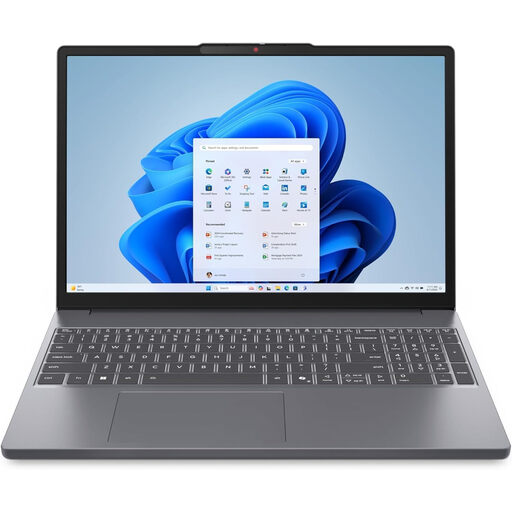 No image available
The 15.3-inch screen may suit a document-and-browser workspace. Check its brightness and surface treatment against the light where you write.
This configuration names an AMD Ryzen 5 7535HS processor, 24GB DDR5 RAM, a 512GB PCIe SSD and Windows 11 Home. Confirm the keyboard layout if English (UK) keys matter to you.
 No image available
If you want a 15.6-inch screen for newsletter layouts, assess this model’s display in the light you expect to use; screen size alone cannot settle readability beside the window.
The named configuration has an AMD Ryzen 7 170 processor, 16GB RAM, a 1TB SSD, GeForce RTX 5050 graphics and a 144Hz FHD display. Check carrying weight and expected runtime if you will edit away from a socket.
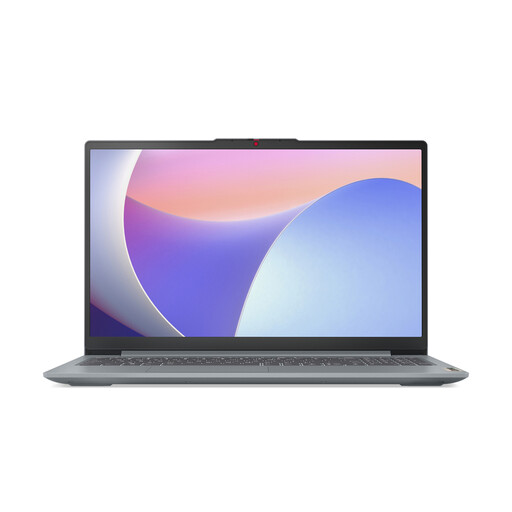 No image available
Its 15.6-inch display gives you room to work on a newsletter, subject to checking how the exact screen handles your window’s light.
The named configuration includes an Intel Core i5 processor, 8GB RAM and a 512GB SSD. If you plan to edit at meetings, check its stated battery runtime and arrange access to charging rather than assuming it will cover a long unplugged session.
 No image available
Consider this compact macOS route if your newsletter software and files work on Mac. Apple specifies a 500-nit display for the current MacBook Air, but you should still assess reflections in your intended light.
This variant names an M5 chip with a 10-core CPU and 10-core GPU, 24GB memory and a 1TB SSD. Check the keyboard layout if you need English (UK) keys, and compare battery claims using their stated activity rather than assuming the same runtime at high screen brightness.
Check both its stated brightness and whether the exact panel has anti-glare or anti-reflection treatment. Then consider the window’s position: a screen specification cannot tell you how the display will look at every desk angle.
No. A 500-nit rating describes brightness, not how the surface handles reflections. If the window appears in the screen, changing its angle or adjusting blinds may help regardless of the laptop you choose.
Choose the operating system that runs your newsletter editor and works with your existing fonts, shared files and printer. Within that route, compare the exact screen specifications needed for your bright-window workspace.
Start with a dry microfibre cloth and avoid pressing hard. Avoid cleaning products on laptop displays; for stubborn marks, use a lightly dampened, well-wrung cloth without letting liquid enter the laptop.