What to check before buying
For Linux learning at a shared desk, establish what your course software requires before deciding where the computer will sit and how much capacity your next projects need.
x86 mini PC
Choose it when: Your lessons assume ordinary PC hardware, linux/amd64 containers or local virtual machines.
Allow for: Ubuntu certification and other Linux-support claims apply to particular configurations, not every model from the same brand.
Raspberry Pi 5
Choose it when: ARM Linux, GPIO, Raspberry Pi OS or device-oriented projects are part of what you want to learn.
Allow for: Some x86 software needs an arm64 alternative or emulation, and a working setup needs storage and a suitable power supply.
| Concern |
What to check |
Who this matters to |
| Architecture and Linux support |
Check whether course downloads and containers require x86-64 or have arm64 versions. For Ubuntu, check support for the exact hardware configuration. |
If my course expects PC binaries or linux/amd64 images, I want to avoid changing tools halfway through. Around 33% of consumers put architecture and Linux compatibility first. |
| Desk fit and access |
Check mounting compatibility, display ports, cable clearance and access to power and USB ports in your planned position. |
When someone else uses the same desk, I need a place for the computer that does not make shared peripherals awkward to reach. For around 25% of consumers, physical fit is the main concern. |
| Memory and storage |
Check installed RAM and SSD capacity against planned tools, and whether the exact model permits upgrades. |
If I expect my projects to grow into virtual machines, containers and stored installation images, I need room beyond a basic desktop installation. Around 25% of consumers prioritise capacity and expansion. |
| ARM and GPIO projects |
Check for arm64 software and container images, then account for the Pi's power supply, storage and any cooling your use requires. |
I want to learn how Linux works on ARM hardware and connect projects through GPIO, even if that means adapting some PC-focused lessons. ARM and Pi-specific work comes first for around 17% of consumers. |
Joybuy products to consider
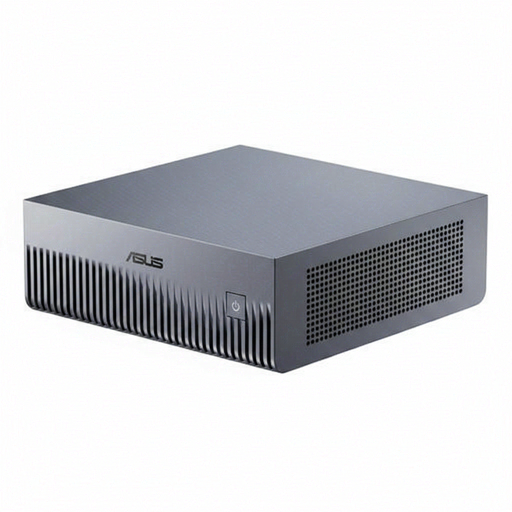
These products represent two different ways to approach Linux learning at a shared desk: a compact ASUS system supplied with NVIDIA DGX OS and an x86 FIREBAT mini PC. Check your course software and physical setup against the particular machine rather than treating them as interchangeable.
 No image available
ASUS Ascent GX10, NVIDIA GB10 Grace Blackwell, 128GB, 1TB
Consider this DGX OS system only after confirming that your intended Linux lessons and software suit its platform.
The listed configuration has NVIDIA GB10 Grace Blackwell, 128GB unified memory and a 1TB NVMe SSD. Check its power and display requirements against your desk setup.
View on Joybuy
 No image available
FIREBAT F1, Ryzen 5 7640HS, 24GB RAM, 512GB SSD
This x86 mini PC is relevant to PC-oriented Linux lessons, provided the exact hardware works with your intended distribution.
The listed configuration has a Ryzen 5 7640HS, 24GB LPDDR5 RAM, a 512GB PCIe 4.0 SSD, USB4, HDMI 2.1 and 2.5GbE. Check wireless-driver support and mounting arrangements if either matters to your setup.
View on Joybuy
Questions about Linux learning
Will a Raspberry Pi run the same Docker containers as an x86 mini PC?
Only if the container provides code for the Pi's architecture, or you use emulation. Docker distinguishes linux/amd64 and linux/arm64 images, so check the image or project documentation for arm64 before choosing a Pi for a particular course.
How much memory and storage do I need to start learning Linux?
Start with the requirements of your intended distribution and learning tools, not just the space needed to install the operating system. Canonical recommends 6GB RAM and 25GB storage for Ubuntu Desktop in its cited configuration; virtual machines, containers and saved installation images may call for more capacity.
What should I check before putting a mini PC behind a shared monitor?
Check that the monitor and bracket have a compatible mounting arrangement, then check cable clearance, airflow, power-button access and the required display ports. A model's compact size alone does not establish that it can be monitor-mounted.
Does a Raspberry Pi 5 need a cooler for Linux learning?
Plan cooling around the case and workload you intend to use, particularly for sustained activity. Raspberry Pi offers an Active Cooler and a case with a fan; also account for storage and a suitable power supply when assembling the setup.
What should I do with an old mini PC in the UK?
Use an appropriate electrical-waste collection or retailer take-back route rather than treating an old mini PC as ordinary household waste. GOV.UK describes the UK Waste Electrical and Electronic Equipment framework as supporting recovery, reuse and recycling; check the collection options available to you.


