For hands-free lessons from a sofa, start by considering a USB speakerphone with documented acoustic echo cancellation, used as both the call microphone and speaker and placed within its stated pickup range. A boom-mic headset is an alternative if wearing one is acceptable; a separate microphone used with television speakers needs a test call with the actual setup to check for echo.
Who needs which setup?
Hands-free TV lesson participants
If you join from a sofa or chair facing the television, you need a microphone close enough to pick up questions without wearing a headset. Zoom Support’s echo guidance also makes the position of room speakers and other active audio devices important.
Noise-sensitive shared-home callers
If household sounds compete with your voice, a boom-mic headset is worth considering when wearing one is acceptable. Logitech specifies two noise-cancelling boom microphones for its Zone 305; check the connection requirements of the exact variant.
Simple video-call upgraders
If you sit near the screen and also need a camera, a webcam with a built-in microphone combines the two functions. Check the intended speaking distance before relying on a screen-mounted microphone from the sofa.
What matters when choosing?
For a computer connected to a living-room television, decide where lesson audio will play before choosing the microphone and its position.
| Concern |
What to check |
Who this matters to |
| Echo from room speakers |
Check for documented acoustic echo cancellation and test the chosen microphone and speaker together at normal listening volume. Keep just one nearby device active for call audio. |
If lesson audio plays through room speakers, I need to ask questions without my microphone sending that sound back into the call; around 36% of consumers would put echo control first. |
| Voice pickup at a distance or in noise |
Check the exact model’s stated pickup range or microphone design against your seating position, then test it with typical household sound. |
From the sofa, or when other people are making noise, I need my questions to remain intelligible; around 29% of consumers would prioritise clear voice pickup. |
| Hands-free use without a headset |
Check that the speakerphone connects to your computer and that its microphone range reaches the place you normally sit. |
I want to take part without wearing a close-up microphone, while still being able to speak from my usual seat; around 21% of consumers would make headset-free use their main concern. |
| Simple, compatible setup |
Check the computer’s ports, operating system and call app, then select the intended microphone and speaker in the app before joining. |
If I sit near the screen, I may prefer a straightforward camera-and-microphone setup over arranging separate devices; around 14% of consumers would put setup simplicity first. |
Common setup mistakes
-
Choosing a microphone before deciding where audio will play
A separate microphone can pick up sound from the television or external speakers. Zoom Support identifies nearby active audio devices and speaker placement among causes of echo.
Either select a speakerphone for both microphone input and call playback, or test the separate-microphone arrangement at the volume you will use during lessons.
-
Assuming Bluetooth works the same way on every computer
Connection options depend on the product and variant. Jabra specifies USB computer connectivity for the Speak2 55, while its Bluetooth connection is for smartphones and tablets; Logitech Zone 305 versions also differ in how they connect.
Check the exact variant against your computer, operating system and meeting app before choosing a wireless connection.
-
Treating a webcam microphone as a room microphone
A webcam microphone stays at the screen, which may be well away from someone speaking on the sofa. A built-in microphone alone does not establish that it will suit that distance.
For near-screen seating, check the webcam’s microphone details; for sofa seating, compare a speakerphone’s stated pickup range with the planned device position.
-
Expecting noise suppression to fix echo
Reducing background sound is different from keeping speaker output out of the microphone. Microsoft Support describes background-noise suppression in Teams, while Zoom Support separately identifies physical audio arrangements that can cause echo.
Set up the intended microphone and speaker first, then make a test call with the television volume and household conditions you expect during the lesson.
Relevant brands to consider
Jabra
The Speak2 55 is a speakerphone option for computer calls where hands-free listening and speaking need to work together.
- Jabra specifies USB-A or USB-C computer connectivity, four microphones, acoustic echo cancellation and a pickup range of up to 2.3 m for the Speak2 55.
- Jabra specifies Bluetooth for smartphone and tablet use on this model. Check that your seat falls within the stated pickup range and use the connection intended for your computer.
AnkerWork
The PowerConf A3301 offers a portable speakerphone format for hands-free calls.
- AnkerWork specifies six microphones arranged for 360-degree pickup and a USB-C connection for computers.
- If television speakers will remain active, test the complete audio arrangement for echo rather than relying on microphone noise-reduction claims alone.
Logitech
The Zone 305 headset and Brio 100 webcam illustrate two different approaches: a microphone worn close to the speaker and one fixed at the screen.
- Logitech specifies two noise-cancelling boom microphones for the Zone 305 and a built-in microphone for the Brio 100.
- The headset does not meet a no-headset preference. For sofa use with the Brio 100, check whether its screen-side position suits the speaking distance and speaker arrangement.
Joybuy product choices
These choices include speakerphones for hands-free call audio and webcams with built-in microphones for a screen-side setup. Match the connection and microphone position to your living-room computer and usual seat.
 No image available
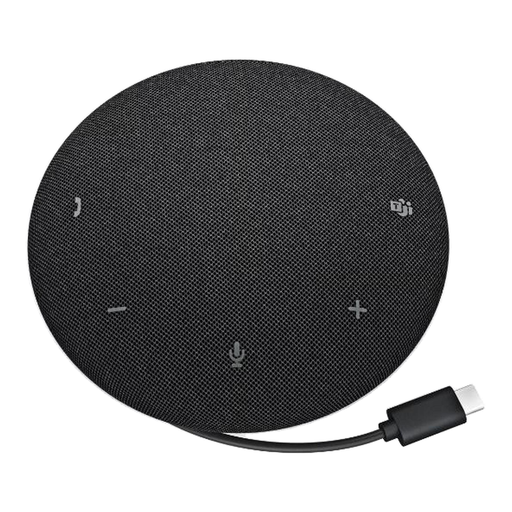
DELL Pro Wired Speakerphone SP325
Consider this wired speakerphone for hands-free lessons without a headset. Check its connection to your computer and test the intended call playback arrangement if television speakers will be in use.
View on Joybuy
 No image available
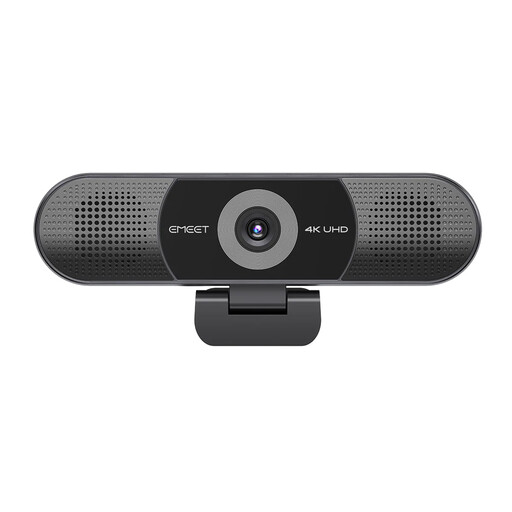
EMEET All-in-One 4K Webcam with Sony Sensor, 4-Mic Array and Dual AI Speakers
Consider this combined camera-and-audio setup if a webcam at the screen suits your seating position. Its name specifies a Sony sensor, four-microphone array, dual speakers and USB connection; test voice pickup and echo with the webcam in its intended place.
View on Joybuy
 No image available
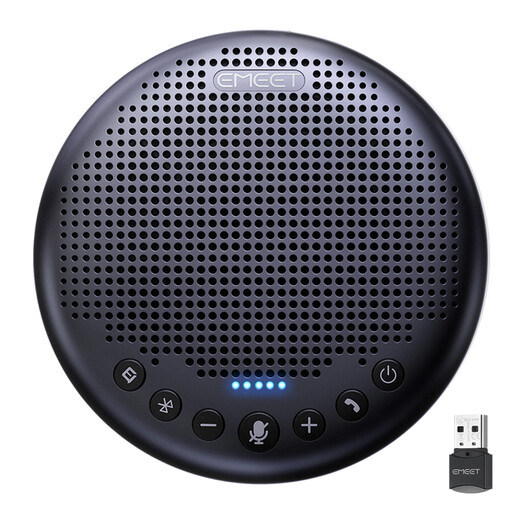
EMEET Lunaplus 8-Mic Bluetooth Conference Speaker
Consider this speakerphone if you want to speak without wearing a headset. Its name specifies eight microphones, 360-degree voice pickup, Bluetooth and a 5W speaker; check computer connectivity, seating distance and echo with your intended playback setup.
View on Joybuy
 No image available
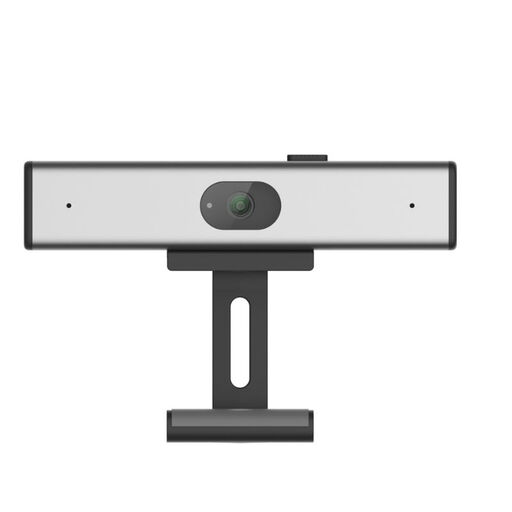
Philips SPL6308S/00 2K QHD PC Webcam, Silver EU Version
Consider this clip-on webcam for a screen-side call setup without a headset. Its name specifies a noise-reduction microphone; check the computer connection and test whether speech from your seat is picked up clearly without echo from the television.
View on Joybuy
Frequently asked questions
How can I reduce echo when my computer is connected to a television?
Use one nearby device for active meeting audio, keep the microphone away from room speakers and test the arrangement before the lesson. Zoom Support identifies nearby active audio devices and speaker placement as echo causes; a speakerphone with documented acoustic echo cancellation is worth considering if you want hands-free playback and speech through one device.
Should I connect a speakerphone to my computer by USB or Bluetooth?
Use the connection specified for your exact speakerphone and computer rather than assuming Bluetooth computer audio is supported. Jabra specifies USB-A or USB-C for computer use with the Speak2 55 and Bluetooth for smartphones and tablets; whichever connection you choose, select the intended microphone and speaker in the call app.
Can a webcam microphone work for lessons from the sofa?
It may work if your voice is picked up clearly from your actual seat, but a microphone fixed at the screen should not be assumed to cover sofa distance. Check the exact webcam’s pickup information and make a test call with the television or other intended speaker output.


