For a school yearbook you will approve for print, prioritise a monitor and workflow that let you make colour-managed decisions; if arranging spreads and reading small captions take most of your time, prioritise a sharp, comfortable layout workspace. A USB-C connection may simplify a laptop desk, but check video compatibility and charging separately. As Adobe’s colour-management guidance explains, monitor specifications alone cannot establish how colours will appear on the printer and paper used for the finished book.
Who this choice matters to
Print-conscious yearbook editor
If you retouch photographs and approve colour-sensitive pages, you need a dependable monitor profile and a way to check the intended print output. Adobe’s guidance on ICC profiles and soft-proofing explains why the display is only one part of that workflow.
Detail-focused page designer
If you spend long sessions arranging spreads, captions and image crops, look for enough usable workspace and text that remains comfortable to read at your chosen scaling. Adobe notes that high-density displays can show sharper text and clearer images.
Laptop-based home-office creator
If you want to connect a laptop and desk peripherals through the monitor, compare its USB-C functions with your laptop’s video output and charging needs. The power-delivery ratings published by EIZO and ASUS for their respective monitors differ, so the port label alone is not enough.
What to check before buying
Decide whether approving printed colour or working comfortably on detailed pages is the harder part of your yearbook project. Then check the connection you intend to use at your home-office desk.
| Concern |
What to check |
Who this matters to |
| Screen-to-print colour |
Check the exact monitor’s colour-management and calibration features, and ask the print supplier for the relevant output profile. |
If I approve retouched photographs for print, I need to judge their colour using the intended output workflow rather than the screen alone. Around 36% of consumers put reliable screen-to-print decisions first. |
| Layout workspace |
Compare screen size and resolution, then check whether captions and software controls remain legible at your preferred scaling. |
When I arrange spreads and fine type for hours, I need enough usable space without making everything awkward to read. For around 29% of consumers, comfortable detail-heavy layout is the primary concern. |
| Laptop connection |
Check laptop video support and compare its charging requirement with the monitor’s USB-C power-delivery rating. |
I want fewer cables on my desk, but the display still has to carry video and supply suitable power to my laptop. A one-cable connection is the main concern for around 21% of consumers. |
| Right level of capability |
Establish who approves printed colour, then compare the features you will use with the exact model’s warranty and desk-space requirements. |
If my work is mainly arranging pages and reviewing files on screen, I do not want print-specialist features to drive the choice unless I will use them. Around 14% of consumers chiefly want capability matched to that narrower task. |
Mistakes to avoid
-
Assuming a wide colour gamut guarantees a matching print
A gamut figure describes a display characteristic, not the behaviour of the printer and paper. Adobe explains that ICC profiles are needed to interpret colour across devices and to soft-proof output.
Use an appropriate monitor profile and the print supplier’s relevant output profile. For colour-critical pages, inspect a physical proof before approval.
Allow time to review that proof and correct files if it reveals a mismatch.
-
Assuming every USB-C monitor provides the same laptop connection
USB-C video support and charging power must both suit the laptop. EIZO specifies up to 60 W power delivery for the CS2731, while ASUS specifies up to 96 W for the PA27JCV; neither figure establishes compatibility with a particular computer.
Check the laptop’s video-output capability and charging requirement against the exact monitor and intended cable.
A separate charger, dock or suitable cable may still be needed.
-
Treating a compact photo monitor as the same layout workspace as a larger high-resolution display
The 24-inch 2K BenQ SW242Q and 27-inch 5K ASUS PA27JCV serve different desk and workspace preferences. More pixels can sharpen detail, but scaling also affects how large text and controls appear.
Check desk depth and try your intended page-layout software at a comfortable scaling setting if possible. Choose the screen around the work that takes most of your time.
Relevant brands to consider
BenQ
BenQ’s PhotoVue SW242Q is a compact, print-oriented reference if your yearbook work includes checking photographs before production.
- BenQ specifies Paper Colour Sync, an anti-reflection panel and Delta E ≤ 1.5 for this 24-inch 2K model.
- Check whether its screen size leaves enough room for your spreads and layout tools; its stated colour features do not replace output proofing.
EIZO
EIZO’s ColorEdge CS2731 is a reference for repeatable, colour-managed photo and print work.
- EIZO specifies a 27-inch 2560 × 1440 display, hardware calibration through the monitor LUT and more than 99% coverage of Adobe RGB and ISO-Coated V2 CMYK.
- Its USB-C power delivery is rated up to 60 W; check that against your laptop before planning a one-cable desk.
ASUS
The ProArt PA27JCV illustrates a high-density layout option with stated wide-gamut features.
- ASUS specifies a 27-inch 5120 × 2880 display at 218 PPI, 95% Adobe RGB coverage and USB-C power delivery up to 96 W.
- Confirm laptop support for the intended resolution and connection, and plan colour-to-print checks separately.
Dell
Dell’s UltraSharp and PremierColor models provide references for a 27-inch 4K USB-C display or a monitor with a built-in calibration sensor.
- Dell specifies 4K resolution and USB-C power delivery up to 90 W for the U2723QE; its UP2720QA listing specifies a built-in calibration sensor.
- Dell UK marks the cited listings unavailable or temporarily out of stock. Check the exact model’s current availability rather than assuming these are immediate purchase options.
HP
HP’s Z27xs G3 DreamColor is a reference for a professional-oriented 27-inch 4K display with USB-C connectivity.
- HP lists factory calibration, USB-C power delivery up to 100 W and height, tilt, swivel and pivot adjustment for this model.
- Check the colour-space coverage, warranty and availability of the exact model you intend to buy.
Joybuy monitors for yearbook work
These monitors offer different starting points for arranging yearbook pages, editing photographs or connecting a home-office laptop. Match the screen and connections to your work, and treat printed-colour approval as a separate workflow.
 No image available
ASUS ProArt Display PA32UCG-K 32-inch 4K Mini LED
Consider this model if you want a larger screen for arranging spreads alongside colour-conscious image work.
Its product name specifies an IPS Mini LED display, hardware calibration and Thunderbolt 3. Check that its dimensions fit your desk and that its connections meet your laptop’s video and charging requirements.
For print approval, use the appropriate ICC profiles and inspect a proof rather than relying on display features alone.
View on Joybuy
 No image available
ASUS ProArt PA27DCE-K 4K OLED
This is a colour-conscious option to assess if your yearbook work combines photo editing with detailed page layout.
The product name identifies a 4K UHD OLED display. If spreads or software panels will remain static for long periods, account for OLED image-retention risk; also check the intended laptop connection before relying on one cable.
Use the relevant monitor and output profiles, and inspect a physical proof for colour-critical pages.
View on Joybuy
 No image available
BenQ MA270UP 27-inch 4K IPS USB-C Mac monitor
Consider this model for a Mac-based desk where a high-resolution layout screen and USB-C connection are priorities.
Its product name specifies a Nano Glossy IPS display and height-adjustable stand. Confirm the connection and any Mac-specific features with your exact computer; a stated colour mode or gamut does not establish a print match.
View on Joybuy
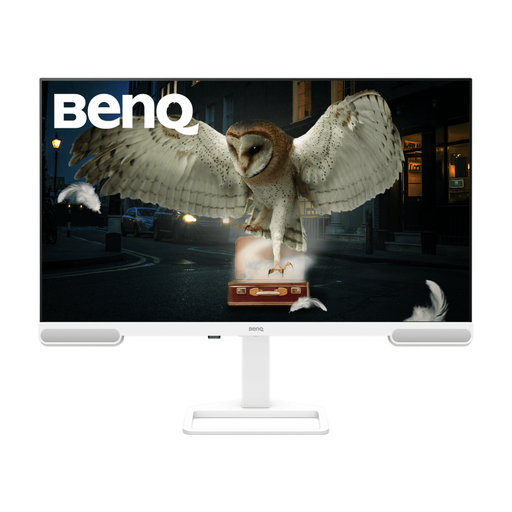 No image available
BenQ EW3290U 79.2 cm 4K Ultra HD monitor
This larger-screen option is worth considering if viewing spreads and image detail together matters more than keeping the desk footprint small.
The product name specifies 3840 × 2160 resolution. Check the included stand’s adjustment and desk fit, and confirm the laptop’s video and charging compatibility if you plan to connect by USB-C.
For print-sensitive decisions, use the relevant ICC profiles and check a proof.
View on Joybuy
 No image available
LG UltraGear G8 27G850A 27-inch 4K Nano IPS
Consider this 4K screen for detailed page arrangement if its gaming-oriented features also suit your other uses.
The product name specifies DisplayPort 2.1 and HDMI 2.1 connections. Check your required laptop connection separately; the stated display features do not establish a colour-managed print-proofing workflow.
View on Joybuy
Frequently asked questions
Do I need a wide-gamut monitor to make a school yearbook?
Not necessarily: prioritise a colour-managed, wide-gamut workflow if you will retouch photographs or approve colour for print. If you mainly arrange pages and review them on screen, a sharp display with a suitable sRGB workflow may meet that task. Adobe’s guidance stresses that correct ICC profiles matter whenever you judge colour across devices.
Will calibrating my monitor make the printed yearbook match it exactly?
No. Calibration addresses the monitor side of colour management, while the printer, paper and their output profile also affect the result. Adobe describes soft-proofing with colour profiles; inspect a physical proof when printed colour is critical to your approval.
Can one USB-C cable connect my laptop, monitor and peripherals?
It can if the laptop and monitor support the required video and USB functions and the monitor supplies enough charging power. EIZO rates the CS2731 at up to 60 W USB-C power delivery and ASUS rates the PA27JCV at up to 96 W; compare the exact monitor with your laptop and intended cable before planning around one-cable use.
How should I dispose of an old monitor?
Check the electrical-equipment collection arrangements for your address rather than putting the monitor in general rubbish. Oxfordshire County Council says electrical and electronic equipment must not go in general waste and describes take-back and recycling-centre routes; local collection arrangements vary.


