Live timetable multitaskers
If you keep journey planners, operator timetables, maps, alerts and work documents open together, the useful question is how many windows you need to read without switching between them.


Choose a 27-inch QHD monitor if you mainly compare two timetable or work windows and need a less wide screen. A 34-inch 21:9 ultrawide gives several windows more room side by side, provided it fits your desk; if you use two computers, consider a built-in KVM separately, and check USB-C charging against your laptop rather than assuming either feature comes with a particular screen size.
If you keep journey planners, operator timetables, maps, alerts and work documents open together, the useful question is how many windows you need to read without switching between them.
If one laptop stays at a home desk, display connections, cable arrangements and stand adjustment may matter more to you than gaming-oriented features.
If you compare information across a work device and a personal computer, a compatible built-in KVM can let one keyboard and mouse control both sources.
Decide how many windows must remain readable at once, then check the desk fit, laptop connections and screen adjustment your working setup requires.
| Concern | What to check | Who this matters to |
|---|---|---|
| Visible workspace | Compare the native resolution and screen width with your usual timetable, map and document layout; measure the desk before choosing an ultrawide. | I want departure times, route maps and work notes visible together rather than repeatedly changing windows. Around 36% of consumers put visible workspace first. |
| Laptop connection | Check USB-C video support on the laptop and monitor, the monitor’s power-delivery rating and the laptop’s charging requirement. | A fixed laptop desk feels easier to manage when the display connection can also handle the charging and peripherals I need. Roughly 29% of consumers prioritise that connection setup. |
| Screen positioning | Check height, tilt, swivel or pivot adjustment as needed, and whether the screen can sit comfortably on your desk. | For regular home-office work, I need to position the screen without working around a fixed stand. About 21% of consumers make adjustment their main concern. |
| Two-computer control | Check the KVM’s source and USB connections, and whether its multi-source display modes suit your workflow. | I move between a work computer and a personal one while checking journeys and would rather use one keyboard and mouse. Around 14% of consumers put two-computer control first. |
A 34-inch ultrawide takes more desk width than a 27-inch display. Extra window space is less useful if the screen forces an uncomfortable viewing position.
Measure desk width and depth, then account for the monitor base, keyboard and laptop before choosing the format.
A poor fit may mean reorganising the desk or using a compatible monitor arm.
USB-C video capability and power delivery depend on the particular monitor and laptop; a monitor’s stated output may not meet a laptop’s charging requirement.
Confirm USB-C video support at both ends and compare the monitor’s power-delivery rating with your laptop’s requirement.
A KVM addresses switching between connected computers. It does not itself add screen space or make timetable text clearer.
If you use two computers regularly, check the required display and USB connections. Otherwise, prioritise the screen format and adjustment your daily layout needs.
Stand adjustment helps place the display, but keyboard position, desk layout and working habits still matter. The Health and Safety Executive advises considering the full setup for regular display-screen work at home.
Set the screen position as part of the wider workstation and, for employment-related home working, ask your employer about the applicable display-screen-equipment assessment arrangements.
Dell’s UltraSharp U2724D is a reference point for a flat 27-inch QHD home-office layout with an adjustable stand.
The GW2790QT is relevant to a laptop-first desk where QHD resolution, USB-C and screen adjustment are priorities.
LG’s 34BA75QE is a reference point for keeping several timetable, map and work windows on one wide screen.
Samsung’s ViewFinity S65UC is relevant when two connected computers need to share a screen, keyboard and mouse.
The ProArt PA278QV is a 27-inch QHD reference for buyers who also need an adjustable stand; its colour-focused features serve a separate need.
These choices include wide screens for keeping several planning windows visible and conventional-format displays for a home desk. Check each model’s size, connections and fit against your own timetable layout; the products differ from the brand examples above.
 No image available
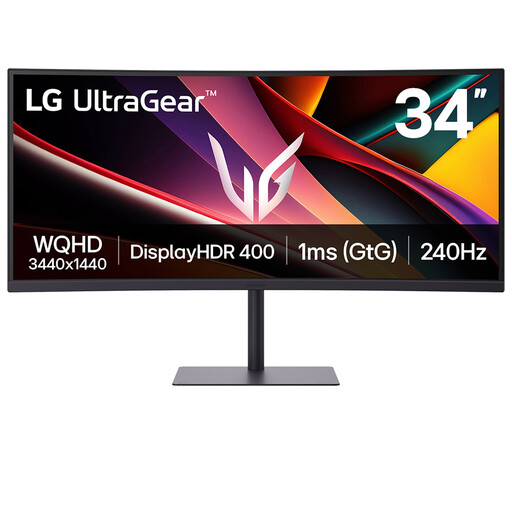
Consider this wide-format model when you want timetable, map and work windows visible together. Its product title states a 34-inch VA WQHD screen and 240 Hz refresh rate. Check the desk fit and your laptop’s USB-C video and charging requirements before planning a one-cable setup.
 No image available
Consider this model if a conventional-format WQHD screen suits the number of timetable and browser windows you keep open. The product title identifies an IPS WQHD display. If you want to connect and charge a laptop through USB-C, confirm the video connection and power-delivery rating against that laptop.
 No image available
Consider this wide screen if several planning windows need to remain in view. Its product title states 3440 × 1440 resolution and two HDMI and two DisplayPort 1.4 connections. Measure the desk and check that your computer has a suitable display output and cable.
 No image available
Consider this conventional-format option if a larger 4K screen fits your desk and preferred window layout. Its product title states 3840 × 2160 resolution, a USB hub and USB-C 65 W power delivery. Confirm the exact screen-size variant and USB-C video compatibility before relying on it with a laptop.
A 27-inch QHD monitor is a practical choice if you mainly read two windows at a time and have limited desk width. Dell UK and BenQ UK list 2560 × 1440 displays in this format; if several windows must stay visible, compare your layout with a 34-inch 3440 × 1440 ultrawide such as the one specified by LG UK.
Check that your laptop’s USB-C port supports video output, that the monitor accepts that video connection and that its power delivery meets your laptop’s charging requirement. BenQ UK specifies DisplayPort Alt Mode and 65 W power delivery for the GW2790QT; LG UK specifies power delivery up to 90 W for the 34BA75QE.
If you use a display regularly for employment-related home working, ask your employer whether an individual display-screen-equipment assessment is needed for your setup. The Health and Safety Executive says its guidance can apply to permanent or long-term home working and to people who routinely divide their working time between home and the workplace, including daily display-screen use for continuous periods of an hour or more.
A built-in KVM is useful if you regularly switch between two computers and want one keyboard and mouse to control both. Samsung Business UK describes that arrangement for the ViewFinity S65UC; check its required inputs and USB connections against your devices before choosing it for that purpose.