What matters when choosing
Choose between a denser 27-inch view and a physically larger 31.5- or 32-inch view, then check the screen’s position at your standing height. Treat docking and specialist controls as requirements only if your workflow uses them.
| Concern | What to check | Who this matters to |
|---|
| Map detail and viewing area |
Compare native 3840 × 2160 resolution with screen size, desk distance and your map application’s scaling. |
If fine labels and boundary lines are my priority, I want enough detail without constantly changing the map view. Around 36% of consumers put map readability and usable workspace first. |
| Standing position and glare |
Check height adjustment or compatible mounting, desk clearance and reflections at your standing position. |
When I raise the desk, I need the screen at a suitable height and away from distracting reflections; around 29% of consumers make positioning and glare their primary concern. |
| Laptop connection |
Confirm laptop video output, charging needs and the monitor’s exact USB-C or Thunderbolt functions. |
I want to connect my laptop and desk equipment with fewer cables, but the connection has to work with my computer. For around 21% of consumers, that is the main purchasing need. |
| Multiple sources and orientation |
Check whether you need KVM switching, picture-by-picture, portrait rotation or a movable screen. |
If I compare maps from two devices or regularly change the screen’s orientation, those controls matter more than they would at a fixed, single-device desk. Around 14% of consumers prioritise this workflow. |
Joybuy monitor choices
These 27-inch and larger 4K monitors offer different ways to balance map-view size, desk fit and screen positioning. Check each model’s stand and connection requirements against your standing-desk setup.
 No image available
BenQ MA320UP 32-inch 4K USB-C monitor
Consider this larger-screen option if you want a physical map view with a height-adjustable stand.
The product name specifies a 4K UHD IPS display, Nano Glossy finish and USB-C. Check reflections at your desk and confirm which Mac-focused functions, video connections and charging features work with your computer.
Joybuy
 No image available
MSI MD272UPSW 27-inch 4K Smart Monitor
This 27-inch option suits a more compact map-viewing space if its stand reaches a comfortable standing position.
The product name specifies a 4K UHD IPS screen and USB-C with 65 W power delivery. Check the stand’s height range and your laptop’s video and charging compatibility before relying on it for desk docking.
Joybuy
 No image available
LG 27UP650K 27-inch 4K IPS monitor
Consider this compact 4K screen if HDMI or DisplayPort connections fit your map-review setup.
The product name specifies 60 Hz, HDMI and DisplayPort. Confirm the stand’s usable height range, screen finish and any laptop-docking functions you require.
Joybuy
 No image available
iiyama ProLite XUB2792UHSU-B6 27-inch 4K monitor
This 27-inch model is worth considering when you want a compact 4K map view and need to assess stand positioning at a standing desk.
The product name specifies a 4K UHD display and 16:9 aspect ratio. Check the screen finish and the exact USB-C video and charging functions before planning a laptop connection.
Joybuy
 No image available
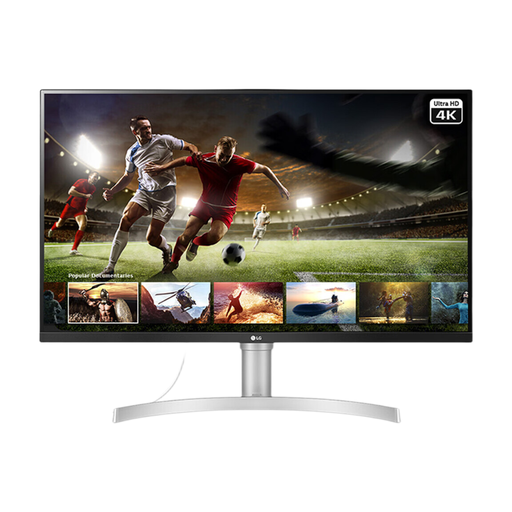
LG 32UN650K 32-inch 4K IPS monitor
This larger-screen option suits consumers who want a physically bigger map view and have room to position it at standing height.
The product name specifies 60 Hz, HDMI and DisplayPort. Check whether its stand or a compatible mount can place the screen appropriately, and confirm the screen finish and any laptop-docking functions you need.
Joybuy
Frequently asked questions
Is a 27-inch or 32-inch 4K monitor better for detailed maps?
Choose 27 inches if denser pixels and a compact desk fit matter most; choose 31.5 or 32 inches if you have space and prefer a physically larger map view. At the same 3840 × 2160 resolution, the larger panel does not add pixels: Dell specifies 163.18 ppi for its 27-inch U2723QE, while BenQ specifies 140 ppi for its 31.5-inch PD3225U.
How should I position a monitor when working standing up?
Position it so the top of the screen is at eye height and avoid glare or bright reflections, as the Health and Safety Executive advises. Check the monitor’s adjustment range or a compatible mount at your actual standing-desk height.
Does USB-C guarantee a one-cable laptop setup?
No. A one-cable setup depends on compatible video output, adequate charging power and the right cable as well as the monitor’s USB-C or Thunderbolt functions. Compare the exact laptop and monitor specifications before buying.
Do UK display-screen rules specify a monitor size?
The cited Health and Safety Executive guidance addresses assessment and reduction of workstation risks for relevant display-screen work users, rather than prescribing a particular consumer monitor size. Employers’ duties under that guidance include workstation assessment, information and training, and eye and eyesight tests on request for DSE users.
Do breaks still matter with a suitable monitor?
Yes. The Health and Safety Executive says employers must plan breaks or changes of activity for employees who are display-screen equipment users. A suitable screen does not replace attention to work routine and workstation setup.


