For animation layouts with stacked frames, timeline tracks and tool panels, prioritise vertical resolution: the cited 40-inch 5120 × 2160 monitors provide 2,160 vertical pixels, compared with 1,440 on the cited 49-inch 5120 × 1440 screen. A 49-inch 32:9 display makes more sense when broad side-by-side space matters most; a 34-inch ultrawide is easier to accommodate on a tighter desk but offers a smaller canvas. If two computers must share a keyboard and mouse, check the exact monitor’s KVM function separately from its video inputs.
Who is this for?
Animation timeline organisers
If frames, stacked tracks, references and tools need to stay visible together, compare vertical pixels and the space your software gives each panel. Dell UK and LG UK specify 5120 × 2160 for their cited 40-inch models; check how your own layout scales before choosing a screen.
Two-computer shared-desk users
If the desk alternates between computers or users, decide whether you need to view two video sources, switch a keyboard and mouse, or do both. BenQ UK lists picture-in-picture or picture-by-picture and KVM separately on its PD3225U, so check those functions on the exact model you plan to use.
Space-limited creative workers
If a 40-inch or 49-inch display would crowd the desk, a 34-inch ultrawide is another way to arrange windows on one screen. Dell UK specifies its U3425WE at 3440 × 1440; that smaller canvas is the trade-off to consider alongside desk fit.
What matters when choosing?
Choose the screen shape around your animation layout, then check the desk and computer connection. A shared keyboard-and-mouse workflow is a separate requirement, not a benefit to assume from screen size.
40-inch 5K2K ultrawide
Choose it when: stacked frames, timeline tracks and panels need more vertical room alongside horizontal space.
Trade-off: allow room for the large display and confirm that the computer and connection support the intended display mode.
49-inch 32:9 super-ultrawide
Choose it when: two broad applications or video feeds need to sit side by side.
Trade-off: the cited 5120 × 1440 format has fewer vertical pixels than the cited 5120 × 2160 models, despite having the same horizontal pixel count.
34-inch ultrawide
Choose it when: desk space rules out a larger screen but one continuous ultrawide workspace still appeals.
Trade-off: the cited 3440 × 1440 format leaves less room for a dense animation layout than 5120 × 2160.
| Concern |
What to check |
Who this matters to |
| Vertical workspace |
Compare native height in pixels and check how your animation software scales frames, tracks and panels. |
If stacked tracks keep pushing reference images or tools out of view, vertical room comes before extra width. Around 36% of consumers put this need first. |
| Computer sharing |
Check the exact model’s KVM function, video inputs and USB upstream connections; picture-by-picture alone does not establish peripheral switching. |
When I move between two computers, I want to know whether one keyboard and mouse can follow me without manual swapping. Around 29% of consumers prioritise that sharing workflow. |
| Colour workflow |
Match the exact model’s stated colour coverage and calibration information to the project’s colour space and output needs. |
For colour-sensitive review, I need specifications relevant to the work rather than a gaming or HDR label. Roughly 21% of consumers make colour confidence their primary concern. |
| Desk fit |
Measure usable desk space and stand depth, then check screen adjustment and the viewing position for each user. |
At a desk used by different people, I need a screen that can be positioned comfortably without crowding the workspace. Around 14% of consumers put physical fit and setup first. |
Buying pitfalls
-
Choosing by diagonal size alone
Samsung Business UK specifies the 49-inch Odyssey OLED G9 G95SC at 5120 × 1440, while Dell UK and LG UK specify their cited 40-inch models at 5120 × 2160. The screens have the same horizontal pixel count but different room for vertically stacked work.
Compare both dimensions of the native resolution against the frames, tracks and panels you need on screen.
-
Treating two visible inputs as keyboard-and-mouse sharing
Picture-by-picture addresses how video sources are displayed; it does not itself confirm peripheral switching. BenQ UK lists picture-by-picture and KVM as separate functions on the PD3225U.
Map each computer’s video and USB connections, then check the exact monitor’s KVM and multi-input specifications against the workflow you need.
If that workflow needs a separate KVM switch, allow for the extra device and connections.
-
Planning the screen without planning the desk
A larger display changes viewing position, available desk space and the adjustments needed when users change. The UK Health and Safety Executive advises considering screen position, lighting and the wider workstation for display screen equipment use.
Measure the desk, consider glare and check how each user will adjust the screen and seating position. For applicable workplace use, review the workstation arrangement when the user or equipment changes.
-
Assuming a port label guarantees the intended display mode
A monitor’s resolution and connectivity specifications do not establish what a particular computer, cable or dock can deliver. Dell UK advises checking device compatibility for Thunderbolt monitor features.
Confirm the intended resolution and refresh rate across the complete computer-to-monitor connection before buying.
Relevant brands to consider
Dell
Dell UK lists UltraSharp ultrawides across the 34-inch and 40-inch formats relevant to compact desks and larger animation canvases.
- Dell UK specifies the U4025QW at 5120 × 2160 and 120 Hz, with an integrated USB hub, screen adjustment and up to 140 W EPR power delivery.
- The U3425WE is specified at 3440 × 1440 with 90 W power delivery. Check the exact model rather than carrying the larger display’s canvas or connectivity specifications across the range.
LG
LG UK positions the 40-inch UltraFine 40U990A-W for detailed visual work.
- LG UK specifies a 5120 × 2160 Nano IPS Black display and Thunderbolt 5 connectivity for this model.
- Confirm the computer connection and how the screen fits the actual animation and colour workflow; the manufacturer’s positioning is not a substitute for those checks.
Samsung
Samsung Business UK lists the 49-inch Odyssey OLED G9 G95SC as a 32:9 display, relevant when side-by-side breadth is the main consideration.
- Samsung Business UK specifies this model at 5120 × 1440 and 240 Hz.
- Its 1,440 vertical pixels leave less height than the cited 5120 × 2160 models. Its gaming specification does not establish suitability for a particular colour-managed animation workflow.
Joybuy ultrawide options
These options cover 49-inch screens for broad side-by-side layouts and 34-inch screens for tighter desks. Choose around your frame and timeline layout, then check computer compatibility and any keyboard-and-mouse sharing requirement on the exact model.
 No image available
Acer Predator X49X 49-inch curved QD-OLED monitor
Consider this 32:9 screen when broad side-by-side space and switching between two computers matter more than vertical timeline room.
The title specifies a 49-inch panel, 1800R curve, 240 Hz and USB-C alongside HDMI and DisplayPort. Check that the listed KVM and multi-input functions fit your computers and peripherals, and measure the desk before choosing this size.
View on Joybuy
 No image available
Dahua 34-inch curved UWQHD 200 Hz monitor
This 34-inch option suits a desk that needs a smaller ultrawide, provided 3440 × 1440 leaves enough room for the intended frames and panels.
The title specifies a VA panel, 85% DCI-P3 coverage, two HDMI inputs and two DisplayPort 1.4 inputs. Check exact-model KVM support separately if both computers must share peripherals.
View on Joybuy
 No image available
CRUA 49-inch curved 5120 × 1440 monitor
The 32:9 layout is worth considering when two broad windows take priority over vertically stacked animation tracks.
The title specifies 165 Hz, a 1500R VA panel, two HDMI 2.1 inputs and two DisplayPort 1.4 inputs. Confirm any required KVM function, connection mode and suitable desk or mount before buying.
View on Joybuy
 No image available
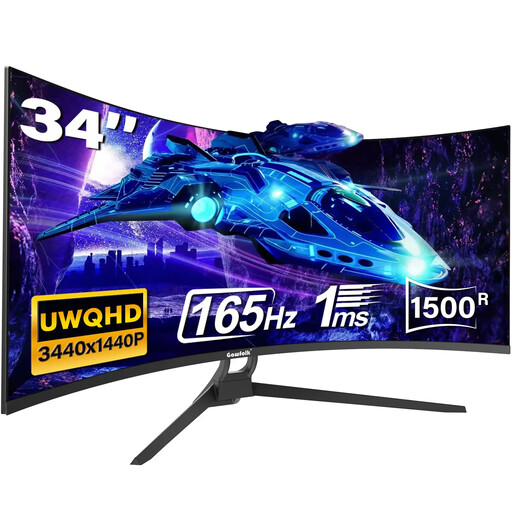
Gawfolk 34-inch curved UWQHD 165 Hz monitor
This 3440 × 1440, 21:9 option keeps the screen size down relative to the 49-inch choices, with less canvas for dense timelines.
The title lists a 1500R curve, HDMI 2.1, DisplayPort 1.4, Type-C and VESA mounting. Confirm colour coverage for colour-sensitive work and check KVM support if peripheral switching matters.
View on Joybuy
 No image available
Lepow HC-SJ34MZ5 34-inch curved ultrawide monitor
Consider the 3440 × 1440 workspace when a 34-inch screen fits the shared desk better than a larger format and the animation layout does not require a 5K2K canvas.
The title specifies a 165 Hz refresh rate. Check colour specifications for a colour-managed workflow and confirm any required KVM function on the exact model.
View on Joybuy
Frequently asked questions
Is a 49-inch screen better than a 40-inch screen for animation?
Not when vertical room is the priority: Samsung Business UK specifies the cited 49-inch G95SC at 5120 × 1440, while Dell UK and LG UK specify the cited 40-inch models at 5120 × 2160. Both formats are 5,120 pixels wide, so choose according to whether side-by-side breadth or stacked tracks and panels matter more.
Can picture-by-picture switch one keyboard and mouse between computers?
Picture-by-picture alone does not confirm that function. BenQ UK lists picture-by-picture and KVM separately for its PD3225U; look for a documented KVM function and suitable USB connections on the exact monitor you are considering.
What should I check before connecting a laptop to a high-resolution ultrawide?
Check the laptop’s supported display mode and the complete port, cable and dock path for the resolution and refresh rate you intend to use. Dell UK advises checking device compatibility for Thunderbolt monitor features and notes that some M-series chips may not support certain features.
How should I set up an ultrawide at a desk shared by different users?
Allow each user to adjust the screen position, seating and lighting for their own view, while keeping reflections and available desk space in mind. The UK Health and Safety Executive advises considering posture, furniture, screen position and glare as part of display screen equipment setup; for applicable workplace use, revisit the arrangement when the user or equipment changes.


