Outdoor and busy gate teams
At exposed entrances or during concentrated arrival periods, these teams need a device and scanning workflow they can use repeatedly, including when handling tickets with gloves.


For a sheltered entrance, start with a standard iPad or Android tablet if the ticketing app supports it and its camera works with your tickets. At an exposed or heavily handled gate, consider a rugged Android model instead. Whichever route you take, confirm app compatibility, connectivity and scanner support before equipping the whole team.
At exposed entrances or during concentrated arrival periods, these teams need a device and scanning workflow they can use repeatedly, including when handling tickets with gloves.
At a sheltered desk or turnstile, the priorities are a supported ticketing app, a camera that can capture the venue’s ticket codes and a screen suited to checking admission details.
For modest visitor volumes, camera-based checking on a standard tablet may be practical. App support, offline behaviour and any need for an external scanner still have to be checked.
Start with the ticketing system and conditions at each entrance, then choose the tablet and any scanning accessory that fit that workflow.
| Concern | What to check | Who this matters to |
|---|---|---|
| Scanning at busy or exposed gates | Test your QR codes and barcodes in the entrance lighting. For exposed gates, check the exact model’s stated protection and glove-use features. | At a busy outdoor gate, I need staff to capture codes repeatedly while handling the device in the conditions they actually face; around 42% of consumers would put reliable gate scanning and durability first. |
| App and connection continuity | Confirm supported operating-system versions, offline validation and multi-device synchronisation with the ticketing provider; test the network at each entrance. | If several staff validate tickets at once, I need to know how their devices stay in step when connectivity changes. App and connection continuity would be the primary concern for around 33% of consumers. |
| Simple indoor deployment | Check the exact tablet variant, rear-camera behaviour, charging arrangement and any accessories the workflow requires. | At a sheltered desk with a manageable flow of visitors, I want a compatible tablet without adding hardware the team will not use; around 25% of consumers would prioritise that simpler indoor setup. |
A camera specification cannot show how well a ticketing app will capture your codes. Google’s QR-scanning guidance notes that movement, poor light, glare and a dirty lens can interfere with capture.
Try printed and on-phone tickets in the expected lighting at each entrance before settling on a tablet.
Platform support is specific to the ticketing service. TicketSource describes support for particular mobile platforms and Bluetooth scanners, but that does not establish what another service—or every device version—supports.
Ask your provider which devices and operating-system versions it supports, and how offline validation and external scanners work with your configuration.
An exposed gate and a sheltered reception desk place different demands on handling and protection. Samsung’s durability claims apply to the Galaxy Tab Active5, not to standard tablets as a category.
Assess each entrance’s exposure and handling before deciding where a rugged model or protective case is appropriate.
Where ticket checking uses personal data, the Information Commissioner’s Office advises limiting that data to what is necessary for its purpose.
Configure staff access around the information needed to admit visitors, and review how the ticketing system retains that information.
The Galaxy Tab Active5 line is relevant to teams considering a rugged Android tablet for exposed or frequently handled gates.
An iPad is an option for sheltered entry points when the ticketing platform supports the intended iPad model and workflow.
The Tab M11 is relevant to a fixed indoor or sheltered Android check-in point where staff need to view ticket details on screen.
These standard Android tablets and iPads are choices to assess for sheltered or indoor ticket checking. Confirm support for your ticketing app and test its scanning workflow before choosing a model for an entrance.
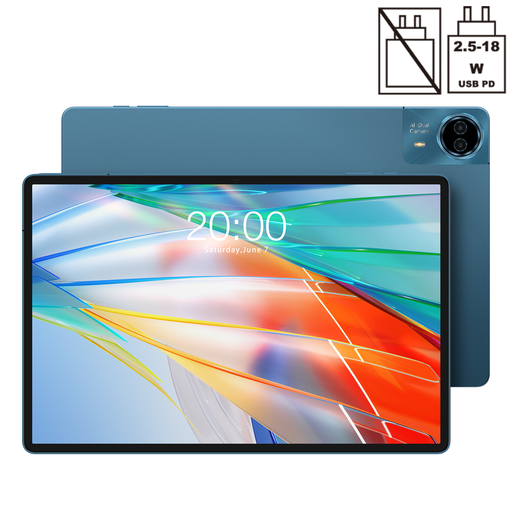 No image available
Consider its large screen for a sheltered check-in position if your ticketing app supports Android 15. The listed display resolution is 2240 × 1400; confirm rear-camera autofocus and test your ticket formats before deployment.
 No image available
Its 12.7-inch display makes it a candidate for a sheltered check-in position if your ticketing app supports Android 15. The title lists a 2K display; check rear-camera autofocus and scanning with your own tickets.
 No image available
Consider this Wi-Fi iPad for a sheltered entrance with tested network coverage. Confirm that the ticketing provider supports this model and its operating-system version, then test camera scanning with your tickets.
 No image available
This 11-inch Wi-Fi model is a candidate for sheltered admission points using a compatible iPad app. Check support for this exact model and operating-system version, and trial camera scanning at the entrance.
No image available
Consider this 13-inch cellular model where staff need a larger screen and the venue has a suitable connection plan. Confirm ticketing-app support, test scanning and check what protection the entrance conditions require.
A Wi-Fi-only tablet can work if your ticketing platform supports the intended workflow and coverage holds up at every entrance. Confirm with the provider how validation, offline use and synchronisation between devices work, then test them on site.
Consider one if camera scanning slows the queue or staff need a more repeatable scanning position. TicketSource says its scanning app supports Bluetooth barcode scanners; ask your own ticketing provider which scanner models and workflows it supports before purchasing.
Movement, inadequate light, shadows, glare or a dirty lens can prevent a clear code capture, as Google notes in its QR-scanning guidance. Test both printed tickets and codes displayed on phones under the lighting visitors will encounter.
If the workflow handles personal data in the UK, assess it under the UK GDPR and Data Protection Act 2018 identified by GOV.UK. The Information Commissioner’s Office advises limiting personal data to what is necessary for its purpose, so review what staff can see and how long the ticketing system keeps it.