What to check before choosing
Start with the files and devices you must recover, then confirm capacity, restore steps and account protection before relying on any one route.
| Priority |
What to check |
Your needs |
| Independent recovery |
Keep a recent separate copy; check the latest successful backup and test restoring a small sample. Disconnect an external recovery drive when it is not in use. |
I want to recover important files without relying on the affected phone, tablet or computer. |
| Access across devices |
Confirm which devices can sign in, what happens when files are deleted, and whether version history or a separate local copy is available. |
I want photos available on several devices without treating synchronisation as my only backup. |
| Capacity and growth |
Measure used storage, allow room for new photos and backup versions, and check the exact capacity of the selected drive. For Time Machine, Apple Support advises a disk with at least twice the Mac’s storage capacity. |
My backup needs room for today’s files and a growing photo or video library. |
| Account security |
Enable two-factor or two-step verification, retain supported recovery methods, and check what encryption description applies to the service. |
I want to protect cloud-held copies and avoid losing access to the backup account. |
| Device compatibility |
Check the port standard, cables, operating-system support, formatting requirements and the exact data types included in phone or computer backups. |
I need the backup route to work with the phone, tablet or computer I actually use. |
Joybuy external storage options
Joybuy product options for creating a separate local copy of photos, documents and computer files alongside a cloud or device-backup route.
 No image available
Western Digital My Passport 2TB Portable External Hard Drive
For computer users who want scheduled local copies of photos and documents.
2TB capacity, USB 3.2 Gen 1 connectivity, bus power and scheduled-backup software are stated. The drive is pre-formatted for Windows; the listing states that macOS 11+ use requires a downloadable compatibility driver. Check whether 2TB covers your files, backup versions and expected growth.
Joybuy
 No image available
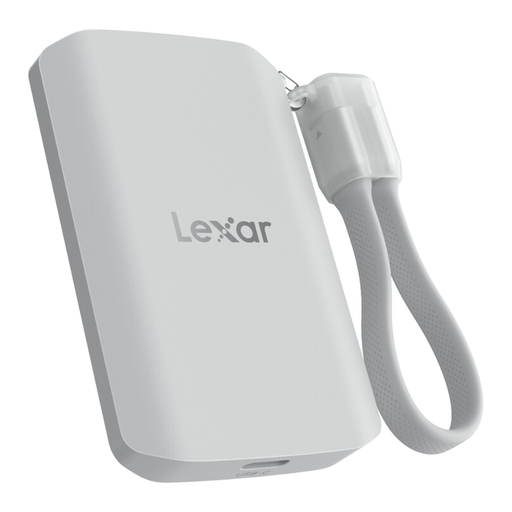
Lexar ES5 Portable SSD 1TB
For compatible mobile workflows that need a separate local copy of media.
1TB capacity, USB 3.2 Gen 2x2, claimed read and write speeds up to 2,000MB/s, IP65 protection and stated 3m drop resistance are listed. The Lexar App is stated to support media auto-backup; check the supported devices, included media and restoration process. Maximum speed may be lower on systems without USB 3.2 Gen 2x2.
Joybuy
 No image available
Samsung T7 Shield Portable SSD 1TB Blue
For moving a portable local copy between compatible Mac, PC and Android devices.
The listing states 1TB capacity, USB-C USB 3.2 Gen 2, claimed speeds up to 1,050MB/s read and 1,000MB/s write, plus IP65 and drop protection. Check capacity needs and supported operating systems for the stated password-protection and AES-256 hardware-encryption setup.
Joybuy
 No image available
Lexar ES4 Portable SSD with Magnetic Set 1TB
For transferring copies between compatible USB-C phones, laptops or cameras.
The listing states 1TB capacity, USB 3.2 Gen 2, claimed speeds up to 1,050MB/s read and 1,000MB/s write, plus USB-C and USB-A cables. Initial formatting may be needed. Magnetic mounting for iPhone 15/16 requires the included case or ring, and MagSafe wireless charging is not supported.
Joybuy
 No image available
SanDisk Portable SSD 2TB
For carrying a sizeable separate local copy of a photo or document library.
The listing states 2TB capacity, read speeds up to 800MB/s, a supplied USB cable and up-to-2m drop protection. Confirm the connector, operating-system support, file-system format and any required backup or encryption features for your workflow.
Joybuy
Frequently asked questions
Is cloud photo syncing by itself enough for irreplaceable photos?
Not if you need an independent recovery route. iCloud can keep changes, including deletions, in step across devices, while the National Cyber Security Centre advises using online storage and a storage device for two backups and maintaining an offline copy of important data.
What should I check before trusting an iPhone or iPad backup?
Check the date and time of the last successful backup, available iCloud storage, automatic-backup conditions, and whether iCloud Photos or Messages in iCloud are syncing separately. Apple Support states that automatic iCloud Backup requires the device to be on power and Wi-Fi with its screen locked.
What should I check before trusting an Android backup?
Confirm whether photos and videos, device data, or both are selected, and make sure you can access the account. Google says Android backup data other than photos or videos may be erased after 57 days of device inactivity, while previously backed-up photos and videos remain in Google Photos.
How large should an external backup drive be for a Mac?
For Time Machine, Apple Support advises a backup disk with at least twice the storage capacity of the Mac. Keep that dedicated disk for Time Machine backups rather than using it as general file storage if you need predictable backup capacity.
What account-security features should I enable for cloud backup?
Use two-factor or two-step verification, protect the device with a passcode or login password, and retain supported account-recovery options. Google and Apple both document an additional sign-in verification step, and the National Cyber Security Centre specifically advises enabling two-step verification for online backups.


