Detail-first calendar planners
If you spend long sessions checking dates, labels, venue notes and overlapping deadlines, readable text and a screen you can position comfortably are likely to shape your choice.


Start with a 27-inch 4K monitor with an adjustable stand if your main job is reading dense dates and event notes at a conventional desk. Choose an ultrawide if keeping a calendar and other planning windows side by side matters more; choose USB-C connectivity for a laptop only after checking video compatibility and charging power.
If you spend long sessions checking dates, labels, venue notes and overlapping deadlines, readable text and a screen you can position comfortably are likely to shape your choice.
If you connect a laptop at different planning desks, a USB-C monitor may simplify the setup. One-cable video, peripherals and charging depend on the laptop, monitor and cable working together.
If you regularly keep a calendar beside messages and planning references, a wide screen may suit your layout—provided there is room on the desk for the display and its stand.
For an event calendar, decide whether reading detailed entries or keeping several full-size windows visible is the harder part of your work. Treat a one-cable laptop setup as a separate compatibility decision.
Choose it when: Dense dates and notes are your priority at a conventional desk; the researched Dell and BenQ models have 3840 × 2160 panels.
Trade-off: A 16:9 screen offers less horizontal room than an ultrawide for separate, full-size planning windows, and you may need to adjust display scaling for comfortable text.
Choose it when: You need a calendar timeline beside communications or reference material. Dell UK specifies a 37.5-inch, 3840 × 1600 panel for the U3824DW.
Trade-off: That Dell model is 95.3 cm wide and has lower stated pixel density than the researched 27-inch 4K models, so allow more desk space and check text at your intended viewing distance.
| Concern | What to check | Who this matters to |
|---|---|---|
| Readable calendar detail | Compare screen size, native resolution and stand adjustment; try comfortable text scaling at your usual viewing distance. | If I work through small date cells and venue notes for hours, I need text I can read without constantly resizing windows. Around 42% of consumers put readable detail first. |
| One-cable laptop setup | Check USB-C video support on the laptop and compare its charging needs with the exact monitor’s power-delivery rating. | When I settle in to plan from my laptop, I want fewer connections to manage without losing video or adequate charging. Around 33% of consumers prioritise that laptop setup. |
| Several planning panes | Measure desk space including the stand, then check native resolution and whether your computer can output it. | I need the timeline, messages and reference material in view together, even if the wider display takes more desk room. Around 25% of consumers place multi-pane space first. |
A USB-C socket alone does not establish that a laptop can send video to the monitor or receive enough charging power. The researched BenQ PD2705U specifies 65 W power delivery, while the Dell U2723QE and LG 27UP850K-W specify up to 90 W.
Check the laptop manual for USB-C video output and compare its charging requirement with the exact monitor’s specification before ordering.
More horizontal screen space needs more physical room: Dell UK lists the U3824DW at 95.3 cm wide. A screen that cannot be centred at a suitable distance may make the desk awkward to use.
Measure the available width and depth with the stand in mind. The Health and Safety Executive advises placing the top of a screen around eye level and the screen about an arm’s length away.
Citizens Advice explains that warranties add to legal rights; they do not replace rights relating to faulty goods. A seller’s change-of-mind returns policy is a separate matter.
Keep your order confirmation, inspect the monitor when it arrives, and read the seller’s returns terms and the manufacturer’s warranty conditions.
The Joybuy page for the LG 27UP850K-W describes that particular model as no longer available. A search result is not a substitute for checking the final product page, and similar LG model numbers should not be treated as interchangeable.
Confirm the full model identifier, availability, seller and applicable terms on the product-detail page before paying.
Relevant to both compact 4K USB-C desk setups and wider, multi-pane planning layouts.
Relevant if you want a 27-inch 4K screen with colour-oriented specifications and USB-C desk connectivity.
Relevant to a 27-inch 4K USB-C route with screen-position adjustments.
These models cover 27-inch and larger 4K screens for reading calendar detail, plus an ultrawide option for planning across several panes. Match laptop connections and desk dimensions to the individual model rather than the screen category.
 No image available
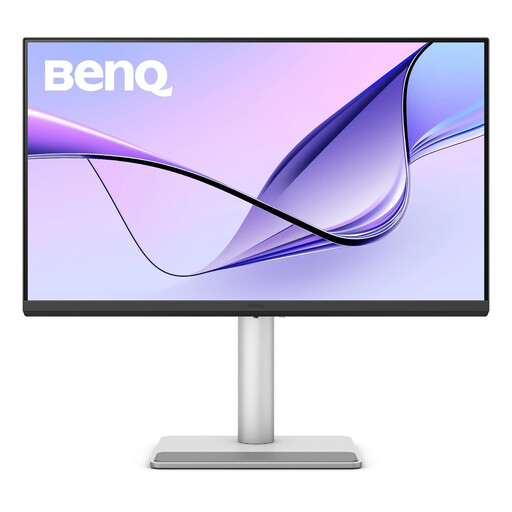
Consider this for detailed calendar work on a 27-inch screen, particularly if a USB-C connection is part of your laptop setup.
The product title identifies an IPS panel and height-adjustable stand. Check video compatibility and charging requirements for your laptop before relying on one cable.
 No image available
The 27-inch 4K IPS format suits planners who prioritise calendar and document detail.
The title specifies USB-C power delivery at 65 W. Confirm that your laptop supports USB-C video output and that 65 W meets its charging needs.
 No image available
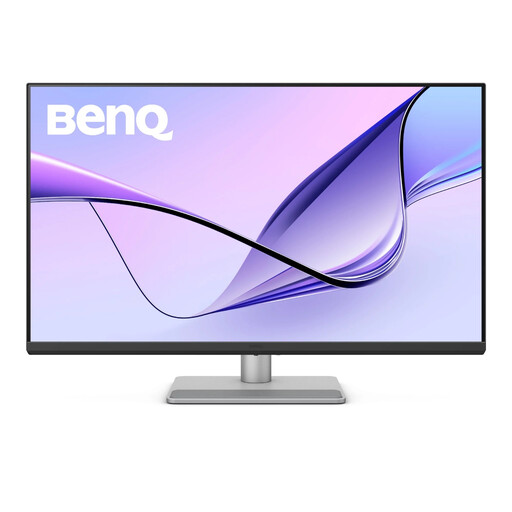
Consider the larger 4K screen if you want more physical space for a calendar and adjacent material and can position it comfortably on your desk.
The title identifies an IPS panel and height-adjustable stand. Check the monitor’s dimensions with its stand, plus your laptop’s USB-C video and charging requirements.
 No image available
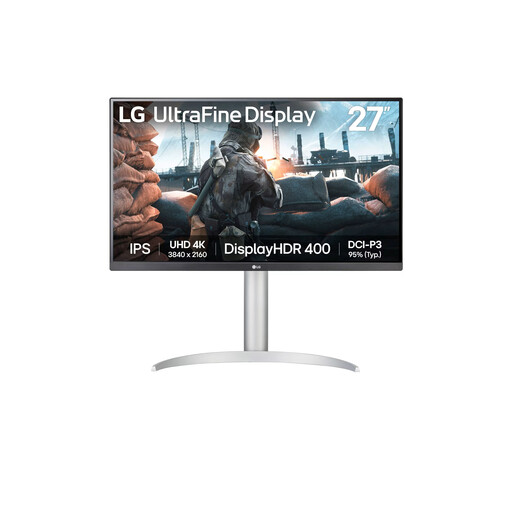
The 27-inch 4K IPS screen is a detail-first choice for calendar grids and event notes.
The title lists HDMI and DisplayPort connections. Check the exact port configuration on the product page, particularly if you need to connect more than one device; do not assume the connections of the different LG 27UP850K-W model apply here.
 No image available
Consider this format when keeping a calendar timeline beside communications or reference material matters more than choosing a compact 27-inch screen.
The title specifies a VA panel, 200 Hz refresh rate, two HDMI inputs and two DisplayPort 1.4 inputs. Measure the space needed with the stand and check your computer’s output against the monitor’s native resolution.
No particular resolution is essential for every calendar workflow. A 27-inch 4K screen is worth considering when dense dates and notes are your priority; a wider screen may suit you better if several planning applications need to remain visible together.
Position the monitor so you can view it without twisting or reaching forward. The Health and Safety Executive advises placing the top of the screen around eye level and the display about an arm’s length away; check that your stand and desk allow that position.
No: check that the laptop supports video output through its USB-C port and that the monitor’s power delivery meets its charging needs. BenQ UK specifies 65 W for the PD2705U, while Dell UK specifies 90 W for the U2723QE; those figures belong to those particular models.
Check the energy label and product information for the exact display rather than judging energy use by screen size alone. GOV.UK states that an energy label must be shown at the point of sale for products within the applicable energy-information rules.
Keep your receipt or order confirmation, the full model number and any warranty documents. Citizens Advice explains that a warranty adds to your legal rights rather than replacing them; check the seller’s process for reporting a fault separately from its change-of-mind returns policy.