Map-and-interface detail prioritiser
You spend long sessions reading province names, unit cards and tooltips. Native resolution, a usable screen size and comfortable text scaling matter more to you than the fastest advertised refresh mode.


For historical strategy games, favour a 4K 16:9 monitor if reading dense maps and menus matters most, or a 34-inch ultrawide if you value a broader view and your games handle 21:9 well. OLED is a panel choice that can accompany either format: consider it when contrast and HDR presentation matter, while checking native resolution and the exact model’s panel-care guidance. If your headphones will plug into the monitor, confirm its audio output and the full connection path before buying.
You spend long sessions reading province names, unit cards and tooltips. Native resolution, a usable screen size and comfortable text scaling matter more to you than the fastest advertised refresh mode.
You want more horizontal space for campaign maps and battles. A 34-inch ultrawide is worth considering if your games present their interfaces well at 21:9 and the screen fits your desk.
You want to connect headphones to the display rather than directly to a PC or controller. The exact audio-output socket and the route the sound takes to reach it become purchase checks.
Choose the screen format for the maps and interfaces you play on first. Then check the panel, the resolution and refresh rate your PC can deliver together, and whether your headphones need an output on the monitor.
| Concern | What to check | Who this matters to |
|---|---|---|
| Map and text clarity | Compare native resolution and screen size; confirm your PC can run the intended 4K mode. Check whether text scaling makes the interface comfortable to read. | When province labels and unit information fill the screen, I want a detailed map without text becoming uncomfortable to read. Around 36% of consumers put map and interface clarity first. |
| Wider view | Check your games’ 21:9 menus and cinematics, and measure the space needed for a 34-inch screen. | I would rather see a broader campaign or battlefield view than prioritise the 4K pixel count. A wider view comes first for around 29% of consumers. |
| Contrast and HDR | Compare the exact panel and native resolution; for HDR, check the PC, display and game setup. Microsoft Support says the PC and display must meet HDR hardware requirements. | Dark scenes and visual presentation matter more to me than maximum interface detail, provided my setup can use the display mode I want. Around 21% of consumers prioritise contrast and HDR presentation. |
| Headphone audio | If headphones will plug into the monitor, confirm its output socket and a compatible audio-carrying connection from your device; check microphone compatibility separately. | I want sound to reach headphones through the screen rather than connect them to my PC or controller. Monitor-routed audio is the primary need for around 14% of consumers. |
A monitor’s fastest mode may use a lower resolution, which changes what you see in map-heavy games. Microsoft Support notes that selecting some refresh rates in Windows changes the display resolution.
Check the refresh rate at the native resolution you intend to use, then confirm that your PC output and connection can deliver that mode.
Using headphones does not itself require a monitor socket: they can connect to a compatible PC, controller or separate audio device. An earphone output also does not establish that a headset microphone will work through it.
Decide where the headphones will plug in. For monitor-routed sound, check the exact output connector, the audio-carrying input path and any microphone requirement.
Changing that connection plan may mean using a separate audio device or a different headset connection.
A 34-inch 21:9 screen changes both the desk footprint and the aspect ratio your games must accommodate. A wider panel does not establish how a particular game places menus or displays cinematics.
Check 21:9 behaviour in the historical strategy titles you play, then measure the screen’s footprint against your desk and viewing position.
Panel-care features and warranty terms are model-specific. ASUS ROG describes a proximity-sensor feature on its XG32UCDS, but that says nothing about whether another OLED monitor has it.
If your games leave static interface elements on screen for long sessions, read the care guidance and warranty for the exact OLED model you are considering.
Alienware provides examples of both a 34-inch ultrawide and a 27-inch 4K 16:9 route.
The ROG Strix XG32UCG is a 4K option to examine if a documented earphone jack is important to your setup.
LG’s 27GS95QE-B illustrates a compact QHD OLED choice for consumers considering contrast and high refresh alongside strategy games.
These monitors offer 4K choices for map detail and 34-inch choices for a wider view. Some also have OLED panels. Choose the screen format you want before comparing each model’s headphone connection and display modes.
 No image available
Consider this model if you want a large 4K screen for detailed maps alongside an OLED panel.
Its product name specifies 3840 × 2160, 165 Hz, HDR400, USB-C 65 W and a USB hub.
Check your intended 4K refresh mode and the OLED care guidance. If headphones will connect through the monitor, confirm the audio connector and signal path.
 No image available
This is a choice for consumers seeking a wider strategy-game view and an OLED panel.
Its product name specifies a 34-inch OLED WQHD display and a 240 Hz refresh rate.
Check 21:9 behaviour in your games and the screen’s desk fit. If you need a headset microphone through the monitor, confirm jack compatibility; read the model’s OLED care guidance too.
 No image available
This 27-inch model suits a preference for 4K map detail in a smaller screen format than the 32-inch choices here.
Its product name specifies dual 240 Hz and 480 Hz modes, DisplayPort 2.1, HDMI 2.1 and DisplayHDR 600.
The listed 480 Hz mode uses 1080p rather than 4K. Confirm the mode your PC can deliver and check headset-microphone compatibility if you intend to connect through the monitor.
 No image available
Consider this model if a wider map and battlefield view is your priority and your games work well at 21:9.
Its product name specifies 3440 × 1440, a 200 Hz refresh rate, a VA panel, two HDMI ports and two DisplayPort 1.4 ports.
Check desk fit and the refresh rate available through your intended input. Confirm the audio-output connector before planning to plug headphones into the screen.
 No image available
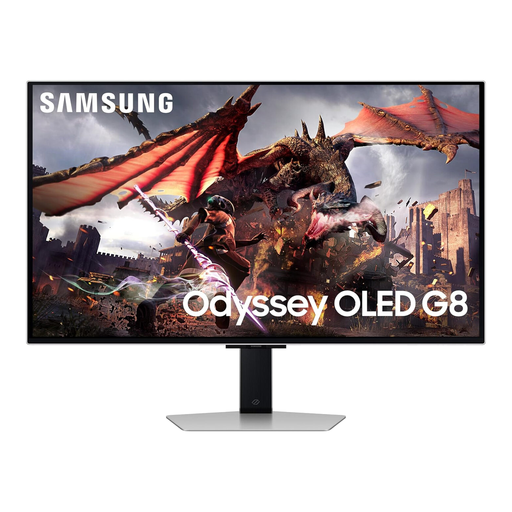
This model is relevant if you want a 32-inch Ultra HD screen for strategy-game maps with an OLED panel.
The product name identifies the LS32DG802SUXXU variant as an OLED G8 Smart Gaming Monitor.
Check the refresh rate available at 4K and the model’s OLED care guidance. If headphones must plug into the monitor, confirm that it has a suitable output; otherwise, plan a compatible connection to your PC, controller or other audio device.
No, not if your headphones connect directly to a compatible PC, controller or separate audio device. You need to check the monitor’s earphone output if you want sound routed through the display; confirm the output socket and that your HDMI or DisplayPort connection carries audio.
A higher refresh rate can matter for scrolling and camera movement, but it should not replace checks on map readability, screen format and the resolution you will actually use. Microsoft Support notes that some refresh-rate choices in Windows change the display resolution, so compare modes at the same intended resolution.
No. HDR use depends on a compatible game and setup as well as the monitor. Microsoft Support says the PC and display must meet HDR hardware requirements; check your chosen game and enable HDR for the selected display in Windows where applicable.
Turn the monitor off and unplug it before cleaning. LG advises allowing it to cool and using a damp, not wet, microfibre cloth; avoid abrasive materials and excessive pressure on the screen.