A 34-inch, 21:9 monitor at 3440 × 1440 is a useful starting point for keeping presentation slides beside notes, provided its stand fits your desk and your computer can output its native resolution. Check HDMI or DisplayPort compatibility for a one-computer setup; consider USB-C charging only if your laptop supports the required video and power connections, and Picture-by-Picture or KVM only if you use two source devices.
Who this setup suits
Slide-and-notes multitaskers
If you need slides, speaker notes or research visible together from one computer, a 34-inch, 21:9 workspace is worth considering. LG UK describes its 3440 × 1440 ultrawide models as able to display multiple programmes at once.
Small-room desk planners
If desk space is tight, check the monitor’s width, stand depth and viewing position before choosing a screen size. Dell UK lists one 34-inch model at 81.57 cm wide with its stand; dimensions vary by model.
Laptop-first study setups
If you disconnect your laptop regularly, a USB-C display connection with charging may simplify the desk. Confirm the laptop’s video capability, charging requirements and the exact monitor’s connections before relying on one cable.
What to check before choosing
For slides and notes in a student room, check usable screen space first, then whether the monitor fits the desk and connects to your computer as intended.
| Concern |
What to check |
Who this matters to |
| Slides beside notes |
Check for a native 3440 × 1440 resolution and 21:9 aspect ratio if you want this workspace format. |
If I need both windows visible while presenting, I want enough horizontal room to read them without switching constantly. Around 42% of consumers would put side-by-side space first. |
| Desk fit and position |
Compare the assembled width and stand depth with your desk; check height adjustment or mounting options if needed. |
On a shallow desk, I need the screen far enough away and positioned comfortably, not just space for its stand. Around 33% of consumers would prioritise desk fit. |
| Laptop connections |
Check your laptop’s video output; for one-cable use, also check USB-C display support, charging wattage and the cable. |
When I move my laptop between study spaces, reconnecting it easily matters more to me than extra display features. For around 25% of consumers, laptop connectivity would come first. |
Buying pitfalls
-
Choosing by diagonal size without measuring the desk
A 34-inch ultrawide can take up more than 81 cm of desk width, and its stand also needs depth. On a shallow desk, that may leave too little room to position the screen comfortably.
Measure the available width and depth, allow room for cables and check the assembled dimensions of the exact model. If you plan to use an arm, check the monitor mount and desk first.
-
Assuming any USB-C port will handle video and charging
USB-C features and power-delivery limits differ between monitors, while the laptop must support the connection you intend to use.
Check the laptop’s video output and charging requirements against the monitor’s USB-C functions, stated wattage and supplied cable.
You may still need a separate laptop charger or a compatible cable.
-
Choosing KVM for a one-laptop setup
Picture-by-Picture displays separate inputs, while a KVM switch helps control two connected sources. Neither is needed simply to arrange slides and notes from one computer in separate windows.
Look for these features if you routinely connect a second source; otherwise focus on workspace, desk fit and the inputs your computer uses.
-
Overlooking the exact model’s energy information
A general claim about monitor efficiency is less useful than information for the variant you are considering. GOV.UK energy-information guidance covers electronic displays.
Compare the energy label and product information for the exact monitor variant when assessing electricity use.
Relevant brands for reference
LG
LG UK lists 34-inch, 21:9 WQHD models with different connection options, making the exact model more important than the brand name alone.
- LG UK specifies USB-C and up to 90 W power delivery for the 34WQ75C-B, and up to 65 W with Picture-by-Picture for the 34WR55QK-B.
- Check the chosen model’s supplied cable and your laptop’s compatibility; those connections are model-specific.
Dell
Dell’s P3424WE is a useful reference for assessing the space needed by a 34-inch monitor with a hub-style connection.
- Dell UK specifies 3440 × 1440 resolution, USB-C power delivery, RJ45 and stand adjustment for the P3424WE.
- Dell UK marks this particular model unavailable, so use its specifications as a reference rather than assuming it is a current purchase option.
Samsung
Samsung’s S65UC is relevant if the desk setup regularly involves two source devices.
- Samsung Business UK specifies Picture-by-Picture, Picture-in-Picture and a built-in KVM switch for this model.
- For slides and notes from one computer, arrange the windows on that computer before choosing a monitor for its two-source features.
Joybuy monitors for this setup
These 34-inch ultrawide monitors are relevant to a slides-and-notes workspace. Compare each one’s stated resolution and connections with your computer, then check its assembled size against your desk.
 No image available
LG UltraGear 34GX900A-B 34-inch OLED WQHD 240 Hz monitor
For a laptop-led slides-and-notes setup, check that your laptop can output this monitor’s native resolution and whether its connections suit the way you work. The product name specifies an OLED WQHD display and a 240 Hz refresh rate; check the assembled stand dimensions against your desk.
View on Joybuy
 No image available
Dahua 34-inch curved UWQHD 200 Hz VA monitor
For slides and notes from one computer, its stated 3440 × 1440 resolution is a relevant workspace format. The product name also lists two HDMI and two DisplayPort 1.4 inputs; confirm the assembled stand footprint and whether your laptop supports the connection you plan to use.
View on Joybuy
 No image available
Lepow HC-SJ34MZ5 34-inch curved 3440 × 1440 monitor
If your main aim is to keep presentation material beside notes, its stated 3440 × 1440 resolution is worth comparing with your laptop’s output capability. The product name specifies a 165 Hz refresh rate; check the assembled monitor and stand dimensions before choosing a position for it.
View on Joybuy
 No image available
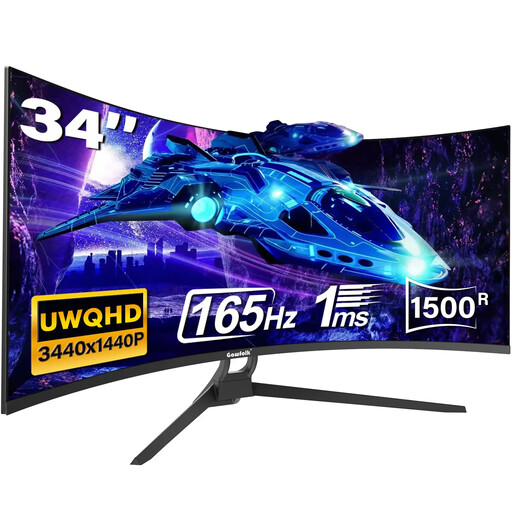
Gawfolk 34-inch curved 21:9 165 Hz monitor
For a slides-and-notes layout, confirm this exact model’s native resolution before deciding whether it provides the workspace you need. Its product name specifies a 1500R curve; also check the assembled dimensions and confirm whether USB-C supports the video or charging functions you require.
View on Joybuy
Questions about setup and connections
Is a 34-inch, 3440 × 1440 ultrawide a sensible starting point for slides and notes?
Yes, if your desk can accommodate it and your computer can output that resolution. LG UK describes 34-inch, 21:9 models at 3440 × 1440 as suitable for displaying multiple programmes; check the exact monitor’s assembled dimensions before ordering.
Will a USB-C ultrawide charge every laptop?
No: the laptop and monitor must support the relevant display and charging functions, and the monitor’s power-delivery limit must suit the laptop. LG UK and Dell UK list different limits for specific models, so check your laptop’s requirements and the cable supplied with the monitor.
How should I position a large ultrawide on a student desk?
Place it in front of you with enough desk depth for a comfortable viewing position. The Health and Safety Executive advises setting the top of the screen at about eye level and the screen roughly an arm’s length away; check whether the monitor’s stand or a compatible mount allows that position on your desk.
What should I check about energy use and disposal?
Compare energy information for the exact monitor variant rather than assuming similar-looking screens use the same amount of electricity. GOV.UK guidance covers electronic displays under UK energy-information rules and electrical equipment under WEEE rules; when replacing a monitor, check the available electrical-equipment collection options.


