Solo commentators in noisy rooms
If your keyboard, mouse, PC fans or room sound competes with your voice, microphone placement and focused pickup matter more than collecting sound from every direction.


For solo game commentary, start with a cardioid or supercardioid USB microphone that you can position close to your mouth, then check its mute and headphone-monitoring controls. Selectable pickup patterns make more sense if you also record a co-host; a USB/XLR model suits a planned move to an audio interface. None of these features removes the need to manage keyboard, fan and room noise.
If your keyboard, mouse, PC fans or room sound competes with your voice, microphone placement and focused pickup matter more than collecting sound from every direction.
A reachable mute control and headphone monitoring help you check your voice while playing, rather than relying entirely on a streaming-software window.
Occasional co-hosts may call for selectable pickup patterns. A planned move to an audio interface instead points towards a microphone with both USB and XLR connections.
Decide where the microphone will sit and who it needs to capture before comparing extra patterns or processing features. For live commentary, check the controls you will actually use while playing.
| Concern | What to check | Who this matters to |
|---|---|---|
| Voice pickup and room noise | Check for cardioid or supercardioid pickup and a position close to your mouth, away from prominent noise sources. | If I commentate alone beside a keyboard and PC fan, I want my voice to remain prominent without expecting the microphone to silence the room; around 31% of consumers put noise control first. |
| Live controls and monitoring | Look for an accessible mute control and a headphone output; check which level or monitoring adjustments are available. | When I am mid-game, I need to catch a muted or poorly balanced voice without switching windows; roughly 31% of consumers prioritise live control and monitoring. |
| Future connections | Decide whether USB alone meets your plans or whether you expect to connect through an XLR audio interface later. | If I expect my recording setup to expand, I would rather choose the connections for that plan now; about 23% of consumers make the upgrade path their primary concern. |
| More than one speaker | Check whether the available pickup patterns suit your usual solo position and any recurring co-host arrangement. | When a co-host sometimes shares my desk, I need a pattern that can capture that arrangement while accepting more room sound; around 15% of consumers put recording flexibility first. |
Omnidirectional, stereo and bi-directional modes can serve different recording arrangements, but a wider pattern can also capture more room sound during a solo stream.
Start with a focused pattern for one speaker. Consider selectable patterns if a co-host, interview or wider recording scene is a recurring need.
Fans, typing, clicks and room reverberation can remain audible even with a focused pickup pattern.
Place the microphone close to your mouth, keep it away from prominent noise sources where possible and avoid excessive gain before relying on processing.
If the supplied stand cannot hold a useful position, adjusting the setup may call for a compatible boom arm or mount.
A sample-rate or bit-depth figure cannot, by itself, tell you how clearly your voice will come through alongside gameplay and room noise.
Settle pickup, placement, monitoring and live controls first; then check recording settings against your streaming setup.
Basic USB recording and optional effects or routing may have different setup requirements.
Check your computer's operating-system version, USB connection and the software needed for the particular feature you intend to use.
The Yeti is a USB option for creators who want to change pickup patterns between recording arrangements.
The Seiren V3 Chroma combines a focused supercardioid pattern with live mute control.
The MV7+ is relevant when USB recording now and an XLR connection later are both part of the plan.
The QuadCast 2 combines physical live controls with patterns for different recording arrangements.
The Wave:3 MK.2 is a cardioid USB microphone for streamers considering onboard controls and software-based audio routing.
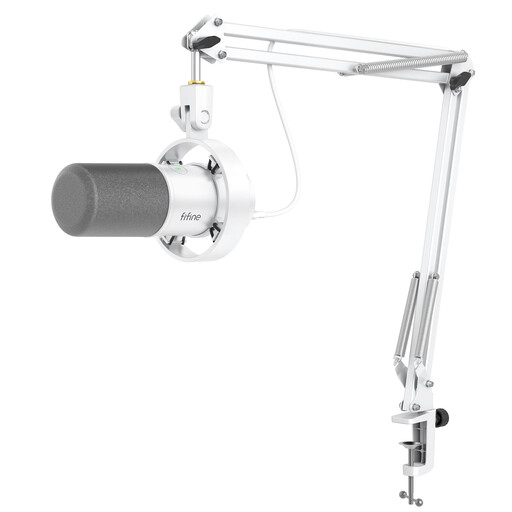
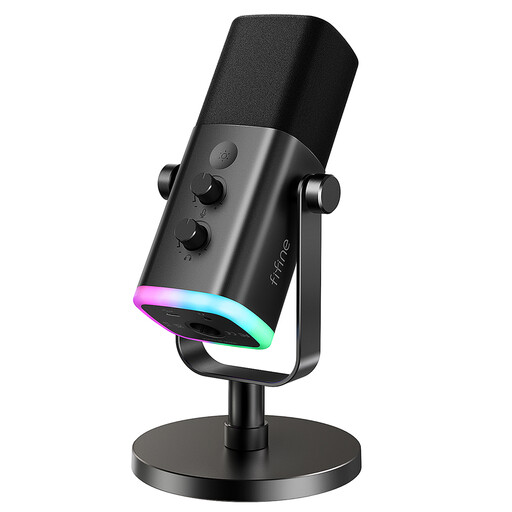
These two FIFINE USB/XLR models suit solo desk commentary now while leaving an XLR connection available for a later setup. Choose between the included boom arm and the simpler desktop-stand arrangement according to where you can place the microphone.
 No image available
Consider this kit if a boom arm would help position your microphone for solo desk commentary.
The product name identifies a dynamic microphone with USB and XLR connections, a headphone jack and a boom arm. The XLR cable is not included, so using that connection requires a separate cable.
 No image available
Consider the AM8 if a desktop stand suits your desk and you want the option of an XLR connection later.
Its product name lists USB and XLR connections, a mute button, headphone jack, RGB lighting and desktop stand. A boom arm and XLR cable are not included; the listed RGB and function-key features are unavailable over XLR.
Either focused pattern can suit one speaker positioned in front of the microphone; placement and surrounding noise still matter. Audio-Technica says the cardioid ATR2500x-USB reduces side and rear pickup, while Razer describes focused pickup on its supercardioid Seiren V3 Chroma. Neither pattern removes all keyboard or fan noise.
Yes, if you want to hear and check your microphone signal while commentating. Look for a headphone output and confirm the model's monitoring controls, particularly if you also want to adjust the balance between your voice and PC playback.
Follow the microphone manufacturer's placement instructions and aim to keep your voice close to the mic without placing it beside a fan or air-conditioning outlet. As troubleshooting guidance, Maono suggests 10–30 cm for condenser microphones and within 15 cm for dynamic microphones; the useful position still depends on the model and your desk.
Not always for basic recording, but the particular effects, routing or advanced controls you want may require an app. Logitech G describes Yeti as plug-and-play while requiring G HUB for Blue VO!CE features; check the software and operating-system requirements for your chosen microphone before relying on an optional function.