Choose a backup route by what you need to restore on a replacement phone, tablet or computer, not just by where you can store photos and documents. Built-in cloud backup can reduce routine copying, while removable storage offers a local copy that can be useful for large libraries or limited internet access. For important files, consider both routes, then check their coverage and restore steps while the original device is still available.
Who needs which kind of backup?
People replacing a phone or tablet
If you need the next device to contain more than copied photos, check how its backup restores settings, app data and account-linked content. Apple and Google describe different backup and restore coverage for their devices.
People with large photo and video libraries
A local drive is worth considering when a library is large or uploading it is impractical. Microsoft identifies large files and limited internet access as reasons to consider an external or network-drive backup.
People storing sensitive personal files
If a removable copy contains financial records or identity documents, consider how it will be protected if misplaced—and how you will retain access to any password or recovery key. Microsoft notes that a BitLocker recovery key may be needed to unlock an encrypted drive.
What matters when choosing a backup route?
Cloud and removable storage solve different parts of the same problem: keeping a usable copy before the original device is lost, damaged or erased. The National Cyber Security Centre describes both as backup routes; whichever you use, establish what you can actually recover.
Cloud and built-in backup
Consider it when: You want copies made with less manual work and have a reliable connection and access to the relevant account.
Trade-off: Available storage, connection conditions and the data included vary by platform and settings.
External hard drive
Consider it when: You have many large files or need a local copy without relying on an upload.
Trade-off: You must connect the drive, maintain the copying routine and protect the drive itself.
USB flash drive
Consider it when: You want to maintain a selected set of essential files manually.
Trade-off: A manually copied file set should not be mistaken for an automatic whole-device backup.
Cloud plus a separate local copy
Consider it when: Important files warrant a second copy that does not depend on the same account or storage device.
Trade-off: Both copies need their own checks and upkeep. Apple supports using both iCloud and a computer backup for an iPhone or iPad.
| Concern |
What to check |
Who this matters to |
| Restoring a replacement device |
Check which files, settings and app data can be restored to your intended device, and confirm the last successful backup. |
If my old device is lost or erased, I need the replacement to recover the content that matters, not merely open a copied folder. Around 36% of consumers put restore continuity first. |
| Capacity and copying |
Compare your library size with the available storage and check whether uploading or making a local copy is practical. |
A large photo and video library makes the time and space needed for copying my main concern; around 29% of consumers prioritise that need. |
| Privacy of a portable copy |
Check compatible encryption options and decide where to keep the password or recovery information separately. |
If I carry sensitive documents on a drive, I want to limit access if it goes missing without locking myself out. Roughly 21% of consumers make protection of the portable copy their primary concern. |
| Keeping copies current |
Check what can run automatically, what conditions it requires and how you will confirm completion. |
I may forget a manual copying routine, so a recent backup with less repeated effort matters most to me; around 14% of consumers put that first. |
Backup mistakes to avoid
-
Assuming synced photos mean everything is backed up
A photo library, a file-sync folder and a restorable device backup can cover different content. Apple distinguishes iCloud-synchronised data from iCloud Backup, while Android restore can vary by phone and version.
List the photos, documents, messages, app data and settings you need. Check where each is copied and how it would reach a replacement device.
-
Choosing drive capacity without checking the connection
A drive with enough space may still need a different cable, formatting or software workflow for the device you intend to back up.
Check the exact ports, included cable, device support and intended backup method before choosing a drive.
-
Leaving a portable copy unprotected
A misplaced drive can expose accessible personal files. Encryption is an option to assess, but the method must work with the devices you use; Microsoft limits manual BitLocker Drive Encryption to specified Windows editions.
For sensitive files, check the encryption method and store its recovery credentials securely and separately from the drive.
Losing an encryption password or required recovery key can also prevent you from opening your own backup.
-
Never checking whether a backup finished
Enabling a feature or owning a drive does not establish that recent files were copied. Storage, connectivity and an unconnected drive can affect a routine.
Before a reset or replacement, check the latest completed backup and try restoring a non-sensitive test file while the old device is available.
Relevant brands and platforms
Apple
Relevant to iPhone and iPad owners considering iCloud Backup, a computer backup or both before replacement.
- Apple says iCloud backups can be created over Wi-Fi and computer backups use available Mac or PC storage.
- The methods cover different data categories; check what each will restore. Encryption of a computer backup is optional.
Google
Relevant to Android users backing up through a Google Account.
- Google describes backup of content, data and settings, with restoration to the original or some other Android phones.
- Restore coverage varies by phone and Android version; check the selected data types and the next device.
Microsoft
Relevant to Windows users weighing account-backed Windows Backup against an external-drive routine.
- Microsoft describes Windows Backup for selected folders and settings, and identifies external storage as an option for large files or limited internet access.
- Check the folders and restore route you need. Manual BitLocker Drive Encryption is not available on Windows Home.
Western Digital
Relevant to buyers considering the WD My Passport Ultra line for a local copy of personal files.
- Western Digital lists USB-C connectivity, password protection and backup software for that product line.
- Check the selected variant, included cable and software compatibility rather than applying product-line claims to every drive.
Seagate
Relevant to buyers comparing portable and desktop formats within the One Touch external-storage range.
- Seagate describes different One Touch formats and lists protection and scheduled-backup features for certain models.
- Features differ by model; confirm the exact drive and its backup workflow before relying on them.
Removable storage for local copies
These drives and flash storage provide choices for keeping local copies of selected photos and documents. Choose capacity and connectors for your files and devices, then check how you will make and restore those copies; removable storage alone does not establish a full-device backup.
 No image available
Samsung Portable SSD T7, 2 TB, blue
Consider this external SSD for a local copy of a sizeable photo or document collection. Its name specifies 2 TB and USB Type-C 3.2 Gen 2; check your device connection and how you will restore the copied files.
View on Joybuy
 No image available
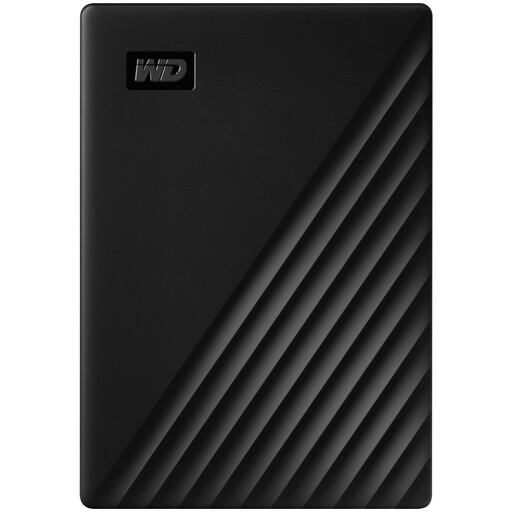
Western Digital My Passport 4 TB Portable Hard Drive, black
Consider this 4 TB portable hard drive when keeping a large library locally is the priority. Check its connection and the backup software you plan to use; the drive needs to be available when local copies are made.
View on Joybuy
 No image available
Samsung T7 Shield Portable SSD, 1 TB, blue
Consider this 1 TB external SSD for a portable local file copy. Its name specifies USB 3.2 Gen 2; check the intended device connection and encryption-software compatibility before depending on it for sensitive files.
View on Joybuy
 No image available
Lexar ES4 Portable SSD with Magnetic Set, 1 TB
Consider this 1 TB external SSD if its magnetic set suits the way you intend to carry a local copy. Check compatibility and any first-use formatting before copying important files; the specified magnetic mounting requires the appropriate case or ring.
View on Joybuy
 No image available
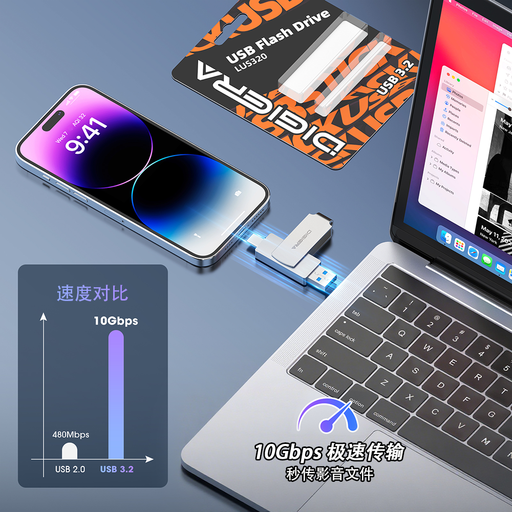
DigiEra LUS320 USB Flash Drive, 128 GB
Consider this flash drive for a manually maintained set of selected files rather than a whole-device restore. Its name specifies USB-A and USB-C connectors; check your device’s file access and whether 128 GB is sufficient.
View on Joybuy
Common backup questions
Is cloud storage the same as a full device backup?
No, not necessarily: storing or syncing files does not establish that settings and app data can be restored. Apple distinguishes iCloud-synchronised data from iCloud Backup, and Google offers different Android data selections. Check the included categories and restore steps for your device.
When should I consider an external drive instead of cloud-only backup?
Consider an external drive when internet access is limited or you have many large files; Microsoft identifies both as reasons to evaluate external or network-drive backup. The drive still needs sufficient capacity, a compatible connection and a regular copying routine.
Can I use iCloud and a computer backup for the same iPhone or iPad?
Yes. Apple describes using iCloud and a computer as alternative backup methods, but their exclusions differ. Check what each copy contains and whether you want to enable encryption for the computer backup.
What should I check before replacing or resetting my device?
Complete the backup and check its date, contents and restore route before the old device becomes unavailable. Make sure you can access the account, drive and credentials you will need, and try restoring a non-sensitive file if possible.


