Choose cloud backup when automatic copies and restoration to a replacement device matter most; choose an external drive for a local copy of computer files, or a USB stick for a small selection of essential files. If losing family photos or documents would have serious consequences, consider both a cloud copy and a removable copy kept separate between updates. Whichever arrangement you choose, check what it includes, whether there is enough space and whether you can restore the files.
Who needs a backup?
People keeping family memories on a phone
If your photos, videos, messages or settings are mainly on a phone, check how each type of data would get onto a replacement handset. Apple and Google describe different backup and restoration arrangements for their devices.
People keeping documents and photo libraries on a computer
If important folders are on a Windows PC or Mac, identify which ones the backup covers, how much space they need and whether an earlier version of a file can be restored. Microsoft describes version restoration through File History for Windows.
Households wanting a separate recovery copy
If one device failure, account problem or malware incident could affect your files, a removable copy adds another place to keep them. The National Cyber Security Centre advises keeping removable backups separate from the computer when they are not being updated.
What matters when choosing?
Cloud storage, an external drive and a USB stick serve different backup routines; a combined arrangement is worth considering when one copy would leave too much at risk.
Cloud storage
Choose it when: You want automatic copies and expect to recover files through your account after replacing a device.
Trade-off: Available space, included files and recovery options depend on the account and service settings.
External hard drive or SSD
Choose it when: You want a substantial local copy of computer files, including one made through compatible backup software.
Trade-off: You must connect it for updates, then keep a recovery copy separate if malware protection matters.
USB stick
Choose it when: You want a portable second copy of deliberately selected documents or photos.
Trade-off: Copying selected files takes upkeep and does not by itself create a full-device backup.
Cloud and removable storage
Choose it when: You want a regularly updated off-device copy as well as a separate local copy of important files.
Trade-off: Both copies need checking, and the removable one needs updating and disconnecting.
| Concern |
What to check |
Who this matters to |
| Coverage and restoration |
Check which files, settings and apps are included, then follow the steps for restoring to a replacement device. |
If my phone is lost, I need recent photos and essential information to reach the replacement, not just an account I can sign into. Roughly 25% of consumers would put coverage and restoration first. |
| Capacity and file quality |
Compare the size of the files you will copy with available space and future growth; check photo-quality settings where applicable. |
A growing photo and video library needs room without an unwanted change to the files I keep. For around 25% of consumers, capacity and file quality would be the primary concern. |
| Separate recovery copy |
Plan how to update and disconnect removable storage, and check whether your chosen backup can restore an earlier file version. |
If malware reaches my computer or the device fails, I want another copy that is not left connected to it. About 31% of consumers would prioritise that separation. |
| Account access and upkeep |
Set up account recovery and 2-step verification; keep any local-backup encryption password securely and check backup status. |
I need to be able to get into the account or unlock the local backup when recovery is necessary, and keep the routine manageable. That would come first for roughly 19% of consumers. |
Backup mistakes to avoid
-
Assuming a phone backup contains every file
Apple distinguishes data already synced to iCloud from what iCloud Backup includes, while Google notes that restoration can vary by phone and app.
Check where your photos, documents, messages and important app data actually live before depending on a device backup or changing services.
-
Leaving the only removable copy connected
A connected drive may be reachable during a ransomware incident. The National Cyber Security Centre advises keeping a removable backup separate from the computer.
Disconnect and store a recovery copy separately between updates, and occasionally open or restore a file from it.
-
Checking capacity but not photo settings
Google explains that Original quality counts towards account storage, while Storage saver can reduce the resolution of larger photos and videos.
Check current account use, the selected upload quality and the space your library will need as it grows.
-
Losing the password for an encrypted local backup
Apple says the encryption password is needed to use an encrypted iPhone or iPad computer backup.
If you enable encryption, keep that password in a secure recovery method separate from the device being backed up.
Relevant brands and services
Apple
Relevant to iPhone and iPad backups through iCloud or a Mac or Windows computer.
- Apple describes iCloud and computer backups as alternative methods that can both be used.
- iCloud Backup does not include data already synced to iCloud; an encrypted computer backup requires its password for restoration.
Google
Relevant to Android device backup through a Google Account and photo backup through Google Photos.
- Google describes restoring backed-up Android information to the original phone or certain other Android phones.
- App restoration can vary, and the Google Photos quality setting affects storage use and, with Storage saver, some file resolution.
Microsoft
Relevant to Windows file backups with File History and cloud files held in OneDrive.
- Microsoft describes File History making regular copies to an external drive or network location and allowing earlier versions to be restored.
- Microsoft's full OneDrive account restore applies to eligible Microsoft 365 subscribers and covers actions within the last 30 days.
Removable storage for household backups
These drives and USB storage suit local copies of selected household files. Choose one by the files you need to keep, your device connection and how you will update and test the copy; a drive alone does not establish a working backup routine.
 No image available
Western Digital My Passport 2TB Portable External Hard Drive, Black
Consider this for a separate copy of computer photos and documents that you can update by connecting a drive.
2TB portable external hard drive. Check computer and backup-software compatibility, then test how you would restore a file.
View on Joybuy
 No image available
Samsung MU-PE1T0S 1TB USB Type-C External SSD, Black
Consider this for a removable copy of files when your intended device and backup method can use a USB Type-C drive.
1TB capacity and USB 3.2 Gen 2. Confirm how files will be copied, updated and restored rather than relying on the connection alone.
View on Joybuy
 No image available
Lexar ES4 Portable SSD with Magnetic Set, 1TB
Consider this for a separate copy of selected files from a compatible phone or computer.
1TB capacity and USB 3.2 Gen 2; the product name lists iPhone 15/16, PC and Mac compatibility. Check the connection and file-copy steps for your exact device, then test recovery.
View on Joybuy
 No image available
Western Digital My Passport Ultra for Mac 5TB Portable External Hard Drive, Silver
Consider this for a local copy of a larger Mac photo or document library that you can update regularly.
5TB portable external hard drive. Check compatibility with your Mac and chosen backup software, including how to restore files.
View on Joybuy
 No image available
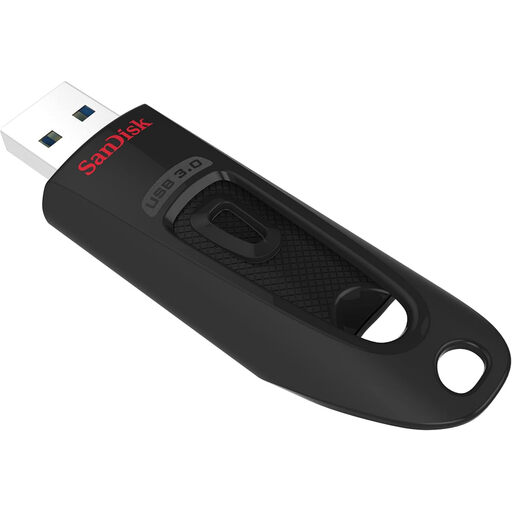
SanDisk Ultra 128GB USB 3.0 Flash Drive
Consider this for a portable second copy of selected documents or photos rather than an assumed full-device backup.
128GB capacity and USB 3.0. Check available space and your device connection, and plan how you will refresh and open the stored files.
View on Joybuy
Frequently asked questions
Is cloud syncing the same as a backup?
Not necessarily: check whether you can restore a separate copy after losing or changing the original file. Apple distinguishes data synced to iCloud from data included in iCloud Backup, so check each important folder and photo library rather than assuming the device backup contains it.
Should I leave an external backup drive connected?
Connect it when your backup routine needs to run, but do not leave your only removable recovery copy connected if ransomware resilience matters. The National Cyber Security Centre advises keeping that copy separate from the computer between updates.
How much cloud storage do I need for photos and documents?
Start with the size of the files you intend to protect, then allow room for new photos and videos and other content using the same account. Check the selected photo-upload quality too: Google says Original quality uses account storage, while Storage saver can reduce the resolution of larger files.
What should I set up before relying on cloud backup?
Set up 2-step verification and a workable way to recover the account that holds your backup, then check that recent files are included. The National Cyber Security Centre recommends 2-step verification for important accounts.


