What to check before buying
Decide how much of the timetable must remain visible alongside other windows, then check readability, desk positioning and the connections your laptop needs.
Standard-width QHD
Consider it when: You want a conventional desk footprint for schedules and documents; BenQ’s 27-inch GW2790QT is one QHD example.
Trade-off: Several wide windows have less physical space than on a 34-inch ultrawide.
Standard-width 4K
Consider it when: Fine text and dense timetable grids take priority; Samsung specifies 3840 × 2160 resolution for its 27-inch ViewFinity S8 S80UD.
Trade-off: You may prefer operating-system scaling to keep text comfortably sized, and 4K does not add the physical width of an ultrawide.
34-inch ultrawide
Consider it when: A wide timetable and communications need to stay visible together and your desk has room for the screen.
Trade-off: LG’s 34WR55QK-B, for example, uses 3440 × 1440 resolution rather than 4K and needs more desk width than a standard 27-inch display.
| Concern |
What to check |
Who this matters to |
| Side-by-side workspace |
Compare screen width and aspect ratio with the windows you normally keep open; measure the available desk space. |
If I need to see a wide schedule beside messages, switching windows interrupts my planning. Around 33% of consumers put side-by-side workspace first. |
| Screen positioning |
Check stand adjustment, desk depth and arm compatibility if you plan to use a mount. |
For repeated sessions at my home desk, I need to position the screen without working around a fixed stand. Roughly 25% of consumers make comfortable positioning their primary concern. |
| Laptop connections |
Confirm video output, the monitor’s USB-C functions and whether its power delivery meets your laptop’s requirements. |
I want to connect my laptop and peripherals without relying on a tangle of separate connections. Around 25% of consumers prioritise laptop connectivity above the other factors. |
| Text and grid detail |
Compare native resolution and screen size, then assess your preferred text scaling at the intended viewing distance. |
When I review small timetable cells and names, I want the detail to remain readable at a comfortable size. About 17% of consumers place text and grid detail first. |
Joybuy monitors for timetable work
These monitors offer standard-width options for detailed documents and ultrawide options for arranging planning windows side by side. Compare each one with your desk space and laptop connections rather than treating the list as a single screen-format recommendation.
 No image available
BenQ MA320UP 32-inch Nano Glossy IPS 4K USB-C Mac monitor
Consider this standard-width screen if detailed timetable grids matter more to you than an ultrawide layout.
The product name specifies a 32-inch 4K UHD display, USB-C and a height-adjustable stand. Check that its Mac-focused features and connections suit your computer, and measure the space available on your desk.
View on Joybuy
 No image available
Lenovo R34w-30 34-inch UWQHD gaming monitor
Its ultrawide format is relevant if you want a broad timetable beside other planning windows.
The product name specifies a 34-inch UWQHD display. Check its footprint and confirm the connection your laptop will need.
View on Joybuy
 No image available
Dahua 34-inch 3440 × 1440 curved ultrawide gaming monitor
Consider its wide format if timetable columns and communications need room on the same screen.
The product name specifies a 3440 × 1440 display and HDMI and DisplayPort connections. Check that your desk accommodates a 34-inch screen and that those connections suit your computer.
View on Joybuy
 No image available
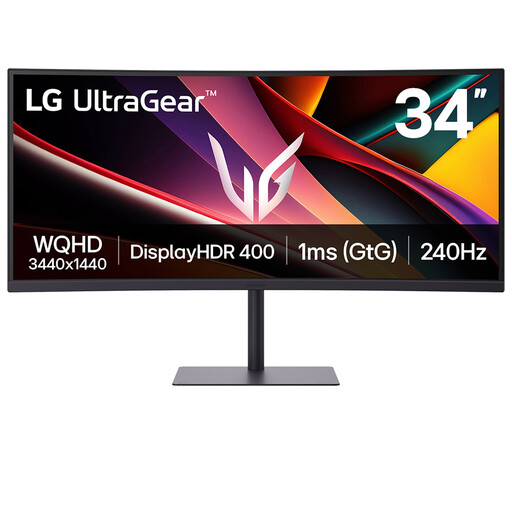
LG UltraGear 34G630A-B 34-inch VA WQHD gaming monitor
This is another ultrawide format to consider when arranging a timetable beside other windows.
The product name specifies a 34-inch VA WQHD display. Check desk fit and laptop connections; the product information states 15W USB-C power delivery, so confirm separately whether it meets your laptop’s charging needs.
View on Joybuy
 No image available
ASUS ProArt PA278CFRV IPS QHD 100Hz monitor
Consider this QHD model if you prefer a conventional screen shape for timetable documents over an ultrawide layout.
The product name specifies an IPS QHD display. Check its stand footprint and the exact regional connection variant before relying on USB-C display or charging functions.
View on Joybuy
Frequently asked questions
Do I need a 34-inch ultrawide to prepare a club timetable?
No. A 34-inch ultrawide is worth considering when several wide windows must remain visible together and your desk can accommodate it. A standard-width QHD or 4K screen may suit a narrower desk or a stronger preference for fine detail.
What screen adjustment should I check?
Check whether the stand or a compatible arm lets you position the screen within your whole workstation. The Health and Safety Executive advises placing the top of the screen at eye level and the display about an arm’s length away; desk, chair and keyboard positions matter too.
Can one USB-C cable connect my monitor and charge my laptop?
Yes, if your laptop supports the necessary video connection and the monitor supplies enough power for it. Check both devices, the exact monitor variant and the cable; for example, LG specifies up to 65W power delivery for its 34WR55QK-B, which may not suit every laptop.
Do UK display-screen-equipment rules cover timetable work at home?
They can cover employed home workers who use display-screen equipment daily for continuous periods of an hour or more. The Health and Safety Executive says employers must assess workstations under those conditions. Occasional voluntary club administration is not automatically covered by that employment condition.
Should I buy my own monitor for employed home working?
Check your employer’s equipment arrangements before buying personally. Acas advises employers and staff to agree what home-working equipment and repairs are needed and who will provide or pay for them.


