For translation, subtitle timing and ordinary video preview, start with a desktop that runs your chosen software, has an SSD and supports the screens you need; a workstation-class graphics card is not automatically necessary. More memory, graphics capability and storage become relevant when the same computer also handles local speech-to-text or regular video editing. For Premiere work with 4K footage, compare configurations with Adobe’s recommended specifications rather than its HD-oriented minimum.
Who needs which desktop?
Text-first subtitle translators
If most of your work is translating, proofreading, retiming and previewing subtitles, check software compatibility, SSD storage and space for your video and subtitle list on screen before paying for graphics hardware intended for heavier work.
Local transcription users
If you generate draft transcripts on your own computer, the speech-to-text engine affects your hardware choice. Subtitle Edit documents both a CPU-based Whisper.cpp option and GPU-accelerated options with specific platform requirements.
4K video-and-subtitle editors
If you also edit or export high-resolution video in Premiere, use the requirements for that video workflow rather than those for subtitle files alone. Adobe recommends at least 32 GB RAM, 8 GB GPU memory and fast SSD storage for its stated higher-resolution workflow.
What matters when choosing?
Decide whether the desktop will handle subtitle text and preview alone, local transcription, or video editing as well. That distinction determines which software requirements and hardware details deserve closer attention.
| Concern | Buying checks | Who this matters to |
|---|
| Text, timing and preview |
Check the operating system against your subtitle editor and confirm SSD storage and outputs for your intended monitors. Subtitle Edit lists Windows 10 version 22H2 or newer, Linux and macOS 12 or newer. |
If my day is spent adjusting dialogue and timings while watching a preview, I want the editor and screen arrangement to suit that routine. Around 40% of consumers put this text-led need first. |
| Local speech-to-text |
Choose the transcription engine before selecting graphics hardware: Subtitle Edit documents a CPU-based Whisper.cpp path and Windows GPU-accelerated paths using NVIDIA cuBLAS or Vulkan. |
When I produce draft transcripts locally, the processing route matters more to me than graphics specifications in isolation. Roughly 30% of consumers prioritise local transcription. |
| 4K video editing |
For Premiere work with 4K footage, compare the configuration with Adobe’s recommendation of at least 32 GB RAM, 8 GB GPU memory, a fast internal SSD for the application and cache, and an additional high-speed media drive. |
If I edit or export 4K footage alongside subtitles, I need to plan for the video project, not just the subtitle file. Around 30% of consumers make that combined workflow their primary concern. |
Buying pitfalls
-
Choosing a workstation before defining the workload
A workstation may serve demanding creative applications, but text-led subtitle editing and GPU-accelerated transcription place different demands on a desktop. Subtitle Edit documents GPU acceleration for particular speech-to-text engines, not as a requirement for every editing task.
List your subtitle software, usual footage resolution, transcription method and video-export work before deciding whether workstation features serve a task you actually do.
-
Using Premiere’s minimum specification as a 4K target
Adobe describes its minimum Premiere specifications as intended for HD editing and publishes separate recommended specifications covering higher-resolution work.
If you edit 4K footage in Premiere, compare the exact desktop with Adobe’s recommended memory, graphics-memory and storage guidance.
-
Assuming every configuration in a desktop range is alike
A range name does not identify the processor, installed memory, graphics card or storage layout of the computer you will receive. HP and Dell present workstation ranges with configuration-dependent options.
Check the specific model’s installed components, video outputs, operating system and warranty terms before ordering.
-
Forgetting the old computer when planning a replacement
An old desktop may still contain work files, including subtitle projects and source material, when it leaves your home office.
Back up what you need, securely erase work files and arrange an appropriate electrical-equipment recycling or collection route.
Desktop brands to consider
HP
HP positions its Z desktop workstation range for creative and technical work, including HD and 4K video editing on the Z2 Tower G1i.
- HP lists configurable professional graphics and maximum options of 256 GB DDR5 memory and 12 TB storage for the cited Z2 Tower G1i.
- Those figures describe configuration options, not the components included in every Z2 Tower G1i. Check the exact desktop before treating them as useful for your workflow.
Dell
Dell offers Precision fixed workstations in several desktop formats and positions the range for demanding applications.
- Dell describes options for professional graphics and scalable memory and storage across the range.
- Range-wide options do not establish what a particular Precision desktop includes. Match its configuration to your software rather than buying on the workstation name alone.
Lenovo
Lenovo positions ThinkStation desktops for professional workloads, including media and video-editing work.
- ThinkStation offers a desktop workstation route for buyers whose subtitle work forms part of a broader media workflow.
- Lenovo also discusses mobile workstations in its media range. Confirm that the selected machine is a desktop and check its installed components.
Joybuy desktop choices
These desktops include larger towers to consider when subtitle work overlaps with video editing and a mini PC to consider for text-led work in a compact home-office setup. Check the exact graphics hardware, storage layout and monitor connections needed for your own software before choosing.
 No image available
CyberPowerPC JOYB1013, Ryzen 7 9800X3D, RTX 5080 16GB
Consider this tower if you also edit video and want to compare its graphics and memory specification with your software requirements.
32GB DDR5 RAM, 2TB NVMe SSD and Windows 11 Home. Check whether its storage arrangement provides the additional high-speed media drive Adobe recommends for Premiere video workflows, and confirm the monitor and peripherals you will need.
View on Joybuy
 No image available
CyberPowerPC JOYB1010, Core Ultra 7 265KF, RTX 5070 12GB
This tower is another configuration to assess if subtitle work includes video editing or a compatible GPU-accelerated transcription engine.
32GB DDR5 RAM, 1TB NVMe SSD and Windows 11 Home. For Premiere media work, check whether you need an additional high-speed drive; also confirm the monitor and peripherals for your desk.
View on Joybuy
 No image available
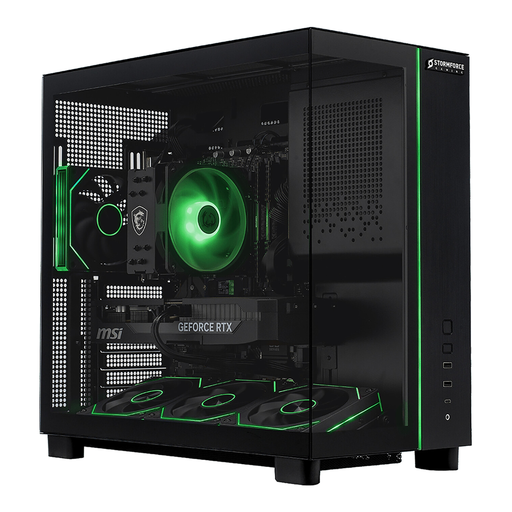
Stormforce Defiance Ryzen 7, 32GB RAM, 2TB SSD
Consider this tower for a workflow combining subtitles and video, but confirm the installed graphics card before assessing GPU-dependent tasks.
Windows 11 and a 2TB SSD are listed. The product title names an RTX 5070 Ti while its description names an RTX 5070; ask which model the specific computer contains. Check its storage layout for Premiere media work and whether the stated 24kg tower suits its intended position.
View on Joybuy
 No image available
Stormforce Cyclone Core i7, RTX 5080, 32GB RAM
This full tower is worth checking when subtitle editing shares a computer with video work and desk placement allows for a larger machine.
2TB SSD and Windows 11 are listed. Confirm the exact HDMI and DisplayPort arrangement for your monitors and the storage layout for Premiere media. The listed tower weight is 22kg; the monitor, keyboard and mouse are not included.
View on Joybuy
 No image available
SOYO M5 Mini PC, Ryzen 4300U, 16GB RAM, 512GB SSD
This compact desktop is a choice to assess for text-led subtitle work, especially if several screens would help you arrange the video and subtitle list.
Windows 11 and a 512GB SSD are listed, along with HDMI 2.0, USB-C and DisplayPort 1.4 outputs for triple-display use. If you also edit 4K footage in Premiere, compare its configuration with Adobe’s higher-resolution recommendations rather than assuming that display output capability establishes video-editing suitability.
View on Joybuy
Frequently asked questions
Do I need a dedicated graphics card to translate subtitles?
Not for text-led translation and timing alone. Graphics hardware becomes a more specific consideration if you choose a compatible GPU-accelerated local transcription engine or edit video alongside subtitles: Subtitle Edit documents distinct CPU and GPU speech-to-text paths, while Adobe publishes GPU-memory recommendations for Premiere workflows.
How much RAM should a subtitle-editing desktop have?
Choose RAM for the software and footage you use, rather than treating a video editor’s recommendation as a universal subtitle-editing minimum. Adobe recommends 16 GB for HD media and at least 32 GB for 4K and higher-resolution Premiere work.
Does a desktop for Premiere need a second drive?
Adobe recommends a fast internal SSD for Premiere and its cache, plus an additional high-speed drive for media. If you edit video as well as subtitles, check the desktop’s actual storage layout; that recommendation does not make a second drive a requirement for editing subtitle files alone.
What should I do with an old desktop after replacing it?
Back up what you need, securely erase work files and arrange an appropriate electrical-equipment recycling or collection route. If it was used for business work, check any applicable equipment-disposal procedures before handing it over.


