What matters when choosing
External drive
Choose it when: You need a local copy of photos or documents that remains available without an internet connection.
Trade-off: A drive kept with the computer can be lost or damaged in the same incident; store another copy separately.
Cloud backup
Choose it when: Automatic, recoverable copies from several devices matter more than immediate local access.
Trade-off: Upload and restore depend on connectivity and account access, while the service sets the scope and retention of recoverable files.
Cloud sync
Choose it when: You chiefly want the current version of a file on your computer, phone or browser.
Trade-off: Unwanted edits and deletions can sync too, so convenient access does not replace an independent backup.
Local and cloud copies
Choose it when: Important files call for both a local restore option and a copy kept elsewhere.
Trade-off: You must maintain and test both copies rather than assuming that having two locations guarantees recovery.
For photos, study files and routine work records spread across devices, start with the failure you most need to recover from. Then check the following requirements against the files and devices you actually use.
| Concern |
What to check |
Who this matters to |
| Recovery after loss or deletion |
Check which files are copied, how long older or deleted versions remain available, and how to restore them. |
If a photo is deleted or a device fails, I need an earlier copy I can actually retrieve. Around 27% of consumers put recoverability first. |
| Automatic multi-device coverage |
Confirm supported devices and operating systems, included folders, and the conditions for automatic backups. |
When I create files on both my phone and computer, I do not want protection to depend on remembering each transfer. Roughly 27% of consumers prioritise automatic coverage. |
| Access to current files |
Check which folders sync, whether essential files work offline, and what happens after an unwanted change. |
I need the document I am editing to be available on another device, even if that means managing synced changes. Around 20% of consumers make current-file access their primary concern. |
| Local capacity and offline use |
Measure your files and expected growth; check the drive connector and the devices you intend to use. |
For a large photo collection, I want a local copy I can reach without waiting for an internet connection. About 26% of consumers place local capacity and offline control first. |
External drives on Joybuy
These drives are options for making local copies of photos and work or study files. Measure what you need to store and check device compatibility before choosing one; a drive alone does not provide an off-site copy or determine how older versions will be recovered.
 No image available
Samsung MU-PE1T0S 1TB USB-C SSD, black
Consider this for a portable local copy if 1TB covers your files and expected growth.
The product name specifies USB 3.2 Gen 2, also described there as 3.1 Gen 2. Check the connector on the device you will use and keep another copy elsewhere.
View on Joybuy
 No image available
Lexar ES4 1TB portable SSD with magnetic set
Consider this for a local copy that you also intend to use with one of the devices named in the product title.
The title lists USB 3.2 Gen 2, iPhone 15/16, PC, Mac and USB-C devices, with claimed speeds up to 1,050 MB/s read and 1,000 MB/s write. Check your exact device and how you will back up and restore its files.
View on Joybuy
 No image available
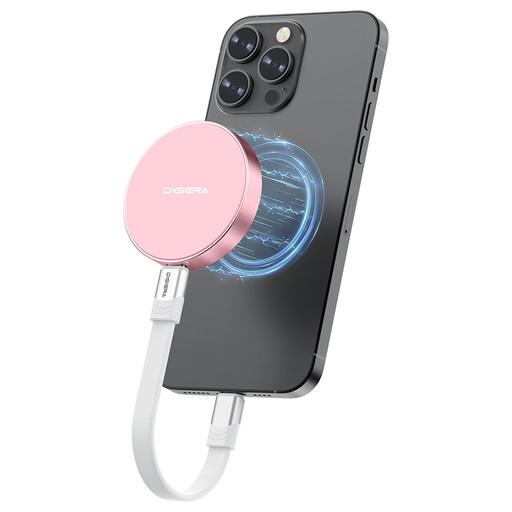
DigiEra LPS2000M-3 1TB magnetic SSD, pink
Consider this if you need a portable local copy and its stated USB-C device compatibility fits your setup.
The title specifies USB 3.2 Gen 2x2 and a claimed transfer speed up to 2,000 MB/s. Check host support before relying on that speed, and confirm the exact phone and backup process you intend to use.
View on Joybuy
 No image available
Western Digital My Passport 2TB hard drive, black
Consider this for a computer-based local copy if 2TB gives you enough room for current files and future backups.
This is a portable external hard drive. Check its connection, the devices you will use and your intended restore procedure before relying on it.
View on Joybuy
 No image available
SanDisk Portable SSD 2TB
Consider this for a portable local copy if your measured files and expected growth fit within 2TB.
Check compatibility with your computer or other intended device, then decide how you will make repeat copies and restore files when needed.
View on Joybuy
Common questions
Is cloud sync the same as backup?
No: sync keeps current files aligned, while a backup provides a separate recoverable copy. Microsoft and Google say changes in synced folders can be reflected across locations, so check the service's recovery period or keep another copy of important files.
How much backup storage do I need?
Measure the files and device data you actually intend to recover, then allow space for growth and any older copies you want to keep. Check which folders and phone data your chosen method includes rather than using a device's total capacity as the answer.
How should I use an external drive for backup?
Make a separate copy, keep at least one backup away from the main device, and try restoring sample files periodically. The DfE Cyber Security Hub advises testing backups so that you know the recovery process works.
Can I put work or client records on my personal drive or cloud account?
Check your employer's approved storage and backup rules before copying work records to a personal drive or account. The Information Commissioner's Office identifies access-control and data-loss risks with personally owned storage used for organisational personal data.
What should I check before storing private files in the cloud?
Check account security, sharing settings, recovery options and whether the service's availability suits the files you plan to store. The Information Commissioner's Office advises considering the security and availability of a cloud service for the types of files you upload.


