Students backing up at one desk
If spreadsheet files are copied from one Windows computer and the drive usually stays at home, a USB-powered portable HDD is a straightforward option. Toshiba describes this type of setup for its Canvio Basics line.


For spreadsheet backups made mainly at a desk, a basic portable hard drive can be sufficient; a compact SSD is worth considering if you regularly carry the drive or need USB-C connectivity. Check the particular drive’s connections and file format before buying. Keep another copy of important work, and follow your school’s storage rules if the spreadsheet contains personal information.
If spreadsheet files are copied from one Windows computer and the drive usually stays at home, a USB-powered portable HDD is a straightforward option. Toshiba describes this type of setup for its Canvio Basics line.
A small SSD may be easier to carry between computers. Kingston lists both USB-C and USB-A connection accessories with its XS1000 line; check the ports on the computers you actually use.
If a spreadsheet includes names, contact details or assessment-related information, check the school’s storage rules before copying it to a removable drive. The Information Commissioner’s Office advises using encryption to protect personal information stored on removable media.
Decide how you will recover an earlier or separate copy before choosing between an HDD kept at a desk and an SSD carried between locations. Then check the computer connection, any protection required for the records, and how much space the project needs.
| Concern | What to check | Who this matters to |
|---|---|---|
| Recovering earlier work | Plan a separate drive copy and check whether version history is available for the school account or library. | If I overwrite a spreadsheet, I need a way back to an earlier version as well as a copy away from my computer. Around 34% of consumers put recoverability first. |
| Carrying and connecting the drive | Match the drive’s supplied cable or adapter to the USB-A or USB-C ports you use, and check operating-system compatibility. | Moving between school and home, I want a drive I can connect without hunting for another accessory; for around 25% of consumers, that flexibility is the primary need. |
| Protecting personal records | Check school-approved storage and encryption requirements before placing personal information on removable media. | If my project contains identifiable records, I need to protect them if the drive is misplaced. This is the leading concern for around 25% of consumers. |
| Simple setup and space | Check the project folder’s size, allow room for later copies and confirm the drive’s file format before use. | When the drive will stay beside one computer, I mainly want enough room and a setup I can use regularly; around 16% of consumers make that their first priority. |
The copied spreadsheet could already contain an unwanted edit or overwrite. Microsoft Support says version history can restore older versions of files stored in OneDrive or SharePoint when that feature is available.
Keep the external drive as a separate copy. Where school settings permit, also check that version history is enabled for the cloud location you use.
A drive’s connection accessories vary, while peak transfer speeds depend on compatible computer hardware and the connection used.
Check your computer’s port and the supplied cable or adapter before ordering; treat stated maximum speeds as conditional.
Toshiba supplies Canvio Basics as NTFS for Windows and says it requires reformatting for the listed macOS versions. Reformatting can erase files already on a drive.
Confirm the format you need before making the backup, and copy any existing files elsewhere before reformatting.
A removable drive can be misplaced. The Information Commissioner’s Office advises encryption for personal information stored on removable media.
Check what the spreadsheet contains and follow your school’s approved storage and protection rules. Keep any authorised recovery method secure.
Canvio Basics is Toshiba’s portable HDD line for straightforward file storage on a compatible computer.
XS1000 is a compact SSD line to consider when backups move between USB-C and USB-A devices.
T7 Shield is Samsung’s portable SSD line for people considering specified physical protection and a password feature.
My Passport is a portable HDD line for people who want room for project files and retained copies.
These portable SSDs suit a school-project backup that travels between locations, while the portable HDDs offer options for a more settled backup setup. Choose by the connections and protection your records require, not capacity alone.
 No image available
A portable SSD option when the spreadsheet backup needs to travel. Its title specifies USB Type-C and USB 3.2 Gen 2; check the computer connection and supplied accessories before choosing it.
For personal records, confirm that any protection you intend to use meets your school’s rules. Do not treat this T7 as the T7 Shield.
 No image available
A portable option if project files also need to move between devices. The product title specifies USB 3.2 Gen 2 and stated maximum read and write speeds of 1,050MB/s and 1,000MB/s; actual speed depends on the connection.
Check the supplied connection accessories and file format for your computer before setting up the backup.
 No image available
Consider this portable SSD if the backup is carried regularly. Its title specifies USB Type-C and USB 3.2 Gen 2; check which cable your computer needs before ordering.
Do not assume physical protection prevents damage, and confirm the file format and any school-approved data protection before use.
 No image available
A capacity-focused HDD option for a backup kept mainly in one place. The product title specifies 4TB and USB 3.0.
Check its file format against your computer before use, and protect a mechanical drive from knocks and liquids when carrying it.
 No image available
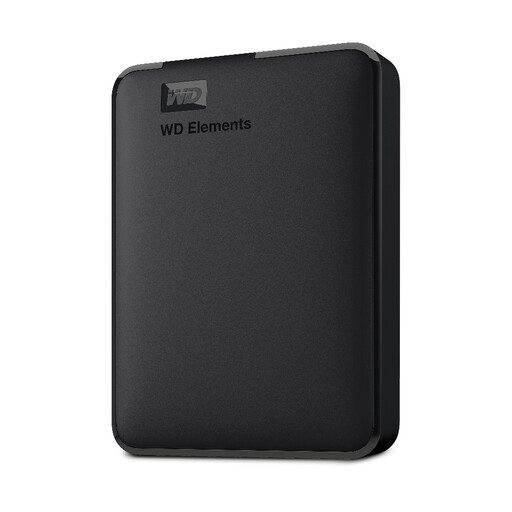
A portable HDD option for making a separate copy of spreadsheet files at a regular desk setup. The product title specifies 1TB.
Check the connection and file format for your computer, and keep another permitted recovery copy rather than relying on this drive alone.
No: keep another permitted copy so a problem with the drive does not leave you without the file. Microsoft Support says OneDrive and SharePoint can restore older file versions where version history is available, though a school administrator may disable document versioning.
Not necessarily: a portable HDD can suit spreadsheet copies made mainly at a desk. Consider an SSD if you carry the backup frequently or need a particular connection, then check the exact model’s accessories and your computer’s ports.
Check the exact drive’s supplied file format before relying on it with both systems. Toshiba says Canvio Basics is supplied as NTFS for Windows and requires reformatting for the macOS versions it lists; move existing files elsewhere before reformatting.
Follow your school’s approved storage and protection rules before copying it to a removable drive. The Information Commissioner’s Office advises using encryption to protect personal information on removable media; a drive’s password feature alone does not establish that your school permits its use.
Make a new copy after meaningful edits and occasionally open a copied spreadsheet to check that it can be read. Keep the drive apart from the computer when practical, and safely eject it before disconnecting.