Choose an external SSD by checking your devices’ ports, backup software and required drive format before comparing advertised transfer speeds. For routine backups, allow for a growing collection and establish a repeatable backup process; for files carried between locations, check the exact model’s protection claims, while sensitive files also need an encryption method you can reliably unlock.
Who needs this storage?
Laptop and photo backup users
If photos, videos and documents are accumulating across devices, you need capacity for the collection and a drive format that works with your intended backup and file-transfer tasks. Apple’s guidance distinguishes Time Machine backups from storing a Mac Photos library.
Mobile creators and travellers
Carrying a drive between shoots or work locations makes its size, connection requirements and model-specific protection claims relevant. Samsung and Crucial both make their stated maximum speeds conditional on the host connection.
Privacy-conscious drive users
If the files you carry should remain inaccessible when a drive is misplaced, check how the exact drive or backup workflow handles encryption, passwords and later recovery. Keep a separate copy of important files as well.
What matters when choosing?
Decide which devices and backup software the drive must work with before choosing its capacity or comparing speed figures. If you need to move files between systems, plan the drive format before putting files on it.
| Concern |
What to check |
Who this matters to |
| Ports and drive format |
Check each device’s port, the supplied cable and the format required by your backup software. Apple says Time Machine cannot back up to a Windows-formatted disk. |
If my laptop and other devices need to use the same drive, I want to settle the connection and formatting plan before transferring files. Around 39% of consumers put compatibility first. |
| Capacity and backup routine |
Allow space for the initial backup and later changes. For Time Machine, Apple recommends a device with at least twice the Mac’s storage capacity; check which folders your backup software includes. |
As my photo and document collection grows, I need room for later backups and a routine I will actually run. Roughly 31% of consumers make capacity and backup routine their primary concern. |
| Carrying and transfer conditions |
Check the exact model’s ingress and drop-test conditions, and whether your host port supports its stated transfer speed. |
When I carry files between locations, I want the drive’s protection claims to fit that use without assuming they cover every accident. Around 15% of consumers prioritise portability and practical transfer conditions. |
| Security and access |
Confirm the exact encryption method, which devices can unlock the files and how you will retain passwords or recovery information. |
If I carry sensitive files, I need to restrict access without losing my own way back into them. About 15% of consumers put security and recoverable access first. |
Mistakes to avoid
-
Choosing by advertised speed alone
A USB-C-shaped port does not establish the speed available through the complete connection. Samsung and Crucial condition their stated maximum speeds on compatible host hardware and cables.
Check the port and supported USB or Thunderbolt standard on each device, then compare them with the SSD’s cable and speed requirements.
Your existing setup may need an adapter or may run the drive below its stated maximum speed.
-
Formatting before deciding how to use the drive
Apple says Time Machine cannot back up to a Windows-formatted disk, and moving a Mac Photos library also has Mac-format requirements. Reformatting erases files already on the drive.
Copy existing files elsewhere before changing the format. Decide whether the drive is for backup, a Photos library or transfers between systems; use separate volumes or drives where the workflows require it.
-
Treating a ruggedness rating as accident cover
Protection claims apply under stated test conditions, not every situation. Samsung says liquid, dust and drop damage are not covered under its T7 Shield warranty.
Read the exact model’s test conditions and warranty exclusions, protect the drive when carrying it, and keep another copy of important files.
-
Keeping important files on only one SSD
A portable drive can be lost, damaged or fail. Microsoft’s backup guidance emphasises regular copies so a recent version remains available after deletion or hardware failure.
Keep an additional, independently stored copy and periodically test that you can restore a file. A drive warranty is not a substitute for that copy.
Relevant brands to consider
Crucial
The X10 and X10 Pro portable lines are relevant when capacity, transfers between compatible devices and the intended drive format shape the choice.
- Crucial lists several supported device types for the X10 Pro and says its supplied exFAT format can be changed.
- Formatting changes erase data. PCMag UK notes that the X10 requires a USB 3.2 Gen 2x2 connection for its full stated speed and lacks AES hardware-based encryption.
Samsung
The T7 Shield line is relevant to consumers who carry files and want to assess model-specific environmental protection alongside device compatibility.
- Samsung states that the T7 Shield has IP65-rated protection and has undergone drop testing from up to 3 metres.
- Samsung conditions its stated transfer speeds on the host and cable, and says liquid, dust and drop damage are not covered under warranty.
SanDisk Professional
The PRO-G40 line is a more specialised portable option for workflows using a compatible Thunderbolt 3 or USB-C host.
- SanDisk Professional specifies Thunderbolt 3 and USB-C connection modes, with different maximum speeds for each.
- Its stated environmental-resistance claims have test conditions. The PRO-G40 comes formatted as APFS, so Windows use requires a formatting decision before files are stored on it.
Synology
BeeDrive is relevant when establishing a recurring backup process matters more than choosing a portable SSD by transfer speed alone.
- PCMag UK lists BeeDrive as its choice for simple, automatic backups.
- Check the exact BeeDrive model’s software, device and folder support against the files you intend to back up.
Portable SSDs on Joybuy
These portable SSDs are options for carrying files and setting up local laptop or photo backups. Match each drive’s capacity, connection and stated features to your devices and backup workflow; the drive alone does not create a second copy until you use it in a backup routine.
 No image available
Samsung T7 Shield MU-PE1T0S 1 TB, black
Consider this portable drive if you carry laptop or photo files and want to assess protection against everyday exposure. The model is listed with USB Type-C 3.2 Gen 2; Samsung states IP65 protection and drop testing from up to 3 metres for the T7 Shield, subject to its stated conditions. Check your device connection and required backup format, and do not treat the rating as cover for every incident.
View on Joybuy
 No image available
Samsung Portable SSD T7 4 TB, grey
The stated 4 TB capacity is worth considering for a larger local photo or document collection. This T7 variant is listed with USB Type-C 3.2 Gen 2; check your device port and the format your backup software needs before assigning it to that task. Keep another copy of important files.
View on Joybuy
 No image available
Samsung Portable SSD T7 2 TB, blue
This 2 TB portable variant is an option when you need space for laptop or photo files but do not need the listed capacity of the 4 TB T7 above. Its name specifies USB Type-C 3.2 Gen 2. Confirm your port and backup-format requirements, and retain an additional copy of files you cannot replace.
View on Joybuy
 No image available
Lexar ES4 1 TB portable SSD with Magnetic Set
Consider this model for transferring files between compatible phones and computers if its attachment and connection arrangement suits your setup. Its name specifies USB 3.2 Gen 2 and up to 1,050 MB/s read and 1,000 MB/s write; these are stated maximums, not a speed guarantee for your device. Check the stated iPhone 15/16 attachment conditions and the file-system and encryption-software support you require.
View on Joybuy
 No image available
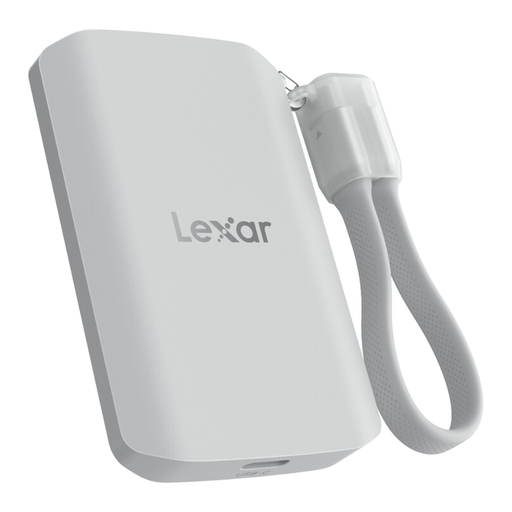
Lexar ES5 1 TB portable SSD
This model is relevant if you want to assess a portable drive with phone-media features as well as laptop file transfers. Its name states USB 3.2 Gen 2x2, IP65 protection and up to 2,000 MB/s read and write; the maximum speed depends on a compatible connection. Before relying on automatic media backup, confirm that the Lexar app supports your device and intended files, and check the drive-format requirements.
View on Joybuy
Common questions
Can I keep ordinary files on the same SSD as a Time Machine backup?
Yes, if you set up a separate volume for those files rather than putting them in the Time Machine backup volume. Apple says the backup uses its APFS volume and advises against storing a Photos library on a Time Machine backup device.
Can Time Machine use an SSD formatted for Windows?
Not without changing its format. Apple says Time Machine cannot back up to a Windows-formatted disk and prefers APFS or APFS Encrypted; copy any existing files elsewhere before reformatting, because that process erases them.
How much SSD capacity should I allow for Time Machine?
Apple recommends a backup device with at least twice your Mac’s storage capacity. That guidance applies to a Time Machine setup, not to every use of a portable SSD.
Can Windows File History back up to an external SSD?
Yes. Microsoft says File History can make regular backups to an external drive; after choosing the drive, check which folders are included and test that you can restore a file.


