What matters when choosing an SSD?
Start with the files and backup history you need to keep, then settle the computer’s backup format and who can access the drive. Compare speed and handling features once those requirements are clear.
| Concern | What to check | Who this matters to |
|---|
| Recovery and capacity |
Compare used storage and expected growth with the SSD’s capacity; decide how much room to leave for backup history. |
If I need to recover changing family photos and documents, I want enough space for retained backups, not just a one-off copy. Around 36% of consumers put recovery and capacity first. |
| Privacy and access |
Check how encryption is set up, who keeps the password and where a disconnected backup can be stored. |
When a drive holding personal or client files could be handled by others, I need to control who can open it. For around 29% of consumers, that access concern comes first. |
| Computer and backup setup |
Identify the operating system, backup software, required disk format and available connection before setting up the drive. |
If I use Time Machine or File History, I need a drive arrangement that works with my computer without erasing files I meant to keep. Compatibility is the primary concern for around 21% of consumers. |
| Transfer and handling |
Check the host USB standard and cable for rated speeds; read the conditions and warranty limits behind physical-protection claims. |
When I repeatedly move large projects or carry the SSD around the studio, transfer time or handling matters more to me. Around 14% of consumers make this their first concern. |
Joybuy SSD options
These portable SSDs offer different capacities and connection specifications for a family-computer backup. Choose among them using your required backup space, computer setup and access-control plan; a product’s stated protection or speed does not replace a second backup.
 No image available
Samsung T7 Shield MU-PE1T0S 1TB Black
Consider this portable drive if it will be moved around the studio and 1TB meets your backup and retention needs.
USB 3.2 Gen 2; Samsung UK lists T7 Shield maximum speeds of 1,050MB/s read and 1,000MB/s write with a compatible host, cable and UASP.
Samsung’s IP65 and drop ratings describe limited protection, not a substitute for another backup. Check the required backup format before setup.
Joybuy
 No image available
Samsung Portable SSD T7 2TB Grey
The 2TB capacity is an option to assess if your files and intended backup history need more room than a 1TB drive provides.
USB 3.2 Gen 2. Check the computer’s backup format before setup, and plan how access to personal files will be controlled.
Joybuy
 No image available
Lexar ES4 Portable SSD with Magnetic Set 1TB
Consider the 1TB variant if that capacity accommodates the files and backup history you plan to retain.
USB 3.2 Gen 2, with stated maximum speeds of 1,050MB/s read and 1,000MB/s write. Check the format required by your backup software and how you will protect access to the drive.
Joybuy
 No image available
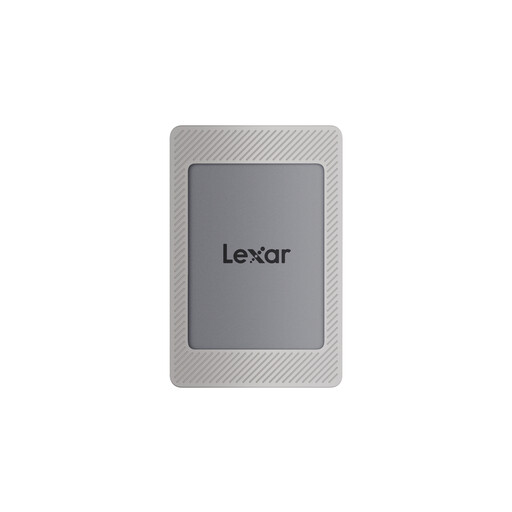
Lexar ES4 Portable SSD with Magnetic Set 2TB
This 2TB variant gives you a different capacity to assess against the computer’s used storage and desired backup history.
USB 3.2 Gen 2, with stated maximum speeds of 1,050MB/s read and 1,000MB/s write. Confirm the intended backup workflow and format before using it as the family backup drive.
Joybuy
 No image available
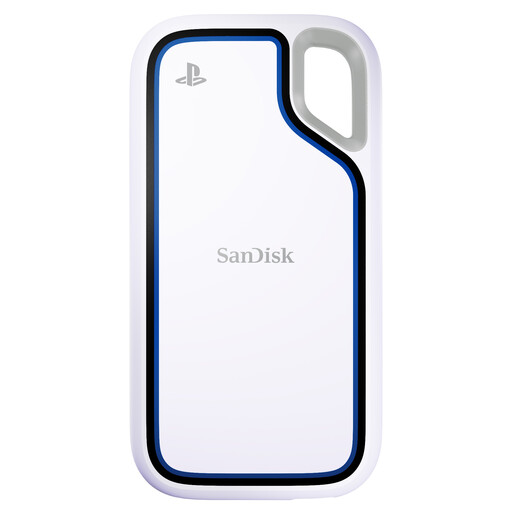
SanDisk Extreme 2TB Portable SSD for PlayStation 5 and PC
Consider its 2TB capacity for a portable backup after checking the space your files and retained versions will require.
The product name specifies PC and PlayStation 5 use; confirm its format and suitability for your chosen computer backup method. If the drive will hold personal or client information, check the exact model’s access-protection options before buying.
Joybuy
Frequently asked questions
Can one external SSD be the family’s only backup?
It should be one backup location, not the entire recovery plan. The National Cyber Security Centre warns that ransomware can affect connected USB storage, so keep another backup and disconnect at least one copy when it is not in use.
Can the same SSD serve Windows File History and Mac Time Machine?
Only with a carefully planned disk arrangement. Microsoft says File History can use an external drive, while Apple says Time Machine cannot back up to a Windows-formatted disk and prefers APFS or APFS Encrypted for its backup disk. Copy existing files elsewhere before any erase or reformat action.
Should a backup SSD in a shared studio be encrypted?
Encryption is worth planning when the drive holds personal or client information and others might access or remove it. The Information Commissioner’s Office describes encryption as protection against unauthorised access to stored personal information; keep the password and recovery information secure and separate from the drive.
How can I make Windows backups to an external SSD regularly?
Use File History rather than relying solely on occasional manual copies. Microsoft Support says it can make regular backups to an external drive; select the drive in File History and check which folders and saved versions the setup covers.
Do family backups need a 2,000MB/s SSD?
A 2,000MB/s rating is most relevant if large transfers are frequent and the computer and cable support the required interface. Lexar bases its SL500 figures on USB 3.2 Gen 2x2 testing and says performance can be lower under other conditions; check the host port before making speed the deciding factor.


