For a journal made mainly of text, choose an external SSD that connects to your workstation and makes a backup routine easy to maintain; headline transfer speed matters more if you also copy large files. Keep the drive disconnected between backups and retain another copy elsewhere, so the SSD does not become the journal’s only remaining copy.
Who needs this backup?
Journal-first home users
If you mainly want to recover private writing after deletion or a computer failure, focus on making and checking separate copies rather than buying for maximum transfer speed. The National Cyber Security Centre advises disconnecting backup storage when it is not in use.
Privacy-conscious journal keepers
If your journal contains sensitive writing, consider how you will set up password protection, store the credentials and keep a second recoverable copy. A password feature does not replace the backup routine.
Mixed-media backup users
If the same drive will hold photographs, scans, audio, video or other large files, capacity and transfer speed may matter more. Check the workstation’s USB specification before choosing a drive for its advertised speed.
What should you check?
For a home-workstation journal backup, decide whether recoverability, privacy or workstation fit is your primary concern. An SSD still needs a repeatable copying and restore-check routine.
| Concern | What to check | Who this matters to |
|---|
| A recoverable copy |
Choose a connection you can use regularly; plan to eject and store the SSD separately, then check that a copied file opens. |
If a workstation problem could remove my journal, I want a separate copy I can actually restore. Around 42% of consumers put recovery first. |
| Privacy |
Check password or encryption setup for the exact model and workstation, and keep access credentials securely. |
Sensitive writing makes access to a misplaced drive my main worry; around 33% of consumers prioritise privacy protection. |
| Workstation fit |
Confirm the USB mode, connector and cable, then size the drive for everything you intend to back up. |
I want a drive that works with my computer without choosing speed or capacity solely for a text journal. Workstation fit comes first for around 25% of consumers. |
Backup mistakes to avoid
-
Treating the SSD as the only backup
If the SSD is lost, damaged or unreadable, that copy cannot help you recover the journal. The National Cyber Security Centre describes a backup approach with three copies, on two devices, including one offsite.
Keep the working journal, an SSD backup and another separately stored copy. Periodically open a copied file to check that it is usable.
-
Leaving the backup connected
A connected USB drive can be affected by an infected workstation. The National Cyber Security Centre advises disconnecting backup storage when it is not in use.
After copying the journal, safely eject the SSD and store it securely until the next backup.
-
Choosing Gen 2x2 speed by connector shape
A USB-C socket alone does not establish USB 3.2 Gen 2x2 support. Crucial and Kingston make their higher-speed specifications conditional on a compatible host.
Check the workstation’s USB specification before choosing a Gen 2x2 drive for large-file transfers.
-
Reformatting before protecting existing files
Reformatting erases data on the drive; password protection also requires you to retain the information needed to regain access.
Copy off files you need before changing the file system. Store the password or recovery information separately and check that the journal opens after its first backup.
Relevant brands for reference
Samsung
The Portable SSD T7 range offers a USB 3.2 Gen 2 option for home backup; T7 Shield adds a more rugged design.
- Samsung specifies password protection and, for T7 Shield, IP65-rated dust and water resistance and a 3-metre drop claim.
- Samsung’s stated maximum T7 Shield speeds require a compatible USB 3.2 Gen 2 host, cable and UASP mode. Samsung says liquid, dust and drop damage are excluded from its warranty.
Crucial
X10 Pro is a portable option to consider when a journal backup also includes large workstation files.
- Crucial specifies up to 2,100MB/s read and 2,000MB/s write, alongside IP55 protection and password protection.
- Full USB 3.2 Gen 2x2 performance needs a compatible USB-C host. Crucial says X10 Pro ships formatted as exFAT and that reformatting erases its data.
Kingston
XS2000 is a compact USB 3.2 Gen 2x2 option for backups that include large files.
- Kingston specifies up to 2,000MB/s read and write and an IP55 rating when the removable sleeve is fitted.
- Kingston says optimal speed needs USB 3.2 Gen 2x2 support; the stated speed should not be assumed from a USB-C connector alone.
Joybuy product choices
These portable SSDs offer options for a separate home-workstation copy. Consider the standard-interface models for a journal-focused routine; check Gen 2x2 support before choosing a higher-speed model for large files. Whichever drive you use, keep another recoverable copy.
 No image available
Samsung T7 Shield Portable SSD, 1TB, Blue
Consider this USB 3.2 Gen 2 model if the backup drive will be moved or stored away from the workstation.
Samsung specifies IP65-rated protection and password setup for the T7 Shield range. Check your workstation connection and store the password securely; its physical-protection rating does not make it a substitute for another copy.
View on Joybuy
 No image available
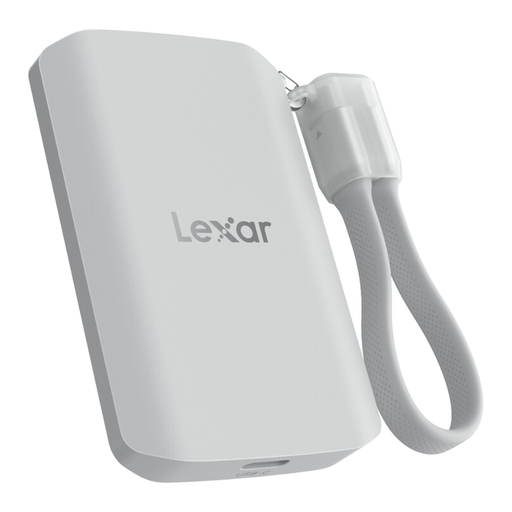
Lexar ES4 Magnetic Set Portable SSD, 1TB
A USB 3.2 Gen 2 option for a journal backup on a compatible PC or Mac.
The product name specifies up to 1,050MB/s read and 1,000MB/s write. Check the workstation’s USB mode and the password-protection setup before relying on either for your backup routine.
View on Joybuy
 No image available
Lexar ES5 Portable SSD, 1TB
Consider this model when the backup includes large files and the workstation supports USB 3.2 Gen 2x2.
Its product name specifies up to 2,000MB/s read and write and an IP65 rating. Check the host interface before expecting that speed, and check the security workflow for sensitive writing.
View on Joybuy
 No image available
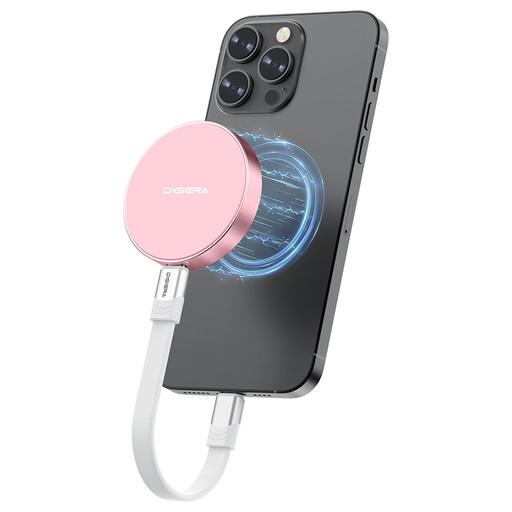
DigiEra LPS2000M-3 Magnetic Portable SSD, 1TB, Pink
A USB 3.2 Gen 2x2 option to assess if you also back up large files from a compatible USB-C workstation.
The product name states transfers up to 2,000MB/s. Confirm the workstation’s USB mode and check how you would protect access to sensitive journal files.
View on Joybuy
 No image available
SanDisk Portable SSD, 2TB
Consider the 2TB capacity if the same backup drive will also hold other files.
Check the connector and operating-system compatibility with your workstation, along with your preferred method of protecting sensitive journal files.
View on Joybuy
Common questions
Is one external SSD enough to back up my journal?
No: an SSD copy can be lost or become unreadable, so keep another recoverable copy separately. The National Cyber Security Centre recommends keeping backup storage disconnected when it is not in use; check periodically that you can open a copied journal file.
Should I leave my backup SSD plugged in?
Disconnect it between backups if you want the copy to be less exposed to a workstation infection. The National Cyber Security Centre warns that connected storage can be affected by an infected computer; safely eject the drive after copying and checking your files.
Will a 2,000MB/s SSD reach that speed through any USB-C port?
No. Kingston ties optimal XS2000 performance to USB 3.2 Gen 2x2, and Crucial says full X10 Pro Gen 2x2 performance needs a compatible USB-C host. Check your workstation’s USB specification rather than the connector shape alone.
What should I do before reformatting a backup SSD?
Copy off files you need before changing the file system. Crucial says its X10 Pro ships formatted as exFAT and that reformatting erases data on the drive; confirm the format needed by the devices you intend to use.


