For a private journal backed up without cloud storage, choose an external SSD that works with the computer you would use to restore the files, then decide whether encryption and travel protection matter for your routine. Keep recovery information separate if you encrypt the drive, and disconnect and store the completed backup away from the computer; a rugged casing does not replace a usable, separate copy.
Who needs an offline journal SSD?
Privacy-first journal keepers
If the journal contains sensitive material, consider how someone could access it if the SSD were misplaced or stolen. Check the encryption method you intend to use and keep its recovery information somewhere separate from the drive.
Routine home backup users
If you copy journal files from one computer regularly, focus on a connection and file format that work with it. Reopen a copied file to check the backup, then disconnect the SSD and store it separately, in line with National Cyber Security Centre backup guidance.
Mobile writers and travellers
If the backup travels with you, consider its size and the exact model's documented dust, water or drop protection. Keep the SSD apart from the original files when it is not being used for a backup.
What matters when choosing an SSD?
Start with a backup you can open on your intended computer. Then decide which risk takes priority: someone reading a lost drive, losing access to the original files, difficulty connecting another device, or damage while carrying the SSD.
| Concern |
What to check |
Who this matters to |
| Privacy if the drive is lost |
Check the exact drive's password features or your computer's removable-drive encryption options, and plan where to keep recovery information. |
If my journal is sensitive, I want its contents protected even if I misplace the SSD. For around 36% of consumers, that privacy need would come first. |
| A restorable backup |
Check that copied files open from the SSD, then disconnect it and store it separately after each backup. |
When the original journal is deleted or the computer becomes unavailable, I need a separate copy I can actually open. Around 29% of consumers would put recovery first. |
| Device compatibility |
Check your ports, the supplied cable and the file format against every computer that may need to read the backup. |
If I may restore my journal on a different computer, I need the SSD to connect and its files to be readable there. That would be the primary concern for around 21% of consumers. |
| Carrying the drive |
For a drive that travels, check the exact model's size, stated protection and the conditions and exclusions attached to those claims. |
When my journal backup goes in a bag, I care about carrying it conveniently and protecting it from everyday handling. Around 14% of consumers would prioritise that need. |
Mistakes that put an offline backup at risk
-
Leaving the SSD permanently connected
A drive accessible from the computer may also be reachable during an incident affecting the original files. The National Cyber Security Centre advises keeping backup media physically disconnected and separate.
After copying the journal, check that a file opens from the SSD, safely disconnect it and put it in a separate secure place.
-
Setting a password without planning recovery
Encryption can restrict unauthorised access, but losing the password or recovery key can also prevent you from opening your own journal. Microsoft describes this risk for BitLocker-protected drives.
Confirm that your chosen encryption method works on the computer you will use, test unlocking the drive and retain recovery information away from the SSD.
-
Assuming every USB-C connection delivers the quoted speed
Maximum transfer figures depend on a compatible host and connection. A port or cable mismatch can change what you experience when copying files.
Check your computer's USB port and the cable supplied with the exact drive; treat quoted 'up to' speeds as maximum claims, not everyday guarantees.
-
Reformatting the only backup
Reformatting erases the drive's contents, and the chosen file format affects which devices can read it. Crucial gives this warning for the X9 Pro.
Decide how the SSD must work with your devices before loading the journal. Keep another checked copy before erasing or reformatting a drive.
Relevant SSD brands to consider
These product lines illustrate different ways to handle an offline journal backup; check the exact model and variant before relying on a feature.
Samsung
The T7 range includes portable SSDs for routine copying, while the T7 Shield is relevant when the backup travels.
- Samsung states that the T7 Shield MU-PE1T0S/EU has an IP65 rating, a 3 m drop claim and USB 3.2 Gen 2 sequential speeds of up to 1,050 MB/s read and 1,000 MB/s write.
- Those protection claims come from controlled conditions, and Samsung says liquid, dust and drop damage are not covered by its warranty. Maximum stated speeds require a compatible connection.
Crucial
The X9 Pro is worth considering when the journal may need to be read on different devices and the file-format and encryption choices can be planned in advance.
- Crucial says the X9 Pro ships in exFAT and can be reformatted; it also states compatibility with BitLocker To Go on Windows and FileVault on macOS.
- Reformatting erases existing files. Check that the encryption method you choose works with the devices that must restore the journal.
Kingston
The XS1000 line suits a straightforward document-copying routine when access to both USB-A and USB-C connections is important.
- Kingston lists a USB-C-to-USB-A cable and USB-A-to-USB-C adapter with the XS1000, and offers 1 TB and 2 TB models.
- If physical protection or encryption is central to your choice, check the exact model and your intended security setup rather than relying on its compact size.
SanDisk
The specified Extreme Portable SSD is relevant to a journal backup that both travels and needs a documented password-protection option.
- SanDisk states that its listed Extreme Portable SSD offers password protection with built-in 256-bit AES encryption, IP65 resistance and up to 3 m drop protection.
- Confirm the exact model and configure protection before storing private files. Retain a way to recover access and keep a separate, usable backup.
Joybuy SSDs for offline journal backups
These portable SSDs offer choices for keeping a removable journal copy. Some have features aimed at carrying the drive or connecting different devices; whichever you choose, check how you will protect private files and restore them on your computer.
 No image available
Samsung Portable SSD T7 1 TB, Blue
A removable option for a regular journal-copying routine on a compatible computer.
The listed variant has a USB Type-C 3.2 Gen 2 connection. Check your device connection and set up a suitable encryption and recovery method before using it for sensitive files.
View on Joybuy
 No image available
Lexar ES4 Magnetic Set Portable SSD, 1 TB
Consider this model if you want a portable journal copy and may use its magnetic setup with a compatible device.
Its listed USB 3.2 Gen 2 read and write speeds are up to 1,050 MB/s and 1,000 MB/s respectively. Check the connection, magnetic fit and encryption-recovery workflow for the devices you will use.
View on Joybuy
 No image available
Samsung MU-PE1T0S Portable SSD 1 TB, Black
This is a carrying-focused option for a removable journal backup.
The listed connection is USB Type-C 3.2 Gen 2. Samsung describes password setup through its Portable SSD software for this model; confirm the protection, recovery process and connection you need before relying on it for private files.
View on Joybuy
 No image available
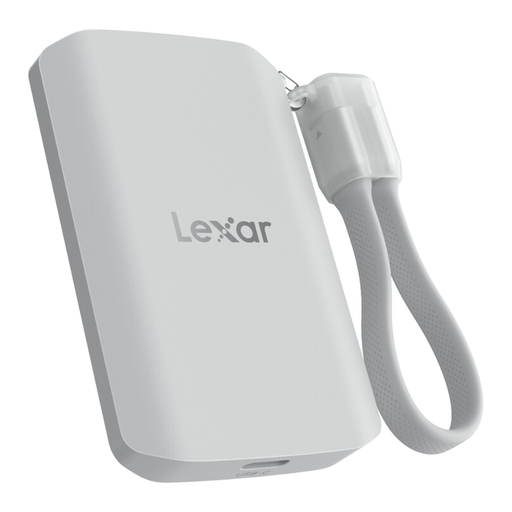
Lexar ES5 Portable SSD, 1 TB
The ES5 is a portable option to consider when your journal backup will travel.
Its title lists IP65 protection, USB 3.2 Gen 2x2 and read and write speeds of up to 2,000 MB/s. Check host support for that connection and choose an encryption method if the journal must remain private when the drive is lost.
View on Joybuy
 No image available
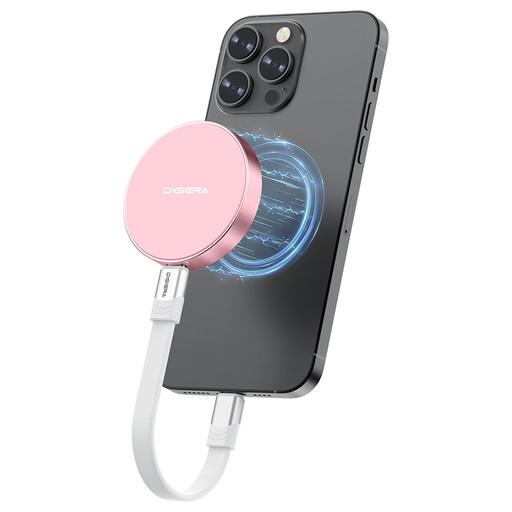
DigiEra LPS2000M-3 Magnetic Portable SSD 1 TB, Pink
Consider this removable drive if your journal-copying setup uses a compatible USB-C device and you want the stated magnetic design.
The title lists USB 3.2 Gen 2x2 and a transfer speed of up to 2,000 MB/s. Check magnetic attachment against your device, along with the file format and your intended encryption method, before making it your journal backup.
View on Joybuy
Frequently asked questions
Should I leave my journal backup SSD plugged in?
No, not if you want an offline backup. Check that the copied journal opens, then disconnect the SSD and store it separately; the National Cyber Security Centre advises that physically disconnected backup media is harder for an attacker to access.
How do I protect a private journal if the SSD is lost?
Use an encryption method supported by the exact drive and computer you plan to use, and keep the password or recovery information separate. Microsoft explains that BitLocker can prevent offline reading without the decryption key, but losing the recovery key can also prevent you from accessing your files.
Can I restore my journal on both a Mac and a Windows computer?
Yes, if the connection, file format and any encryption method work on both computers. Apple identifies exFAT as a Windows-compatible format for volumes over 32 GB, and Crucial says its X9 Pro ships in exFAT; check your own setup before relying on it, because reformatting erases existing files.


