What matters when choosing?
For a home scan archive, settle access and connection needs before choosing capacity and deciding whether the drive needs extra protection while being carried.
| Concern |
What to check |
Who this matters to |
| Privacy and recovery |
Check the intended encryption method, whether your Windows edition supports it and where you will keep the recovery key. Confirm any workplace storage rules. |
If I keep sensitive scans at home, I want to restrict access without locking myself out. Around 33% of consumers put privacy and recovery first. |
| Connections and format |
Check the workstation’s USB port, the supplied cable or adapter and the file system needed by any other device. |
When I use the archive on more than one device, I need to open the files without an unexpected connection or formatting problem. Roughly 27% of consumers prioritise compatibility. |
| Archive growth and backup |
Allow for current scans and future growth, and decide where a separate copy will be kept. |
If my scan archive keeps growing, I need space for new files and another copy I can restore. About 27% of consumers make archive growth and backup their primary concern. |
| Protection while carrying |
Compare stated IP and drop-test conditions with how often you will move the SSD; check the relevant warranty exclusions. |
When I carry the drive between locations, knocks and exposure during handling matter more to me. Around 13% of consumers put physical protection first. |
External SSDs on Joybuy
These portable SSDs offer different capacities, connections and stated protection or speed features for a home scan archive. Match those details to your workstation and handling needs, and keep a separate copy of important documents whichever drive you choose.
 No image available
Samsung T7 portable SSD, 2 TB, blue
Consider this drive if you want space for a growing scan archive and expect to use it at a home workstation. Its listed connection is USB 3.2 Gen 2; check your port and cable, and compare the capacity with your expected archive growth.
View on Joybuy
 No image available
Samsung T7 Shield portable SSD, 1 TB, blue
This is a model to consider if the scan archive regularly leaves your desk. Samsung specifies IP65 protection for the T7 Shield under test conditions, not protection from every handling incident; check whether 1 TB leaves enough room for your files and keep another backup copy.
View on Joybuy
 No image available
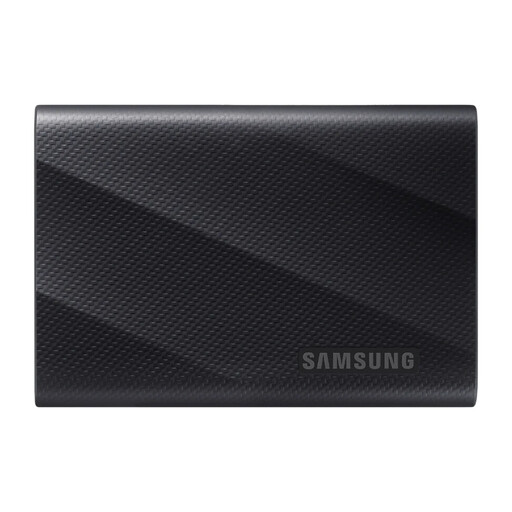
Samsung MU-PG1T0B portable SSD, 1 TB, black
Consider this model if the same drive will handle the scan archive and frequent large-file transfers. Joybuy lists USB 3.2 Gen 2x2; check that your workstation supports the interface before relying on its speed rating, and confirm your intended encryption and recovery arrangements for sensitive scans.
View on Joybuy
 No image available
Lexar ES4 Magnetic Set portable SSD, 1 TB
This model may suit an archive used with a PC or Mac as well as a home workstation. Joybuy lists USB 3.2 Gen 2 and a Magnetic Set variant; check the file system before loading scans, since formatting a populated drive erases its contents.
View on Joybuy
 No image available
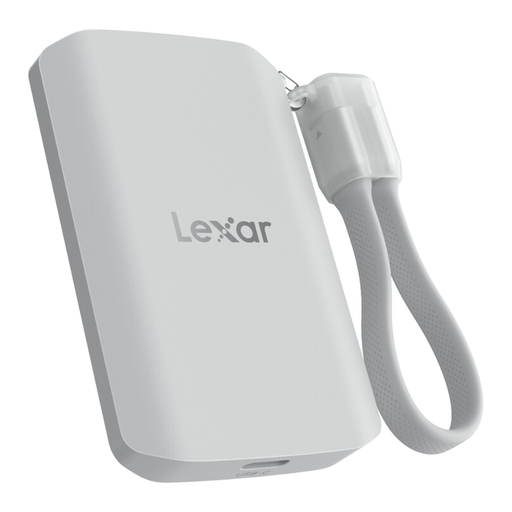
Lexar ES5 portable SSD, 1 TB
Consider this drive if you will carry the archive and also transfer large files. Joybuy lists IP65 protection and USB 3.2 Gen 2x2; check the workstation interface before relying on the stated speed, and confirm the encryption method and recovery plan if the scans are sensitive.
View on Joybuy
Common questions
Do scanned documents require a particularly fast external SSD?
Not usually for occasional PDF and image scans. If you regularly import or restore large image batches, compare speed ratings only after checking that the workstation’s USB connection supports the drive’s interface.
Can I encrypt a removable SSD with BitLocker?
Yes, on a supported Windows edition. Microsoft lists removable drives under BitLocker To Go and says manual BitLocker Drive Encryption is available on Windows Pro, Enterprise and Education; check your edition and plan where to keep the recovery key.
What if I lose my BitLocker recovery key?
You may be unable to regain access to the encrypted archive. Microsoft says its support team cannot retrieve or recreate a lost BitLocker recovery key, so keep it somewhere secure and separate from the SSD.
Can I keep employer or client scans on my own SSD?
Do not assume personal storage is permitted for those records. The Information Commissioner’s Office advises organisations using personal devices to keep organisational and personal data separate and to prevent staff moving organisational data into personal storage; follow your organisation’s rules and obtain approval where required.
Will one SSD work with both Windows and Mac?
It can if both devices support the connection and can use the drive’s file system. Crucial says the X9 Pro ships as exFAT and can be reformatted, but warns that reformatting erases its contents; check the format you need before putting scans on the drive.


