Everyday coursework backup users
Students copying lecture notes, PDFs, slides and assignment folders from a main laptop may want a compact drive that is straightforward to connect and store.


For copying notes, PDFs and presentations, choose an external SSD with enough space for your coursework and a connection that fits your devices; a higher advertised speed need not be the deciding factor. Larger recordings make transfer speed more relevant, while sensitive files or frequent travel may justify access controls or a rugged model—but none replaces keeping another copy of important work.
Students copying lecture notes, PDFs, slides and assignment folders from a main laptop may want a compact drive that is straightforward to connect and store.
Students moving files between USB-C and USB-A computers, or a laptop and another compatible device, need to check cables, adapters and formatting before relying on one drive across them.
People who regularly take private coursework away from their desk may value access controls if a drive is misplaced, or additional physical protection if it faces a greater risk of knocks and exposure.
Start with the space your coursework needs and the devices that must read it. Then decide whether your copying routine calls for access controls or extra protection during travel.
| Concern | What to check | Who this matters to |
|---|---|---|
| Space for coursework | Compare the size of your current folders with the space you expect to need for future modules, recordings or scans. Leave room beyond the files already collected. | If my notes include recordings and project files, I want room to keep earlier coursework rather than repeatedly clearing the drive; around 25% of consumers put archive space first. |
| Connection across devices | Check each device’s USB port, the supplied cable or adapter, and the file format required for the devices you intend to use. | Moving the same notes between older and newer computers only helps me if both can connect to and read the SSD. Around 33% of consumers make cross-device use their primary concern. |
| Recoverability and privacy | Keep another copy of important files; consider access controls if the drive will hold sensitive material, and disconnect a backup drive when it is not in use. | If I lose the drive or my laptop fails, I still need my coursework, and private files should not be readily accessible to someone who finds the SSD; for around 25% of consumers, recovery and privacy take priority. |
| Protection while travelling | Compare any stated dust, water and drop-test conditions with how you carry the drive. Check the limits of those claims rather than treating a rating as unlimited protection. | When my SSD regularly travels between study locations, I worry most about knocks or exposure on the way; roughly 17% of consumers put physical protection first. |
Samsung says the T7’s maximum rates require a compatible USB 3.2 Gen 2 host and cable, with USB Attached SCSI Protocol (UASP) enabled. A faster drive rating does not establish what a particular laptop and connection will achieve.
Check your computer’s ports and the accessories supplied with the drive before choosing a speed tier.
A different cable or adapter may be needed for your intended connection.
Crucial states that reformatting the X9 erases data on the drive. Changing its file format after transferring coursework could therefore remove those files.
Check the format your devices require before loading important folders, and keep another copy while testing the setup.
The National Cyber Security Centre warns that malware can affect storage devices left connected to a computer.
Keep another copy of important coursework, store the SSD securely and disconnect it when the copy or backup session is finished.
Samsung bases its T7 Shield IP65 and drop claims on controlled testing and states that liquid, dust and drop damage are excluded from warranty coverage.
Check the stated test conditions, avoid treating the drive as suitable for immersion, and keep a separate copy of your work.
The T7 line offers different approaches to a portable study drive: standard file storage, access controls on T7 Touch, and added physical protection on T7 Shield.
The portable X9 and X9 Pro lines offer capacity options up to 4TB for students comparing a compact archive with their expected file growth.
The compact XS1000 line may suit students moving a study archive between devices with USB-C and USB-A ports.
These portable SSDs cover straightforward note storage as well as models to consider when connections across devices or protection during travel matter more. Check each variant against your own ports and file-copying routine.
 No image available
A 1 TB portable SSD to consider for copying coursework between computers; check that the connection and file format suit each device you will use.
The product name specifies USB 3.2 Gen 2. Samsung says the T7’s maximum transfer rates depend on a compatible host and cable, with UASP enabled.
 No image available
Consider this T7 Shield variant if you regularly carry a copy of your notes and want to assess a rugged drive alongside ordinary portable models.
The product name specifies USB 3.2 Gen 2. Samsung’s T7 Shield protection claims have controlled-test limits, and liquid, dust and drop damage are excluded from its warranty coverage.
 No image available
This 1TB model is worth checking if your study files move between a laptop and other compatible devices; confirm the required connection and formatting before transferring important files.
The product name specifies USB 3.2 Gen 2 and advertises maximum read and write rates of 1050MB/s and 1000MB/s respectively. Those are advertised limits, not transfer speeds for every device.
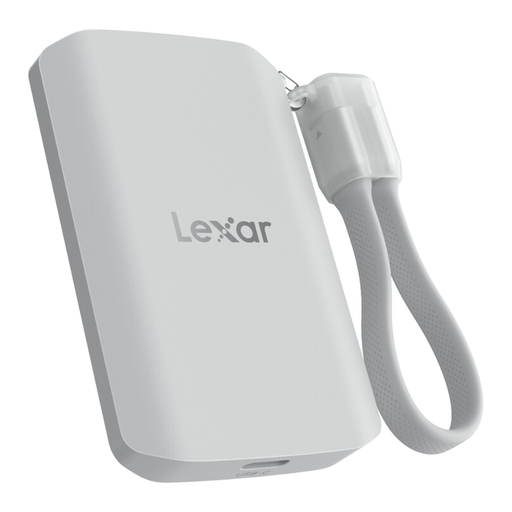 No image available
This portable model gives students carrying coursework another rugged-labelled option to assess, provided its connection suits their computer.
The product name specifies USB 3.2 Gen 2x2, IP65 and advertised read and write rates of up to 2000MB/s. Check host support before treating those maximum rates as relevant to your laptop, and confirm the supplied cable and required file format.
 No image available
The 2TB capacity makes this a model to consider if your study archive includes more than notes and slides. Confirm the cable connectors and file format against the computer or other device you intend to use.
Usually not for notes, PDFs and presentations alone; capacity and a connection that works with your laptop are more useful starting points. If you also move large recordings or media files, compare transfer ratings alongside your host’s capabilities: Samsung says the T7’s maximum rates require a USB 3.2 Gen 2 host and cable with UASP enabled.
Check both laptops’ ports and the accessories supplied with the exact SSD you plan to buy. Samsung lists USB-C-to-C and USB-C-to-A cables with the T7, while Kingston lists a Type-C-to-A cable and a Type-A-to-Type-C adapter with the XS1000; formatting and host compatibility still need checking.
Reformatting can erase files already on the drive: Crucial explicitly warns of data loss when reformatting the X9. Keep your notes elsewhere before changing a drive’s file format.
One SSD provides a separate copy, but it should not be the only copy of important coursework. The National Cyber Security Centre advises keeping backup storage secure and disconnected when not in use because malware can also affect connected devices.