What should you check before buying?
For a backup without cloud storage, plan where separate copies will live before choosing capacity and checking device compatibility. Protection and transfer speed become more important when the SSD travels or handles large batches regularly.
| Concern | What to check | Who this matters to |
|---|
| Separate, restorable copies |
Plan copies in different places and a routine for opening and restoring files. |
If losing the original photo library would leave me with only one untested drive, I need another copy I can restore. Roughly 31% of consumers put backup resilience first. |
| Capacity for growth |
Count originals, edits, exports and any video, then allow space for future files. |
I want the whole library to fit as it grows, without postponing backups when the drive fills up. Around 31% of consumers make capacity their primary concern. |
| Device compatibility |
Check each device’s port and file-system requirements before transferring files. |
When I use more than one device, I need to know each can access the backup without an unexpected reformat. Approximately 19% of consumers prioritise compatibility. |
| Carrying and transfers |
Check stated protection and its conditions, plus the host connection needed for quoted speeds. |
If I carry the SSD or regularly move large batches, I care whether it suits those sessions. Roughly 19% of consumers put portability and transfer needs first. |
Joybuy SSDs for local photo backup
These portable SSDs offer 1 TB, 2 TB or 4 TB choices for a local photo copy. Compare the capacity with your library and growth plans, then check your devices and backup routine; a second copy in another place remains necessary.
 No image available
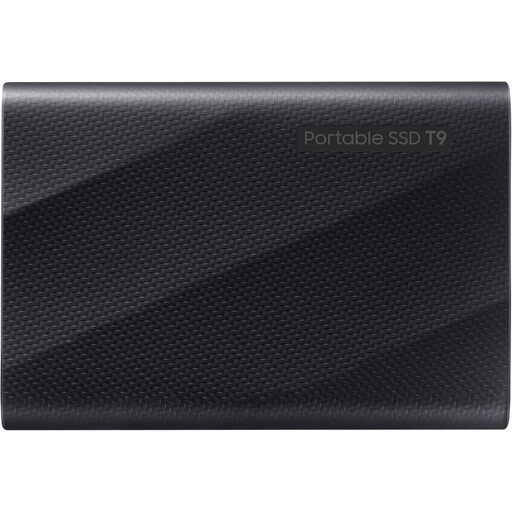
Samsung MU-PG4T0B 4 TB portable SSD
Consider this capacity for a larger or growing library after measuring the files you need to keep. It has a USB Type-C, USB 3.2 Gen 2x2 specification; check your computer’s connection and the file system needed by your devices rather than assuming the quoted interface determines actual speed.
View on Joybuy
 No image available
Samsung T7 Shield MU-PE1T0S 1 TB portable SSD
Consider this model if you carry your backup between locations and 1 TB leaves room for your library to grow. It uses USB Type-C and USB 3.2 Gen 2. Samsung states an IP65 rating under controlled test conditions; that protection does not replace a separate copy, and Samsung excludes liquid and dust damage from its warranty.
View on Joybuy
 No image available
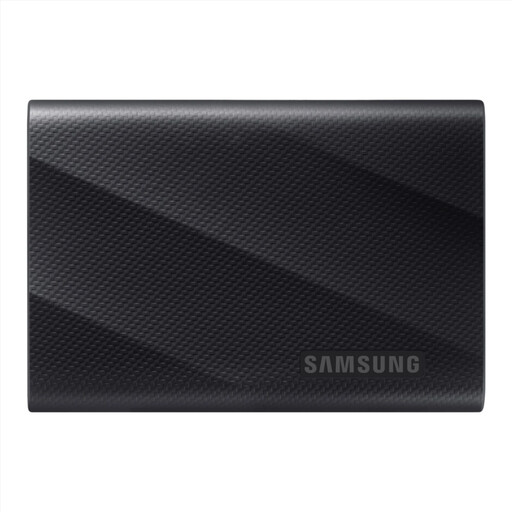
Samsung MU-PG2T0B 2 TB portable SSD
Consider this 2 TB option if it accommodates your current photos and expected growth. Its stated interface is USB Type-C, USB 3.2 Gen 2x2; check your host connection and file-system requirements before building a recurring backup routine around it.
View on Joybuy
 No image available
Samsung Portable SSD T7 4 TB Grey
Consider this 4 TB T7 for a larger local library once you have allowed for future files. It has a USB Type-C, USB 3.2 Gen 2 interface. Confirm the file system suits each device you intend to use, and keep the backup separate from liquids and moisture.
View on Joybuy
 No image available
Samsung Portable SSD T7 2 TB Grey
Consider this 2 TB T7 if it leaves enough space beyond your present library for new photos and edits. It has a USB Type-C, USB 3.2 Gen 2 interface. Check the file system against your devices and do not rely on this drive as the only copy of your photos.
View on Joybuy
Common questions
Is one external SSD enough for a local photo backup?
No, not if it is the only remaining copy. The National Archives recommends at least two copies in different places; keep another copy and periodically check that files on the SSD can be opened and restored.
Do I need the fastest portable SSD for photo backup?
Higher quoted speed is more relevant if you regularly move large batches and your computer and cable support the required connection. For occasional copying, choose enough capacity, confirm compatibility and maintain a second-copy routine before prioritising peak speed.
Can the same SSD hold backups from a Mac and a Windows PC?
It can if its file system and connections suit both devices. Crucial says its X9 ships formatted as exFAT but cautions that compatibility depends on formatting and host capabilities; copy any existing files elsewhere before reformatting, which erases the drive.
How often should I check my local photo backup?
Use a regular schedule you can maintain, and check that representative photos open and a small folder can be restored. The NI Cyber Security Centre advises scheduled backups, while the National Archives recommends regular backups and keeping copies in different places.


