Choose an external SSD around the group’s main task: managing access to scans that may contain personal information, accommodating a growing archive, or carrying files between venues. Check the capacity against the existing scans, and check connection requirements against the computers volunteers use. Treat the SSD as one copy in a backup routine, not the group’s only archive; the National Cyber Security Centre advises disconnecting an external backup device when it is not in use.
Who needs this guidance?
Volunteer records custodians
If scans may contain personal information, storage capacity is only part of the decision. The group also needs to decide who can access the files and how access will change when volunteer roles change. The Information Commissioner’s Office advises organisations to consider encryption for personal information on removable media.
Archive coordinators with growing scan collections
Years of papers, forms, photographs or local-history scans call for a capacity check, clear file organisation and a repeatable backup process. The National Cyber Security Centre advises keeping at least one backup offline so that an incident cannot affect every copy at once.
Mobile meeting and scanning teams
When volunteers move the SSD between homes, venues and scanning sessions, they need to consider the drive’s stated physical protection and the ports on the computers they will use.
What matters when choosing an SSD?
Start by deciding how the group will control access and keep another copy of its scans. Then measure the archive and check the computers the drive must connect to; physical protection matters most if volunteers regularly carry it.
| Concern |
What to check |
Who this matters to |
| Access to personal records |
Check whether scans contain personal data and whether the group can administer encryption, passwords and recovery access. |
If I look after forms or records with personal details, I need to limit access even if the drive is lost. Around 40% of consumers put secure handling first. |
| Capacity and recovery |
Measure the current archive and scanning backlog; decide where a separate copy will be kept and who will check that it can be restored. |
With more paper records still to scan, I need room for the collection and a way to recover it if a drive is lost. For around 30% of consumers, capacity and recovery are the primary concern. |
| Computer compatibility |
Check the computers’ USB ports, suitable cables and any file-format requirements before relying on a claimed transfer speed. |
When several volunteers use different computers, I need the drive to connect reliably before faster transfers matter. Connection compatibility comes first for around 20% of consumers. |
| Transport between venues |
Check the exact drop-test and ingress-protection conditions if the SSD will travel regularly; keep another copy elsewhere. |
If I carry scans to meetings, I want to understand what the drive’s physical-protection claims cover without treating them as a safeguard against lost files. Around 10% of consumers place transport protection first. |
Mistakes to avoid
-
Treating one SSD as the whole archive
A portable drive can be lost, damaged or affected by an incident on a connected computer. The National Cyber Security Centre advises maintaining backups and disconnecting an external backup device when it is not in use.
Keep another copy in a separate location, assign someone to check that files can be restored, and disconnect the SSD after backup tasks.
If the only copy is lost, volunteers may have to locate or scan the original documents again.
-
Assuming a password completes the records plan
Password protection does not decide who should have access, how recovery details are kept or whether the scans contain personal data. The Information Commissioner’s Office calls for security measures appropriate to the risk, including organisational measures.
Agree access responsibilities, remove access when roles change and assess whether encryption is appropriate for the records on the drive.
-
Choosing a transfer-speed figure before checking the computer
Kingston says the XS2000 needs a USB 3.2 Gen 2x2 host for optimal speed; its stated maximum does not apply to every computer.
Check the scanning computer’s USB specification and the cable it will use before making transfer speed the deciding factor.
-
Equating a rugged rating with protection of the files
Samsung’s T7 Shield physical-protection claims have test conditions, and Samsung says liquid and dust damage are not covered by its warranty. A protective case does not prevent deletion or replace another copy.
Use the rating to assess transport needs, store the drive carefully and retain an independent backup.
Brands to consider for these SSD features
Samsung
The T7 Shield line is relevant when volunteers carry a portable archive and want stated physical protection alongside USB 3.2 Gen 2 connectivity.
- Samsung states that the T7 Shield has an IP65 rating and a 3 m drop-test condition.
- Its stated maximum transfer speeds depend on the host, cable and UASP. Samsung says liquid and dust damage are not covered by its warranty.
SanDisk
The Extreme Portable SSD line is relevant when a group is considering manufacturer-stated password protection and encryption for removable records.
- SanDisk states that the Extreme Portable SSD offers password protection and built-in 256-bit AES encryption; check the exact model and capacity.
- Encryption still leaves the group responsible for access decisions, password recovery and a separate backup.
Kingston
The XS2000 line is relevant to large scan-import batches when the main computer supports USB 3.2 Gen 2x2.
- Kingston specifies XS2000 capacities from 500GB to 4TB and maximum read and write speeds of 2,000MB/s.
- Kingston says the computer interface can limit performance and USB 3.2 Gen 2x2 is needed for optimal speed.
Joybuy product choices
These portable SSDs offer different capacities and stated USB connections to compare with the group’s measured archive and existing computers. Consider how access to personal scans will be managed and keep a separate backup whichever drive you choose.
 No image available
Samsung T7 Shield Portable SSD 1 TB, Blue
Consider this T7 Shield if volunteers carry the archive between venues. Its listed capacity is 1 TB and its connection is USB 3.2 Gen 2; check that the capacity accommodates the measured scans and planned growth.
If the scans contain personal details, confirm how the group will set up and manage access. Keep a separate backup rather than relying on the travelling drive alone.
View on Joybuy
 No image available
Samsung Portable SSD T7 4 TB, Grey
The 4 TB T7 is a capacity option for a growing scan collection; compare it with the archive’s measured size rather than assuming a larger drive removes the need for another copy.
Its title specifies USB Type-C 3.2 Gen 2. Check the volunteers’ ports and how access to the files will be managed across their computers.
View on Joybuy
 No image available
Samsung Portable SSD T7 2 TB, Blue
The 2 TB T7 offers another capacity to compare against existing scans and the digitisation backlog. Its title specifies USB Type-C 3.2 Gen 2.
Before sharing the drive, decide who needs access and how passwords and recovery information will be managed. Maintain a separate copy of the archive.
View on Joybuy
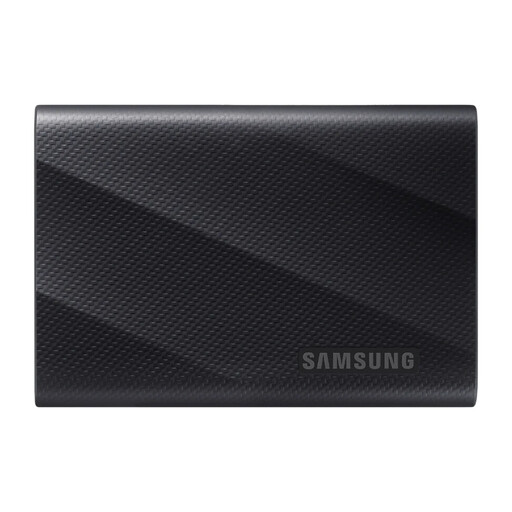 No image available
Samsung MU-PG1T0B 1 TB, Black
This USB 3.2 Gen 2x2 model is worth considering for large scan-import batches if the main computer supports that connection. Do not assume its interface will deliver the same transfer speed on every host.
Check that 1 TB covers the archive and its expected growth, and keep another backup copy.
View on Joybuy
 No image available
Lexar ES4 Portable SSD with Magnetic Set, 1 TB
Consider the 1 TB ES4 if its USB 3.2 Gen 2 connection suits the group’s computers. Its title states maximum speeds of 1,050MB/s read and 1,000MB/s write; check the host connection before making speed the deciding factor.
If access protection is important, confirm that the group can use and manage its intended password setup on the devices involved. Keep another copy of the scans.
View on Joybuy
Questions about storing scanned documents
Does a community group have to encrypt its external SSD?
The group should assess the personal information on the drive and the risks of its use rather than assume one measure settles every case. For personal information on removable media, the Information Commissioner’s Office advises using encryption as part of appropriate security measures; access arrangements and password handling matter too.
Can one external SSD hold the group’s only copy of its scans?
Do not rely on one SSD as the only copy of records the group needs. The National Cyber Security Centre advises maintaining backups, including at least one offline copy, so an incident cannot affect every copy at once.
Should a backup SSD stay plugged in?
Disconnect an external backup SSD when it is not being used. The National Cyber Security Centre warns that some viruses can affect storage connected to an infected computer.
Will a 2,000MB/s portable SSD reach that speed on every computer?
No: a stated maximum depends on the computer’s connection. Kingston says its XS2000 requires USB 3.2 Gen 2x2 for optimal speed, so check the scanning computer’s port before choosing a drive for faster bulk transfers.


