What matters when choosing an SSD?
Start with the folders you need to copy and how you will restore them. Then consider how the drive will travel, whether the files contain personal information and whether your computer can use a higher-speed connection.
| Concern |
What to check |
Who this matters to |
| Transport and recovery |
Check the exact drive’s stated protection conditions and plan where each backup copy will travel. Test a restore before packing. |
I need my teaching files to remain accessible even if something packed for the move is lost or damaged. Around 33% of consumers put safe transport and recovery first. |
| Usable capacity |
Measure the folders you intend to copy, allow room for changes and check the capacity of the specific variant. |
My selected resource library must fit without leaving essential folders behind; for around 27% of consumers, capacity is the primary need. |
| Personal-data security |
Check school or trust policy before copying personal information, including the approved encryption and recovery process. |
If my folders contain identifiable information, I need to protect it if the drive goes missing. Securing personal data comes first for around 20% of consumers. |
| Connection and copy time |
Confirm the computer’s USB data mode, the cable rating and whether the drive format works on the device used to restore files. |
When I have large media folders or use more than one computer, I need the copy and later restore to work with those devices. Around 20% of consumers prioritise compatibility and transfer time. |
Portable SSD brands to consider
These product ranges illustrate different features to check against your own folders, devices and school procedures; a brand’s stated protection or speed applies to the specified range and test conditions, not every drive bearing its name.
Samsung
The T7 Shield range is relevant when the backup will be packed and carried between locations.
- Samsung states that the T7 Shield has USB 3.2 Gen 2, maximum sequential read/write speeds of 1,050/1,000 MB/s, an IP65 rating and drop resistance up to 3 m.
- Samsung says resistance can vary under real conditions and that liquid, dust and drop damage are not covered under its warranty. Check the terms for the exact model.
Crucial
The X10 Pro range is relevant to large-file copies where the computer supports USB 3.2 Gen 2x2.
- Crucial states maximum read/write speeds of 2,100/2,000 MB/s and lists 1 TB, 2 TB and 4 TB variants.
- Full Gen 2x2 performance requires a compatible USB-C host. Crucial’s stated IP55 protection does not cover submersion.
Kingston
The compact XS2000 range is another option to examine when storage size and a Gen 2x2 connection are relevant.
- Kingston lists XS2000 capacities from 500 GB to 4 TB and states maximum read/write speeds of 2,000 MB/s.
- Its stated IP55 and drop protection depend on the removable sleeve, while the higher transfer-rate connection requires a suitable USB 3.2 Gen 2x2 path.
SanDisk
The Extreme Portable SSD range is relevant to buyers checking both carrying protection and a password-protected workflow.
- SanDisk describes password protection with built-in 256-bit AES encryption on its UK Extreme Portable SSD listing.
- Confirm the security features and protection claims for the exact capacity and model, then check that its setup meets your school or trust’s approved process.
Joybuy portable SSD options
These portable SSDs offer different stated capacities, connections and carrying or security features for a teaching-resource copy. Measure your folders and check the intended computer and school procedure before deciding which variant fits.
 Image unavailable
Samsung T7 Shield 1 TB Portable SSD, Blue
Consider this variant if you want a portable copy to carry during the move and 1 TB accommodates the folders you have measured.
USB 3.2 Gen 2. Samsung states maximum sequential read/write speeds of 1,050/1,000 MB/s, IP65 resistance and drop resistance up to 3 m for the T7 Shield; those claims are subject to its stated conditions.
Keep another backup separately. If the copy contains personal information, confirm the approved encryption and recovery process before using it.
View on Joybuy
 Image unavailable
Samsung Portable SSD T7 2 TB, Grey
Consider the 2 TB variant if your measured teaching folders need that capacity and you can keep the drive protected while carrying it.
USB Type-C, USB 3.2 Gen 2. Do not assume this T7 has the T7 Shield’s water or dust protection.
For a copy containing personal information, check how the approved protection method will be set up and how you will regain access after the move.
View on Joybuy
 Image unavailable
Samsung Portable SSD T7 1 TB, Blue
This 1 TB T7 is an option for a selected working copy if the folders fit with room for the changes you expect to make.
USB Type-C, USB 3.2 Gen 2. It is a different model from the T7 Shield, so do not rely on the Shield’s IP65 claim when planning transport.
Check the restore device and any school-approved security setup before making the move-day copy.
View on Joybuy
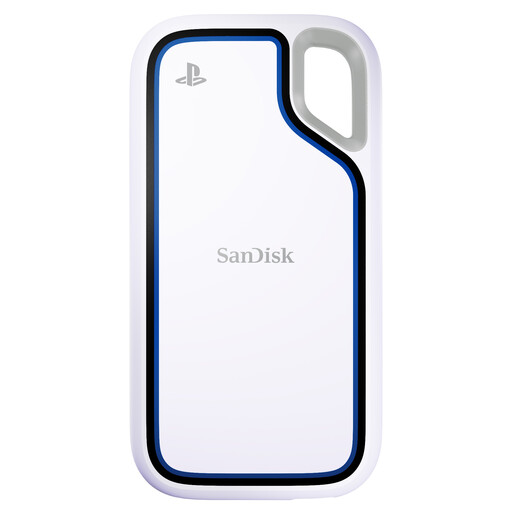 Image unavailable
SanDisk Extreme 2 TB Portable SSD for PS5 and PC
The stated 2 TB capacity may suit a larger teaching-resource copy once you have checked the size of the folders.
This variant is named for PS5 and PC use. Confirm its format works with the school computer and the device on which you would restore the backup.
If you intend to store personal information, establish the approved encryption method for this exact product before copying the files.
View on Joybuy
 Image unavailable
Lexar ES4 Magnetic Set 1 TB Portable SSD
Consider this 1 TB variant if your selected folders fit and you need to connect the backup to the devices in your restore plan.
USB 3.2 Gen 2, with stated maximum read/write speeds of 1,050/1,000 MB/s. Its name identifies the Magnetic Set variant; check the exact package and connections you need.
Check the protection needed for transport. If using encryption for personal information, confirm that its setup and recovery process meet school or trust policy.
View on Joybuy
Questions about backing up for a move
Is one external SSD enough to protect my teaching resources during a house move?
No: use the SSD as one copy, not the whole backup plan. The Department for Education Cyber Security Hub describes a three-copy approach that includes an off-site copy, and the National Cyber Security Centre advises keeping backup devices disconnected when they are not in use. Check that you can restore important files before packing.
Do teaching-resource folders need encryption?
Check what the folders contain and follow your school or trust’s policy rather than assuming every teaching folder has the same requirements. If personal information is present, the Department for Education says staff must protect it, and the Information Commissioner’s Office identifies encryption of personal information on backup media as an effective protection measure. Confirm the approved method and how access can be recovered.
Will a USB-C SSD reach its advertised transfer speed on my laptop?
Not necessarily: the connector alone does not establish the laptop’s USB data capability. The USB Implementers Forum identifies 5 Gbps, 10 Gbps and 20 Gbps USB 3.2 modes, while Crucial says the X10 Pro needs a USB 3.2 Gen 2x2-capable USB-C host for full performance. Check the laptop port and cable before choosing on speed.
How can I check the backup before packing the SSD?
Copy the selected folders, safely eject the SSD, reconnect it and open a selection of important files from the drive. If you use Windows File History, Microsoft says it can back up folders to an external drive and restore earlier versions; check that the folders you need are covered. Keep the SSD apart from the computer when it is not being used for the backup.


