Choose a portable SSD if you regularly carry your files or move large photo and video folders; a portable hard drive suits occasional travel when storage capacity matters more than frequent transfers. For a growing archive kept at home, consider a desktop hard drive. Whichever you choose, check the connection and backup-software requirements, and keep another copy of irreplaceable files away from the connected drive.
Who needs external storage?
Households with growing family archives
If years of photos, phone videos and computer files are accumulating, plan for the files you want to retain and the space future backups will need. A drive kept at a home desk may suit an archive that does not need to travel.
Households using more than one computer
If your household uses Windows PCs and Macs, check the drive format and each computer’s backup workflow before setting up automatic backups. Apple says Time Machine cannot back up to a Windows-formatted disk; Microsoft says File History can back up to an external drive.
People who move photos and videos between locations
A portable drive makes sense when your files need to travel. If you often transfer large folders, check the computer port, cable and drive interface as well as the capacity you need.
What matters when choosing?
Decide where the drive will live and how often it must travel, then size it for the files and backup history you intend to keep. Connection compatibility and a separate copy of important files still matter whichever type you buy.
| Concern |
What to check |
Who this matters to |
| Archive capacity |
Total the folders you intend to back up, allow for future files and check whether backup history will share the drive. |
When family photos and videos keep accumulating, I need room for both the current collection and future backups. Around 36% of consumers put archive capacity first. |
| Portability and transfers |
Check the drive’s size, connection and cable against the computers you use; treat advertised transfer speeds as conditional. |
If I carry files between locations or regularly move large media folders, a drive that travels conveniently is my priority. That is the main concern for about 21% of consumers. |
| Computer compatibility |
Confirm the port and cable capabilities, drive format and intended Windows or macOS backup software before setup. |
With a Mac and a Windows PC at home, I need a backup routine that works with the computers I actually use. Roughly 29% of consumers prioritise that compatibility. |
| Backup resilience |
Plan another copy that is separately located or disconnected, and check that you can restore files from it. |
For irreplaceable family files, I do not want a single connected drive to hold my only backup. Keeping copies separate is the primary concern for around 14% of consumers. |
Mistakes to avoid
-
Assuming every USB-C connection delivers the quoted speed
USB-C describes the connector, not a guaranteed transfer rate. The USB Implementers Forum says USB products operate at their lowest common speed capability, so the computer port, drive and cable all matter.
Check the specifications of the complete connection before relying on a drive manufacturer’s maximum speed figure.
-
Reformatting a drive that already holds files
Apple says setting up a Windows-formatted disk for Time Machine can require erasing it. That would remove files already on the drive.
Copy existing contents somewhere else before changing the format, and decide whether the drive is intended for Time Machine, Windows backups or file exchange.
-
Leaving your only backup connected
The National Cyber Security Centre has described ransomware incidents affecting connected USB and network backup drives as well as the original files.
Keep another copy separately located or disconnected when it is not in use, and occasionally check that you can restore files.
-
Choosing capacity without planning the workflow
A large stationary archive, a drive carried between computers and frequent media transfers place different demands on storage.
List the files to protect, the computers and backup software involved, and whether the drive must travel before choosing its type and capacity.
Relevant brands to consider
Samsung
The portable T7 Shield SSD range is relevant when a household regularly moves photo and video files and wants a compact drive.
- Samsung lists 1TB, 2TB and 4TB T7 Shield variants and rates the range for USB 3.2 Gen 2 transfers.
- Samsung’s stated peak speeds require a suitable host, cable and UASP support. Its stated IP65 rating does not mean liquid or dust damage is covered by its warranty.
Seagate
The Expansion Desktop hard-drive range is aimed at backup and archiving from a fixed desk location.
- Seagate lists Expansion Desktop capacities from 4TB to 30TB, depending on the model.
- Check the exact model’s system requirements and warranty terms rather than assuming they are identical across the range.
Western Digital
The desktop My Book range is another option to examine for a family archive kept in one place.
- Western Digital lists My Book capacities reaching 26TB.
- Features and warranty terms need checking for the particular capacity and model; terms shown for one My Book variant should not be applied to every drive.
SanDisk
The Extreme Portable SSD range offers compact storage for moving media between compatible devices.
- SanDisk lists capacities from 500GB to 8TB and a USB 3.2 Gen 2 interface.
- Its rated maximum sequential read speed does not establish the speed achievable with every computer, cable or file-transfer workload.
Joybuy portable drive options
These portable SSDs and hard drives are options for households that need to carry photos, videos or backup files. Choose the capacity and format for your own computers, and plan a separate copy for files you cannot replace.
 No image available
Samsung MU-PE1T0S 1TB portable SSD, black
Consider this portable SSD if you carry photo and video files between computers. The listed model has 1TB capacity and a USB Type-C 3.2 Gen 2 connection; check the host and cable capabilities before relying on a quoted transfer speed.
View on Joybuy
 No image available
Lexar ES4 Portable SSD with Magnetic Set, 1TB
This portable SSD is worth considering if you move files between compatible computers or use the listed iPhone 15/16 setup. Its name specifies USB 3.2 Gen 2 and the Magnetic Set; check the phone accessory requirements and the host connection before purchase.
View on Joybuy
 No image available
Samsung Portable SSD T7 4TB, grey
The 4TB capacity makes this portable SSD an option when your media collection needs more space while still travelling with you. Its listed connection is USB Type-C 3.2 Gen 2; check the drive format and computer port for your backup workflow.
View on Joybuy
 No image available
Western Digital My Passport Ultra for Mac 5TB, silver
This 5TB portable hard drive is a candidate for a Mac-centred archive that occasionally needs to travel. Confirm its format and backup-software compatibility if Windows computers will also use it, and check the warranty terms for this exact model.
View on Joybuy
 No image available
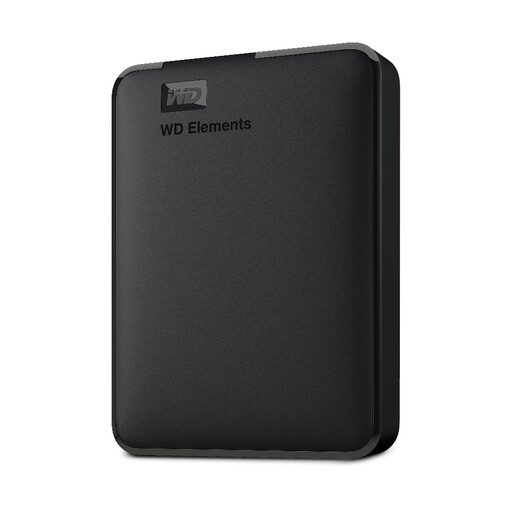
WD Elements 2TB portable hard drive, black
This portable hard drive offers 2TB for files you need to take between locations. Its name specifies USB 3.0 and PC/Mac formatting; check the file system and your intended backup software before assuming one setup will serve both computers.
View on Joybuy
Common questions
Does a USB-C plug tell me how fast an external drive will be?
No. USB-C identifies the connector, not a guaranteed data rate. The USB Implementers Forum says USB products operate at their lowest common speed capability, so check the computer port, drive interface and cable before expecting a manufacturer’s stated maximum.
Can one drive serve both Mac Time Machine and Windows file storage?
It requires a planned format and storage arrangement rather than an assumption that the same setup will do both jobs. Apple says Time Machine cannot back up to a Windows-formatted disk, and reformatting can erase existing files. Copy those files elsewhere first and confirm how each computer will use the drive.
Can Windows back up files to an external drive?
Yes. Microsoft says File History can make regular backups to an external drive or network location. Check that the folders you want to protect are included in its backup setup.
Is one external drive enough for important family files?
No: a connected external drive can be a useful local backup, but it should not hold your only additional copy of irreplaceable files. The National Cyber Security Centre warns that ransomware can affect connected backups; keep another copy off-site or disconnected when it is not in use.


