Choose an external SSD that has room for your spreadsheet folders and the versions you want to keep, and check that it connects to your home workstation before focusing on advertised transfer speed. Use a repeatable backup process, test that you can restore a file and, as the National Cyber Security Centre advises, avoid leaving your only backup drive permanently connected.
Who is this for?
Routine spreadsheet archivists
If you keep household, freelance or small-project records, consider both the files you have now and the earlier versions you may need to recover. Microsoft Support describes File History as a way to make regular backups to an external drive.
Mixed-port home-workstation users
If your computers have different USB ports, check the connector and supplied cables for the exact drive. Kingston lists USB-A and USB-C connection accessories for the XS1000, while Crucial says a USB-A adapter for the X9 Pro is separate.
Offline-backup cautious users
If you want records recoverable after deletion, device failure or ransomware, plan when to connect the SSD, how to test a restore and where to keep a separate copy. The National Cyber Security Centre advises against leaving a backup device permanently connected.
What matters when choosing?
Start with the size of everything you intend to back up, then check the workstation connection and how you will restore files. A protective casing matters chiefly if the drive will be carried or handled away from the desk.
| Concern | What to check | Who this matters to |
|---|
| Capacity and file history |
Measure the spreadsheet folders and related files, then allow room for future files and retained versions. Check the capacity of the exact variant. |
If older spreadsheet versions matter to me, I need space beyond the current files so a useful history can be kept. Around 46% of consumers put capacity and retained history first. |
| Connection and recovery |
Check the workstation's USB ports and the supplied cable or adapter. On Windows, confirm the folders are selected for backup and test a restore. |
When I update records regularly, I want a drive I can connect easily and a process that lets me retrieve an earlier file. For around 36% of consumers, that connection and recovery routine is the primary concern. |
| Separation and handling |
Plan to disconnect the SSD after backup when practical. If you carry it, check the exact model's stated protection and test conditions. |
If my workstation is affected by malware or I carry the drive, I care most about keeping a separate, usable copy. Separation and handling come first for around 18% of consumers. |
Backup mistakes to avoid
-
Treating extra storage as a recoverable backup
A copied spreadsheet is of limited use if you cannot find or restore the version you need after deletion or device failure.
Set up a repeatable backup process and restore a test spreadsheet or folder before relying on it. Microsoft Support provides File History guidance for Windows.
-
Leaving the only backup SSD attached
A drive that stays connected may also be exposed when malware affects the workstation.
After a completed backup, disconnect the SSD when practical. The National Cyber Security Centre also advises keeping backups separate from the computer.
-
Choosing by peak transfer speed alone
Advertised maximum speeds depend on a suitable host and connection; the SSD still needs to work with your workstation's ports.
Identify whether you need USB-A or USB-C, and check the cable and adapter supplied with the exact model before choosing on speed.
-
Reformatting after loading important files
Crucial says the X9 Pro ships in exFAT format and that reformatting erases data on the drive.
Decide whether you need a different file system before loading files, or copy and verify them elsewhere before reformatting.
Relevant brands to consider
Samsung
The T7 Shield is relevant if a backup drive will sometimes travel or face rougher handling.
- Samsung lists USB 3.2 Gen 2 and claims IP65 resistance and a 3-metre drop test for the T7 Shield under stated conditions.
- Samsung says liquid, dust and drop damage are not covered under its warranty; its stated maximum speeds also require a compatible connection.
Kingston
The XS1000 suits consideration when a home workstation may use USB-A or USB-C.
- Kingston lists 1TB and 2TB versions, a USB-C-to-A cable, a Type-A-to-C adapter and a limited five-year warranty with technical support.
- Its listed range tops out at 2TB, so check whether that accommodates the files and versions you plan to retain.
Crucial
The X9 Pro is a route to consider if backup files may be accessed across Windows, macOS, Linux, Android or iPadOS devices.
- Crucial lists X9 Pro capacities up to 4TB and claims IP55 protection under its stated conditions.
- Crucial says a USB-A adapter is separate. Its highest claimed speed requires a suitable USB-C connection, and reformatting the supplied exFAT drive erases its data.
External SSDs on Joybuy
These portable SSDs offer 1TB or 2TB options for a home-workstation backup. Check the space your files and retained versions need, and confirm the connection and supplied accessories for your workstation; protective features are more relevant if you will carry the drive.
 No image available
Samsung Portable SSD T7 1 TB, Blue
A 1 TB option for spreadsheet backups if that capacity accommodates your files and retained versions.
The product name specifies USB Type-C 3.2 Gen 2; check the supplied cable against your workstation's port.
View on Joybuy
 No image available
Lexar ES4 Portable SSD with Magnetic Set, 1TB
Consider this 1TB model if its capacity covers your spreadsheet backup and you also want a drive described for PC and Mac use.
The product name specifies USB 3.2 Gen 2. Check the connection and supplied cable for your workstation.
View on Joybuy
 No image available
Samsung T7 Shield MU-PE1T0S 1TB, Black
Consider the T7 Shield if your 1TB backup drive will also be carried or handled away from the desk.
The product name specifies USB Type-C 3.2 Gen 2. Samsung's IP65 and drop-test claims for this model have stated test conditions; do not treat them as protection against every incident.
View on Joybuy
 No image available
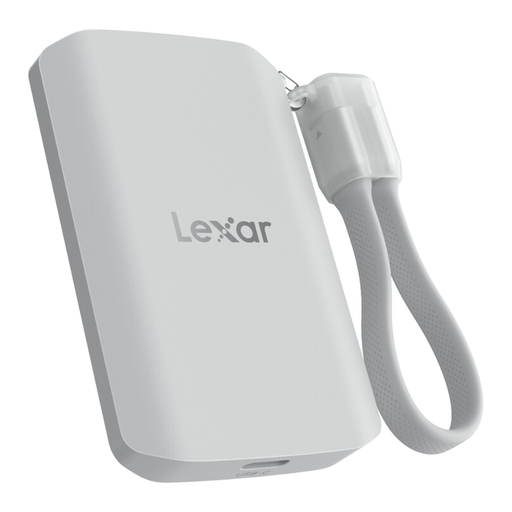
Lexar ES5 Portable SSD 1TB
This 1TB model is worth considering if you will move the backup drive as well as use it at your workstation.
Its product name specifies USB 3.2 Gen 2x2 and IP65. Check the workstation connection if the advertised maximum transfer speed matters to you.
View on Joybuy
 No image available
SanDisk Portable SSD 2TB
The 2TB capacity is an option if you plan to keep a larger collection of files and backup versions; check it against your actual storage needs.
Confirm the connector and included cable match your workstation before buying.
View on Joybuy
Common questions
How do I back up spreadsheet folders from a Windows workstation?
You can use Windows File History with an external drive, provided the folders you need are included. Microsoft Support says File History makes regular backups and can restore earlier versions; check its folder selection and restore a test spreadsheet before relying on the setup.
Do spreadsheet backups need the fastest external SSD?
Usually, capacity, a compatible connection and a dependable backup routine deserve attention before peak sequential speed. Samsung and Crucial make their stated maximum speeds conditional on a suitable host and connection, so check your workstation rather than assuming you will reach those figures.
Should I leave my backup SSD connected all the time?
Avoid leaving your only local backup drive permanently connected. The National Cyber Security Centre advises making regular backups, checking that files can be restored and keeping the backup device from being permanently connected to the computer.
What warranty details should I check?
Check the terms for the exact model, capacity and purchase channel rather than assuming one period applies across a brand. Kingston lists a limited five-year warranty with technical support for the XS1000, while the Joybuy listing for Samsung MU-PE1T0S states a three-year manufacturer's warranty.


