Who this setup suits

Laptop-based hybrid workers needing a real second workspace

Useful for people moving between documents, email, video calls and work applications who need more visible workspace than a laptop screen provides. Check the laptop’s external-display capability before choosing a resolution, USB-C dock or adapter; Microsoft Support and Apple Support both note that display support depends on the device and connection.

Home workers with limited desk space or cable clutter

Suitable for a permanent desk setup where fewer separate cables and peripherals would help. A USB-C docking monitor can combine display, data and charging only when both the laptop and monitor support the required functions.

Workers setting up for prolonged laptop use

For daily display-screen work where screen position, input devices and desk layout need considering together. Health and Safety Executive guidance advises using a separate keyboard and mouse when elevating a laptop screen, or using a separate display for prolonged laptop work.

Buying priorities

Direct HDMI or DisplayPort monitor

Choose it when: your laptop has a confirmed HDMI or DisplayPort output and you need one additional screen without charging or USB-hub functions from the monitor.

Trade-off: video, laptop charging and peripherals remain separate connections; USB-C-only laptops need a video-capable port and suitable adapter.

USB-C docking monitor

Choose it when: you regularly connect a compatible laptop and want one cable for display, USB data and potentially charging.

Trade-off: the monitor’s power delivery, the laptop’s charging input and USB-C video support must all match.

Higher-resolution work monitor

Choose it when: documents, spreadsheets, browser panes or detailed creative work need more visible workspace.

Trade-off: confirm that the laptop, cable and connection can run the monitor at its native resolution, and allow for operating-system scaling where needed.

Priority What to check Your needs
Extra workspace Compare screen size and native resolution; confirm the laptop can drive that resolution. Set the display to Extend rather than Mirror when you need a separate desktop. I want documents, calls, messages and work applications visible together instead of repeatedly switching windows on a laptop screen.
Connection compatibility Identify the laptop’s actual HDMI, DisplayPort, Thunderbolt or video-capable USB-C output. Check supported display count, target resolution and the cable or adapter specification. I want the monitor and connection route to provide the extended display arrangement I planned, rather than relying on a connector that only looks compatible.
Screen position Check stand adjustment, desk depth and VESA mounting where relevant. Health and Safety Executive guidance places the screen directly in front, around an arm’s length away, with the top around eye level. I need a layout that lets me use the screen, keyboard and mouse for extended sessions without sustained twisting, hunching or an unsuitable viewing height.
Accessories and cables Match monitor inputs to the laptop’s confirmed output. Check whether a hub, dock, adapter, separate keyboard, mouse or monitor arm solves a genuine setup requirement, and check the supplied cable list. I want to know which parts are needed for my desk arrangement before ordering, especially if I rely on USB-C or have limited cable space.

Common setup mistakes

  • Assuming every USB-C port can send video and charge the laptop

    Ports with the same physical shape can have different capabilities. Apple Support advises identifying the correct port, and Microsoft Support notes that external-display support can depend on the graphics hardware.

    Find the exact laptop specification before ordering. Match its video-capable ports, supported display count, maximum resolution and charging requirements to the monitor and cable.

    An unsuitable USB-C-to-video adapter, dock or cable can leave you needing a different connection route.

  • Buying a splitter when the goal is an extended second desktop

    Microsoft Support states that a splitter duplicates the same signal rather than creating two independent displays.

    For one extra monitor, use a confirmed direct output or compatible adapter. For multiple independent displays, check laptop graphics support and dock specifications instead of relying on a basic splitter.

    A splitter may only mirror the laptop image, leaving a compatible dock, adapter or separate connection still necessary.

  • Choosing screen size without planning the keyboard, mouse and viewing position

    A larger display can still make an awkward workstation if it is too low, too close or off-centre, especially when laptop typing fixes the screen in an unsuitable position.

    Plan the desk layout first: keep the screen directly in front, around an arm’s length away, with the top around eye level. For prolonged laptop use, use a separate keyboard and mouse when elevating the laptop screen.

  • Treating a monitor’s USB-C power figure as guaranteed charging for every laptop

    Maximum monitor power output can be conditional. Lenovo states that its ThinkVision T27QD-40 can provide up to 100W, but says that maximum output depends on compatible Lenovo VDM support and actual output may be lower.

    Compare the monitor’s stated power delivery with the laptop maker’s required wattage and charging compatibility. If either point is unclear, keep the laptop’s original charger in the plan.

    One-cable charging may not replace the original charger, and some setups may still need a separate dock.

Relevant monitor ranges

Dell

Dell’s UK monitor range includes USB-C hub displays for desk productivity. The Dell Pro 27 Plus P2725HE is a 27-inch FHD IPS model with HDMI, DisplayPort, USB-C DisplayPort Alt Mode, Ethernet, downstream USB ports and up to 90W USB-C power delivery.

  • Dell lists height, tilt, swivel and pivot adjustment alongside a connectivity set designed for compatible one-cable laptop setups.
  • Its 1920 × 1080 resolution should be considered separately from QHD or 5K alternatives when text workspace is the priority.

Lenovo ThinkVision

ThinkVision is Lenovo’s office-monitor line. The UK-listed ThinkVision T27QD-40 is a 27-inch QHD IPS USB-C docking monitor with USB-C, HDMI, DisplayPort, DP-out, USB ports and RJ45.

  • Lenovo states that this model supports display, data and charging through USB-C, offers daisy chaining, and has lift, tilt, pivot and swivel adjustment.
  • Lenovo says its maximum 100W output depends on compatible Lenovo VDM support and actual output may be lower, so laptop charging compatibility needs checking.

Samsung ViewFinity

Samsung’s ViewFinity line includes high-resolution productivity displays. The UK ViewFinity S8 S80HF is a 27-inch 5K model with USB-C, LAN and a stated 5120 × 2880 resolution.

  • Samsung lists 218 PPI, USB-C with simultaneous charging and data transfer, plus integrated LAN for this model.
  • Confirm that the laptop and connection route support the intended resolution; Samsung’s productivity language is manufacturer marketing rather than an independent comparison.

Joybuy monitor options

Joybuy product options for a laptop-based home-working setup needing an external display, with attention to screen resolution, connection choices and desk positioning.

iiyama ProLite XUB2792UHSU-B6 27-inch 4K UHD monitor

iiyama ProLite XUB2792UHSU-B6 27-inch 4K UHD

A 27-inch external display for parallel documents and applications where a high-resolution workspace is wanted.

Listed specifications include a 3840 × 2160 IPS panel, HDMI 2.0, DisplayPort, USB-C, four USB 3.2 ports, VESA 100 × 100 mm mounting, and height, pivot, swivel and tilt adjustment.

Check whether USB-C provides laptop charging for your setup, and confirm the laptop’s video output, display support and supplied cable requirements.

View on Joybuy

ASUS ProArt PA278CV IPS WQHD monitor

ASUS ProArt PA278CV IPS WQHD

This 27-inch display suits document, communication and creative-work windows that benefit from more desktop space than a laptop panel.

The listing states a 2560 × 1440 IPS panel, HDMI, DisplayPort, USB-C with power delivery, a USB hub, VESA 100 × 100 mm mounting, and height, tilt, swivel and pivot adjustments.

Check that the laptop supports USB-C video output and that the monitor’s power delivery is sufficient and compatible with the laptop’s charging requirements.

View on Joybuy

ASUS ProArt PA278CFRV IPS QHD 100Hz monitor

ASUS ProArt PA278CFRV IPS QHD 100Hz

A 27-inch QHD option for laptop-based multitasking and a desk arrangement that needs display adjustment.

Listed details include a 2560 × 1440 IPS panel, 100Hz operation, USB hub, VESA 100 × 100 mm mounting, and height, tilt, pivot and swivel adjustment.

Confirm the exact supplied variant’s HDMI, DisplayPort and USB-C capabilities, included cables, and the laptop’s supported resolution and connection protocol.

View on Joybuy
LG 27UP650K 27-inch 4K IPS monitor

LG 27UP650K 27-inch 4K IPS

A high-resolution external display for detailed documents and side-by-side work through conventional monitor connections.

The listing states a 3840 × 2160 IPS panel, HDMI and DisplayPort inputs, built-in speakers, and height, tilt and pivot stand adjustments.

No USB-C video input or laptop charging is stated. Confirm the exact HDMI configuration, bundled cables and whether the laptop can drive 4K through its available output.

View on Joybuy
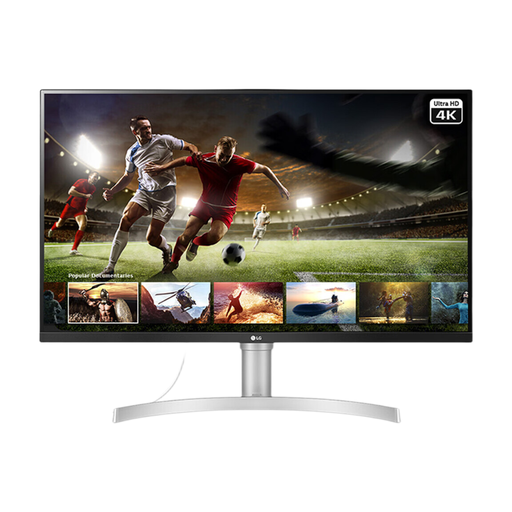
LG 32UN650K 32-inch 4K IPS monitor

LG 32UN650K 32-inch 4K IPS

A larger fixed-desk display for documents and applications where desk depth can accommodate a 32-inch screen.

The listing states a 3840 × 2160 IPS panel, two HDMI inputs, DisplayPort, VESA 100 × 100 mm mounting, built-in speakers and a tilt-adjustable stand.

USB-C video input and laptop charging are not stated. Check the desk footprint, viewing distance, laptop video output and whether the supplied stand provides the adjustment you need.

View on Joybuy

Frequently asked questions

Do I need a USB-C monitor if my laptop has USB-C?

Not necessarily. Check the laptop documentation to confirm that the specific USB-C port supports video output, such as DisplayPort Alt Mode or Thunderbolt, then confirm its supported display count, resolution and refresh rate. A USB-C connector can support charging or data without providing the display function you need.

Can I use an HDMI splitter to turn one laptop output into two separate work screens?

Usually no. Microsoft Support states that a splitter duplicates the same signal instead of creating two independent displays. For independently extended external screens, verify that the laptop graphics hardware, ports and any dock support the required configuration.

What should I check before choosing a monitor that charges my laptop?

Check the monitor’s USB-C power-delivery output, the laptop’s supported USB-C charging input, whether the connection supports video output, and whether the supplied cable supports the required functions. Lenovo says the ThinkVision T27QD-40’s 100W maximum needs compatible Lenovo VDM support and actual output may be lower.

What is a sensible screen position for a home-working display?

Health and Safety Executive guidance says the top of the screen should be around eye level and the screen about an arm’s length away, directly in front of you. For prolonged laptop work, use a separate keyboard and mouse so the laptop screen can be elevated, or use a separate display.

Is an employer in the UK required to buy every home worker a second monitor?

No universal requirement for every home worker to receive a second monitor is set out in Health and Safety Executive guidance. For display screen equipment users working at home on a permanent, long-term or hybrid basis, employers should consider whether the regulations apply and carry out an individual workstation assessment where applicable; if equipment is needed following an assessment, workers cannot be charged for it.