What to check before choosing a backup route
Start by separating files that need everyday synchronisation from files that need a recoverable archive. Then check where each copy lives, how it can be restored and who can still access it.
| Priority |
What to check |
Your needs |
| Recoverable copies |
Keep a copy away from the original computer; check the provider’s restore process; disconnect removable media after backup. |
I want a copy I can use if a computer fails, files are deleted or the original device becomes inaccessible. |
| Archive or synchronisation |
Check which files need access across devices; allow for storage shared with email and photo services; keep an independently stored archive for irreplaceable files. |
Older photo libraries can sit in an archive, while current documents may need to stay available and updated on several devices. |
| Account and quota planning |
Check what counts against the allowance; confirm recovery contacts or methods; review cancellation, downgrade and over-quota conditions. |
I need the household to regain access to cloud files and avoid a full allowance disrupting uploads or synchronisation. |
| Privacy for portable files |
Use available encryption; keep passwords or recovery information separate from the drive; treat drop or water ratings as conditional product claims. |
I want sensitive family documents to remain protected if a portable drive is misplaced or stolen. |
Joybuy product options for local backups
These Joybuy options cover portable external SSDs and HDDs for creating a separate local copy of family photos, documents and computer files.
 No image available
Samsung T7 Shield Portable SSD 1 TB
A portable local-copy option for households that regularly move large photo or video libraries.
Stated 1 TB capacity, USB-C USB 3.2 Gen 2 connection and up to 1,050 MB/s read and 1,000 MB/s write speeds.
Check computer and cable compatibility for the stated speeds. Password protection and AES-256-bit hardware encryption require Samsung software setup, and a separate copy remains important for irreplaceable files.
Joybuy
 No image available
Lexar ES4 Portable SSD with Magnetic Set 1 TB
Suitable for making a local copy from several USB-C or USB-A devices where the supplied cable options fit the household setup.
Stated 1 TB capacity, USB 3.2 Gen 2 connection, up to 1,050 MB/s read and 1,000 MB/s write speeds, plus USB-C-to-C and USB-A-to-C cables.
The magnetic attachment is stated for iPhone 15 and 16 series with the supplied case or ring, and MagSafe wireless charging is not supported. Lexar DataShield encryption software needs installation and password setup.
Joybuy
 No image available
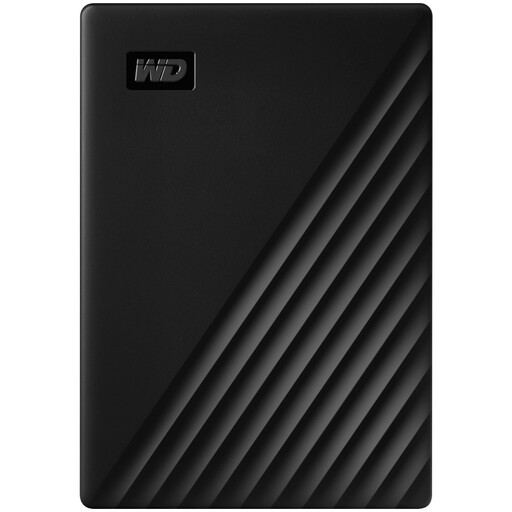
Western Digital My Passport 1 TB Black
A compact external HDD for households that want a repeatable computer-backup routine.
Stated 1 TB capacity, USB 3.2 Gen 1 connection, Acronis True Image for Western Digital scheduled-backup capability and 256-bit AES hardware encryption with password protection.
It is supplied pre-formatted for Windows 10+. For macOS 11+ use, check the required downloadable driver components and complete the software and password configuration.
Joybuy
 No image available
SanDisk Portable SSD 2 TB
A higher-capacity portable SSD option for a sizeable family photo and video archive.
Stated 2 TB capacity, up to 800 MB/s read speed, up to 2-metre drop protection, supplied USB cable and 40 g weight.
Check whether encryption or password protection is needed for sensitive documents, and confirm the computer’s actual transfer performance before relying on the stated read speed.
Joybuy
 No image available
Western Digital Elements Portable 4 TB Black
An external HDD for keeping a larger local archive of photos, videos and documents.
Stated 4 TB capacity, USB 3.2 Gen 1 or USB 3.0 interface, supplied USB-A cable and plug-and-play operation for Windows 10+.
Mac or other operating systems may require reformatting. The drive is not stated to be waterproof or dustproof, so store it separately after backup and check security options before saving sensitive files.
Joybuy
Frequently asked questions
Is a synchronised cloud folder the same as a backup?
Not necessarily. Synchronisation helps keep current files available across devices, but irreplaceable files should also have another copy and a clear restoration route. Microsoft says personal OneDrive deleted files can generally be restored within 30 days, which is useful protection but not an indefinite archive.
What should I check before choosing a cloud-storage allowance?
Check what counts against the allowance, whether it is shared with email or other services, whether the plan is individual or shareable, and what happens after cancellation or a full quota. Google storage is shared across Drive, Gmail and Photos; Microsoft 365 Basic provides 100 GB shared across Outlook and OneDrive.
How should I prepare for cloud-account recovery?
Set recovery details before they are needed and keep access to trusted methods available. Google says a recovery email can help regain access, Apple offers a recovery-contact option, and Microsoft warns that two-step verification can prevent support from helping when no alternate verification method is available.
What privacy and security steps matter for a portable backup drive?
Use available encryption, keep the encryption password separate from the drive and do not rely on physical possession alone. ICO guidance says encrypting stored personal information helps protect it from unauthorised access, particularly if a device is lost or stolen.


