Choose cloud backup if automatic copies and access from a replacement device matter most; choose local storage if you want a separate physical copy that does not depend solely on a cloud account or internet access. For valued family photos and documents, using both gives you two recovery routes, provided you maintain each one. Before retiring the old device, check which folders, photos and device data each route covers, then try opening or restoring a few files.
Who needs a backup?
Families replacing phones or tablets
If recent photos, messages, app data and settings matter during setup, check both the device backup and the photo-library settings before handing over the old device. Apple Support and Google describe separate backup functions whose coverage depends on the service used.
Mixed-device households protecting family files
If your household uses different devices or accounts, identify where each person’s photos and documents are kept and how they can be accessed on a replacement device. Apple and Google explain that sharing storage capacity does not automatically share everyone’s files.
Households wanting a separate local copy
An external drive or network-attached storage can hold a copy apart from the original device, but someone needs to run or maintain the backups and check that files can be restored. The National Cyber Security Centre advises keeping important backup data in a separate safe location.
What matters when choosing?
Start with the data you would need after a device change, then choose a method you can keep up to date. A cloud service can handle automatic copying; an external drive or USB stick needs a copying routine, while a NAS adds administration. You can also keep both a cloud and a local copy.
| Concern |
What to check |
Who this matters to |
| Backup ready for a device change |
Check which device data and folders are backed up, whether photo sync is separate, and how restoration works during setup. |
If a phone fails before I remember to copy anything, I need a recent backup I can use during replacement setup. Around 31% of consumers would put this low-effort readiness first. |
| Access across devices and family accounts |
Check which devices can access the files and whether a family plan shares files or only storage capacity. |
Our devices use different accounts, so I need to know who can retrieve the family photos without exposing everyone’s private files. For around 31% of consumers, account boundaries and access would be the primary concern. |
| Independent local copy |
Compare the library size with drive capacity, choose a workable copying routine and decide where to store the drive between backups. |
I want valued files available even if I cannot get into a cloud account, and I can take responsibility for a separate drive. Around 23% of consumers would prioritise that local recovery route. |
| Privacy and archive control |
Confirm that your device and drive support the chosen encryption method, and safeguard the password or recovery key before changing the drive format. |
If a portable archive is lost, I want its contents protected without losing my own ability to open them. This would be the leading need for around 15% of consumers. |
Mistakes to avoid
-
Assuming photo sync is a complete device backup
Photos, app data and settings may follow different backup and restoration paths. Apple Support says iCloud Photos content is synchronised separately from daily iCloud Backup; Google also distinguishes Android device backup from Google Photos.
Check both settings and try accessing representative files or restoring eligible data before erasing the old device.
-
Leaving the only external copy connected
A backup drive left attached to a computer may be exposed when malware affects that computer. The National Cyber Security Centre advises against keeping a backup device permanently connected.
Disconnect the drive after a completed backup, store it safely and consider another separate copy for especially valued files.
-
Encrypting a drive without a recovery plan
Encryption can protect a lost drive, but losing the password or recovery key can also prevent you from opening your files. Apple Support says its Disk Utility encryption procedure erases the device first.
Keep recovery information somewhere safe and make another usable copy before any procedure that reformats the drive. Check that your operating system supports the method you intend to use.
-
Treating shared storage as a shared photo archive
A family plan can share capacity while leaving each member’s files private, as Apple and Google explain. Other household members may therefore be unable to retrieve a person’s photos without deliberate sharing or access arrangements.
Decide which account holds the family archive and whether shared folders or albums are needed alongside individual backups.
Relevant brands and services
Apple
For households moving between iPhone, iPad or Mac devices and using iCloud Backup, iCloud Photos or iCloud+ Family Sharing.
- Apple Support says iCloud Backup can restore eligible device data and settings, while iCloud Photos synchronises photos and videos separately.
- Check which service holds each type of data and whether there is enough storage. A shared iCloud+ plan uses separate Apple Accounts rather than making every member’s files a common archive.
Google
For Android and Google Photos households using account-based device or photo backup, with optional Google One family storage sharing.
- Google describes automatic Android device backup and separate backup of photos and videos to Google Photos.
- Google One family storage does not automatically share files. Google Photos backs up a device’s photos and videos to one Google Account at a time, so confirm which account holds the library.
Microsoft
For Windows households considering OneDrive folder backup or File History with an external drive or network location.
- Microsoft Support describes OneDrive backup for selected folders and File History for regular copies to an external drive or network location.
- Check that the required folders are selected and resolve any OneDrive sync errors before wiping the old computer.
Synology
For households considering a NAS to manage local files and backups from several devices.
- Synology describes versioned backups, multiple destinations and a restoration interface for its Hyper Backup software.
- A NAS requires setup and ongoing administration; plan another backup destination rather than treating the NAS itself as the only copy.
Portable drives for a local copy
These portable SSDs are options for keeping a local copy of family files before changing a device. Match the drive’s capacity and connections to your library and device, and arrange a copying routine; a portable drive does not replace the need to check what you can restore.
 No image available
Samsung Portable SSD T7 2 TB, grey
Consider this for a local copy before replacing a computer if 2 TB meets the space needed for your files and future additions.
Portable SSD with a USB Type-C 3.2 Gen 2 connection. Set up a copying routine and check how you would move files from a phone before relying on it for phone migration.
View on Joybuy
 No image available
Samsung Portable SSD T7 1 TB, blue
This is another local-copy option if your current library and expected additions fit within a 1 TB drive.
Portable SSD with a USB Type-C 3.2 Gen 2 connection. Check your intended backup routine and phone file-transfer steps before retiring the old device.
View on Joybuy
 No image available
Samsung T7 Shield Portable SSD 1 TB, blue
Consider this 1 TB local drive if you need a portable copy of photos and documents during a device change.
It has a USB 3.2 Gen 2 connection. Compare its capacity with your library, and confirm the copying and restoration steps for the devices you use.
View on Joybuy
 No image available
Lexar ES4 Portable SSD with Magnetic Set, 1 TB
Consider this for a local file copy involving a listed compatible phone or computer, after checking how your particular device handles the files you need to transfer.
The product name specifies USB 3.2 Gen 2 and compatibility with iPhone 15/16, PC and Mac. The listing excludes iPhone 14 and earlier models; check the conditions for magnetic attachment. The magnetic set is not a MagSafe wireless charger.
View on Joybuy
 No image available
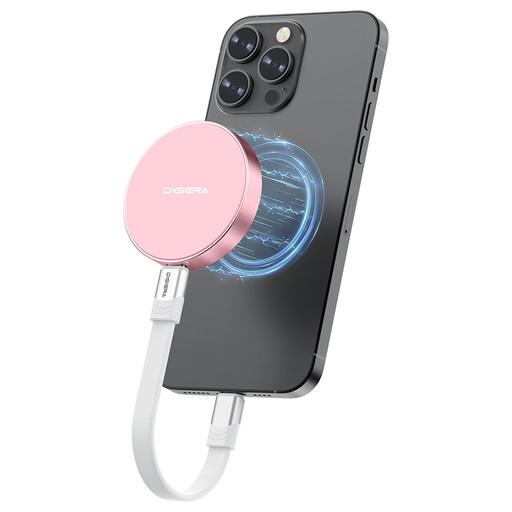
DigiEra LPS2000M-3 Magnetic Portable SSD 1 TB, pink
This is a local-copy option for files on a compatible USB-C device; check the file-transfer procedure before using it to replace a phone backup.
The product name specifies USB 3.2 Gen 2x2 and iPhone 15/16 series compatibility. The listing excludes iPhone 14 and earlier models. Check that 1 TB accommodates the files you intend to keep.
View on Joybuy
Common questions
Is cloud photo sync the same as a full phone backup?
No: photo sync and device backup can cover different data. Apple Support says photos and videos using iCloud Photos are synchronised separately from daily iCloud Backup, while Google distinguishes Android device backup from photos and videos in Google Photos. Check both settings before replacing the phone.
Can we share cloud storage without sharing everyone’s files?
Yes, when a family plan provides separate accounts. Apple says members of an iCloud+ Family Sharing group retain their own accounts and private information; Google says Google One family members’ files are not automatically shared. Set up a shared album or folder separately if the household needs common access.
What should I do with an external drive after copying files?
Check that representative photos and documents open, then disconnect the drive and store it safely. The National Cyber Security Centre advises against leaving a backup device permanently connected and recommends knowing how to restore your files.
Can I encrypt a portable backup drive?
Yes, if your operating system and chosen method support it, but secure the password or recovery key before depending on the drive. Microsoft says BitLocker Drive Encryption is available on Windows Pro, Enterprise and Education editions; Apple Support says encrypting a storage device through Disk Utility requires erasing it first. Keep another usable copy before erasing a drive.


