What matters when choosing?
For family photos, documents and device data, start with the recovery problem you most need your backup to solve. The National Cyber Security Centre describes a backup as a copy kept in a separate safe location, whether in cloud storage or on removable media.
| Concern |
What to check |
Who this matters to |
| Restoring a replacement device |
Check what is copied automatically and the steps for restoring it to your next phone. Google Help says Android restore coverage varies by phone and Android version. |
If my phone is lost or replaced, I want a recent copy of its photos and settings that I can actually restore; about 33% of consumers put replacement-device recovery first. |
| Room for a growing library |
Measure the space used by photos, videos, documents and device backups, then allow for growth. Check the storage allowance or drive capacity you are considering. |
When photos and videos keep accumulating, I need space for the next backup as well as the files I have now. For about 25% of consumers, capacity is the primary concern. |
| A separate recovery copy |
Decide where the local copy will be kept and how often you will update and test it. The National Cyber Security Centre advises against leaving a backup device permanently connected. |
If my computer becomes inaccessible, I want another copy held apart from it; about 25% of consumers primarily need that separate recovery path. |
| Account access and encryption |
Set up the recovery methods available for your account and understand who can help recover protected data under the security setting you choose. |
For sensitive documents, I want protection without losing my way back into the backup. Keeping both security and recovery workable comes first for about 17% of consumers. |
External SSDs for a local copy
These portable SSDs are options for keeping a separate local copy of family photos and files. Choose one alongside a backup routine you can maintain and restore from; a drive by itself does not replace a phone’s cloud-backup and restore process.
 Image unavailable
Samsung T7 Portable SSD 1 TB, Blue
Consider this USB Type-C local drive for a separate copy of photos and documents. Its listed capacity is 1 TB and its interface is USB 3.2 Gen 2; check the connection on the device you will use and how you will restore your files.
Joybuy
 Image unavailable
Samsung MU-PE1T0S Portable SSD 1 TB, Black
This USB Type-C, USB 3.2 Gen 2 drive is another 1 TB option for a separately kept file copy. Check the cable and device connection you will use, and establish a restore routine rather than leaving the drive permanently connected.
Joybuy
 Image unavailable
Samsung MU-PG2T0B Portable SSD 2 TB, Black
The listed 2 TB capacity may suit a larger local photo or video archive. This USB Type-C drive specifies USB 3.2 Gen 2x2; check your host interface if transfer speed is important, and retain another recovery copy of irreplaceable files.
Joybuy
 Image unavailable
Lexar ES4 Portable SSD Magnetic Set 1 TB
Consider the magnetic set if you plan to move files between a compatible phone and computer. The title specifies 1 TB and USB 3.2 Gen 2 and names iPhone 15/16, PC and Mac compatibility; check your particular phone and case setup. Magnetic attachment does not mean wireless MagSafe charging.
Joybuy
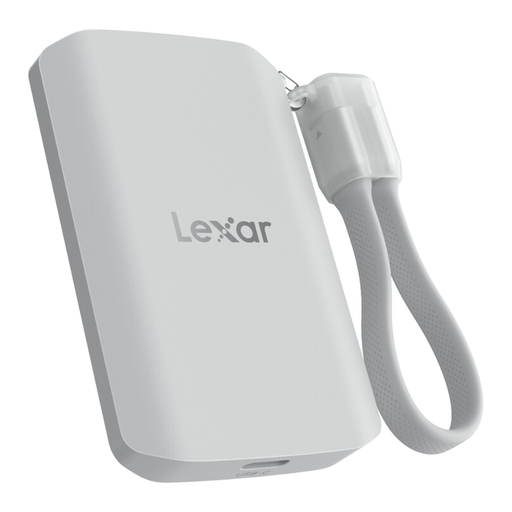 Image unavailable
Lexar ES5 Portable SSD 1 TB
This 1 TB USB 3.2 Gen 2x2 drive is a local-storage option for phone or laptop files. Its listing describes Lexar App media backup; check exactly which files the app copies and how you would restore them to a replacement phone. The named ProRes and Galaxy video functions apply to specified phone models.
Joybuy
Common questions
Is cloud storage alone enough for family photos?
Cloud storage can hold a backup if it contains a recoverable copy separate from the original device. For irreplaceable photos, an additional local copy gives you another route if you cannot access the cloud account; the National Cyber Security Centre recognises both cloud storage and removable media as backup locations.
Do I need to test a restore if files appear to be uploading?
Yes: restore a non-critical file so you know the copy is usable, as the National Cyber Security Centre advises. For a whole-device restore, follow the instructions for your phone and software version; Google Help says Android restore coverage varies, while Apple Support describes separate steps for restoring an iPhone or iPad backup.
Should an external backup drive stay connected?
Not permanently. The National Cyber Security Centre advises disconnecting a backup device between updates because malware or ransomware could affect both a computer and a connected copy. Safely eject the drive after updating it and keep it separately.
Does stronger cloud encryption remove the need to plan account recovery?
No. Apple says it cannot recover data protected by Advanced Data Protection if you lose all usable recovery methods. Set up an applicable recovery contact or key before enabling it; for a Google Account, Google One Help recommends adding a recovery phone number or email.


