For a separate, long-term copy of family photos or laptop files, consider a portable HDD when transfer speed is less important; consider a portable SSD if you move large folders often or regularly carry the drive. A USB stick is more suited to temporary file transfer than being the only copy of irreplaceable files. Whichever you choose, check capacity, ports and backup compatibility, keep another separately protected copy where practical, and test that you can restore files.
Who needs which kind of storage?
Family archive keepers
If the main job is preserving household photos and documents, prioritise a separate copy you can restore over frequent high-speed transfers. The National Cyber Security Centre advises backing up valued data and testing restores.
Laptop-space and transfer users
If your laptop is filling up and you repeatedly move large folders, consider both the drive’s transfer specifications and how you will carry it. Check the laptop port and supplied cable before choosing a model.
Cross-device backup users
If you use Windows and Mac devices, or plan to use Time Machine, decide whether the disk is for sharing files or for a dedicated backup. Apple’s guidance distinguishes Windows-compatible file formats from a Time Machine backup disk.
What matters when choosing a backup drive?
Start with the files you need to recover and how you will make a separate copy. Then size the drive and check the connection and backup workflow for your devices.
| Concern | What to check | Who this matters to |
|---|
| Recoverable copies |
Plan where a separate copy will live and test restoring a sample file. Disconnect or separately protect a backup when practical. |
If losing family photos would be difficult to put right, I need a copy I can actually recover, not just more room on my laptop. About 36% of consumers put recoverability first. |
| Transfers and handling |
Check the laptop port, supplied cable and exact model’s transfer rating; read any durability conditions. |
When I regularly move large folders or carry the drive, transfer time and careful handling shape my choice. These are the primary needs of about 29% of consumers. |
| Capacity and routine |
Measure the files to be copied and allow room for growth. For Time Machine, check Apple’s guidance for a dedicated disk with at least twice the Mac’s storage capacity. |
If my photo library keeps growing, I want enough space to continue making copies rather than fill the drive straight away. Capacity planning comes first for about 21% of consumers. |
| Device compatibility |
Match the connector and cable to your computer, then check the file format and intended backup software before formatting. |
When I share files between Windows and Mac, or use Time Machine, the drive must fit that particular workflow. About 14% of consumers make compatibility their primary concern. |
Backup mistakes to avoid
-
Calling extra storage a backup
Moving the only copy off a full laptop frees space but does not give you another recoverable copy. The National Cyber Security Centre also warns that connected backup locations can be affected by the same incident.
Set a regular copying routine, restore a small sample after setup and keep a backup offline or separately protected when practical.
-
Formatting a drive that already holds files
Apple says erasing or reformatting a storage device deletes its contents. A disk selected for Time Machine may need a different format from one used to exchange files with Windows.
Choose the disk’s intended use first, and copy any existing files elsewhere before reformatting.
Otherwise, files already on the drive could be lost.
-
Assuming USB-C guarantees a stated SSD speed
Manufacturer speed figures apply to particular models and do not establish the transfer rate you will get with every computer, cable and file set.
Check the drive’s USB specification against the laptop port and supplied cable, and note whether a stated figure is for reading, writing or a maximum.
-
Relying on ruggedness or encryption alone
Samsung’s stated T7 Shield resistance conditions do not remove the need for another copy; Samsung says liquid and dust damage are excluded from its warranty. Apple says an encrypted external device needs its password when connected.
Read the exact model’s protection and warranty terms, keep a separate backup, and store encryption credentials somewhere you can access them.
Losing the encryption password or recovery information can prevent access to the stored files.
Brands and product lines to consider
Samsung
The portable T7 Shield SSD line is relevant if you want to assess transfer specifications alongside stated resistance to handling hazards.
- Samsung UK lists USB 3.2 Gen 2 and a 2TB T7 Shield variant, MU-PE2T0S/EU.
- Its stated drop and water/dust test conditions are model-specific; Samsung excludes liquid and dust damage from warranty cover.
Crucial
The X9 portable SSD line is an option to examine for photo and file copies across the devices named in Crucial’s compatibility guidance.
- Crucial states X9 read speeds up to 1,050MB/s and capacities up to 4TB.
- Check the selected capacity, host port and included cable; the stated maximum is not a promised transfer rate on every device.
Kingston
The XS1000 portable SSD line is relevant when compact storage and connections to the intended USB devices matter.
- Kingston states USB 3.2 Gen 2 speeds up to 1,050MB/s and capacities up to 2TB for the XS1000 line.
- Those manufacturer specifications do not establish the speed of a particular laptop-and-cable setup.
Seagate
Seagate’s portable HDD range is relevant if a conventional external hard drive fits your long-term copying plan.
- Consider the exact model’s capacity and connection against the files and computer you intend to back up.
- Confirm the particular model and its availability before choosing it; a product-line name does not identify a purchasable configuration.
Portable drives on Joybuy
These portable SSDs and HDDs offer different ways to store copies of family photos and laptop files. Choose by your transfer needs, capacity and device setup, then plan how to keep and test a separate backup.
 Image unavailable
Lexar ES4 Magnetic Set 1TB portable SSD
Consider this SSD if you move files between devices and need the listed USB-C and USB-A cables. The listing states USB 3.2 Gen 2 maximum speeds of 1,050MB/s read and 1,000MB/s write; check your host connection and intended backup format. The magnetic attachment is described for an iPhone 15/16-series setup, not for wireless MagSafe charging.
View on Joybuy
 Image unavailable
Samsung Portable SSD T7 4 TB, grey
The 4 TB capacity is worth assessing if your selected file collection is large and you transfer it repeatedly. The listing states USB 3.2 Gen 2, maximum read/write speeds of 1,050/1,000 MB/s, and USB-C-to-C and USB-C-to-A cables. This T7 is not the T7 Shield; its listing says it has no water-resistance IP rating. Check the file format for your backup workflow.
View on Joybuy
 Image unavailable
SanDisk Portable SSD 2TB
Consider this compact SSD for carrying a 2TB photo or file collection. Its listing states read speeds up to 800 MB/s and drop protection up to 2 metres; neither replaces a second copy. Confirm the connector, supplied cable and backup-software compatibility for your device.
View on Joybuy
 Image unavailable
Western Digital My Passport 2TB, black
This portable HDD suits consideration when a separate file copy matters more than a stated high SSD transfer rate. The listing identifies 2TB, USB 3.2 Gen 1 and 256-bit AES hardware encryption. Its macOS compatibility descriptions conflict, so confirm the required read/write and backup workflow before buying. Avoid moving this mechanical drive while files are transferring.
View on Joybuy
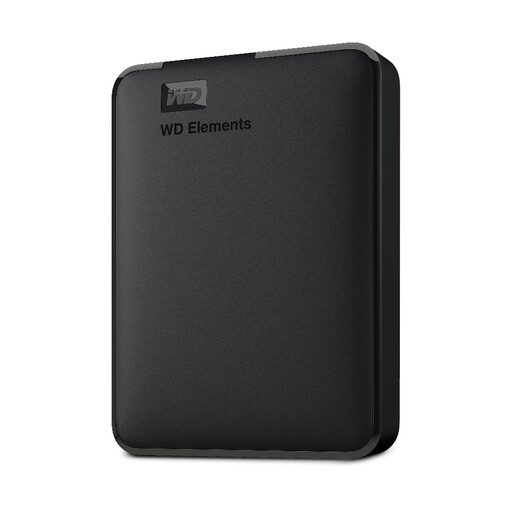 Image unavailable
WD Elements 2TB portable hard drive, black
This portable HDD is another 2TB option for storing copies of photos and laptop files when frequent high-speed transfers are not the main requirement. The listing identifies USB 3.2 Gen 1. Check its file format and compatibility with your chosen backup software, particularly if you intend to use Time Machine.
View on Joybuy
Questions about photo and laptop backups
Is one external drive enough for family photos?
Treat an external drive as a separate copy, not proof that every file is recoverable. Test restoring a sample and, where practical, keep another backup offline or separately protected. The National Cyber Security Centre notes that connected backup locations can be affected by an incident.
How large should a Time Machine backup drive be?
Apple recommends a backup device with at least twice the Mac’s storage capacity and advises using it only for Time Machine backups. That guidance applies to this Mac workflow, not to every file-only backup.
Can I share one external drive between Windows and Mac?
For ordinary file exchange, Apple identifies ExFAT and FAT as Windows-compatible formats. Time Machine cannot back up to a disk formatted for Windows, so decide whether you need shared files or a dedicated Mac backup before formatting. Copy existing files elsewhere first: reformatting erases them.
What should I check if I also use cloud storage?
Check the provider’s file-version and deletion recovery, storage allowance, account recovery and security settings, including multi-factor authentication. Cloud storage can provide another location, but the National Cyber Security Centre says its access depends on secure account identity; it cannot be taken offline by unplugging a drive.


