People prioritising accessible controls
Small text, low contrast, touch accuracy, hearing or hand movement may affect whether the person can use a device comfortably. AbilityNet advises exploring individual access needs before choosing a computer.


Choose an older adult’s first internet device around what they want to do and how comfortably they can see, hear and operate it, rather than choosing by age alone. A smartphone makes sense for contact on the move; a tablet offers a larger touch display; a laptop suits typing in different locations; and a desktop allows a fixed screen and input setup. Try the intended tasks together, then plan connectivity and help with setup.
Small text, low contrast, touch accuracy, hearing or hand movement may affect whether the person can use a device comfortably. AbilityNet advises exploring individual access needs before choosing a computer.
Calls, messages, photos and video calls are the main tasks, including away from a home desk. The choice depends on whether the person can comfortably use the screen and controls wherever they need to communicate.
Reading information, emailing and completing online forms may call for a comfortable viewing position and physical input. Age UK advises starting with the activities the person wants to do and where they will use the device.
Consider it when: calls, messages and online access away from home come first, and the person can manage its controls.
Trade-off: its portable format leaves less room for reading and touch controls than a tablet or computer.
Consider it when: reading, browsing and video calls mainly happen while seated, and a larger touch display feels comfortable.
Trade-off: regular typing or precise pointing may require a suitable keyboard or mouse arrangement.
Consider it when: email, writing or forms call for a physical keyboard, but the device will be used in more than one place.
Trade-off: the person must be comfortable opening, positioning, carrying and charging the chosen model.
Consider it when: use is mainly at one desk and a separately chosen monitor, keyboard or mouse would help.
Trade-off: a fixed setup cannot provide access elsewhere without another device.
For a first internet device, settle the person’s most important task before choosing the screen and input method. Accessories or a simplified device are worth considering when a particular control presents a barrier, but should be tried with the intended user.
| Concern | What to check | Who this matters to |
|---|---|---|
| Comfortable access | Try the actual screen, sound and controls. Switch on relevant text, contrast or input settings during the trial. | If I struggle to read menus or reliably select a control, I need to know I can use the device without strain. Around 36% of consumers put comfortable access first. |
| Reading and typing at home | Try a typical email or online form at the usual seating position; assess the screen, keyboard and pointer. | Longer reading and forms matter more to me than carrying the device, so the viewing and typing setup must feel manageable. Comfortable home tasks come first for around 29% of consumers. |
| Contact on the move | Check calling and messaging controls, charging and whether use away from home needs mobile connectivity. | I want to reach family or use online services while I am out, without struggling to make a call. Around 21% of consumers place portable contact first. |
| Setup and continuing help | Agree who will arrange connectivity, set up accounts and help with unfamiliar prompts later. | Even a comfortable device would be difficult for me to get started with unless someone can help set it up and answer questions. A supported start is the main concern for around 14% of consumers. |
One person may be comfortable with a conventional phone; another may need a larger screen or physical controls. Age UK and AbilityNet both frame device choice around the individual’s activities and access needs.
Make a short list of tasks, such as calls, reading and forms, and let the intended user try them before choosing a format.
Text enlargement or voice tools do not establish whether someone can comfortably hold the device, hear it or operate its physical controls.
Try the relevant settings on the device while checking its screen, sound and input method together.
Accessing online services also depends on a usable connection and help with the initial setup and later questions.
Decide where the device will connect, who will set it up and who can provide follow-up help.
A streamlined interface may make some interactions easier while limiting the apps or services the person needs.
Check the exact device’s controls, required apps, support arrangements and privacy settings against the intended tasks.
iPhone and iPad are options for people considering a mainstream phone or tablet, particularly when someone helping them already knows the interface.
Windows is relevant to laptop and desktop setups where a keyboard, mouse or separately chosen monitor may help with home tasks.
Doro offers phones aimed at people seeking a simpler interface or physical controls instead of a conventional smartphone layout.
A specialist tablet option for someone considering a simplified, family-supported way to keep in touch.
These Joybuy choices cover a laptop for keyboard-based tasks, tablets for larger-screen use and a smartphone for contact on the move. Compare each device with the intended user’s tasks and ability to use its controls; the product choice alone does not arrange connectivity or support.
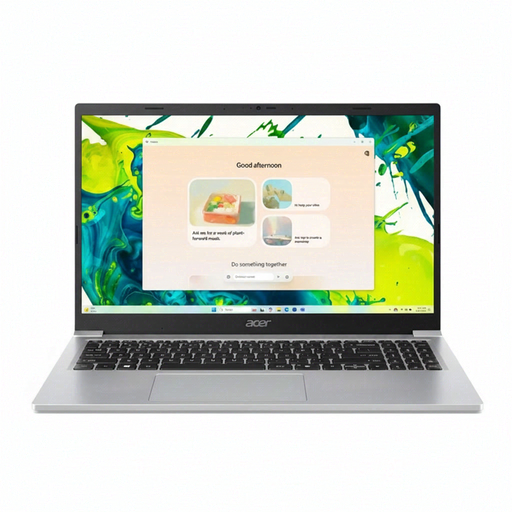 No image available
Consider this laptop if typing emails or forms matters and the device needs to move between locations.
The product name specifies a 15.6-inch Full HD display, Intel N150, 8GB DDR4 RAM and a 128GB SSD.
Try the screen, keyboard and trackpad with the intended user. Confirm the supplied Windows configuration before relying on particular apps.
 No image available
This tablet is worth considering for reading and video calls at home when separate typing and pointing controls may help.
Its product name specifies a 10.1-inch display and lists a keyboard, mouse and stylus; confirm the bundle contents.
Try the screen and controls together, and confirm the installed Android version if a required app depends on it.
 No image available
Consider this tablet for larger-screen reading and for trying pen input with the intended user.
The product name specifies 8GB RAM, 128GB ROM and a Focus Pen; confirm the exact bundle.
Try reading and touch or pen input before choosing it. If regular typing matters, check keyboard compatibility and what accessories are required.
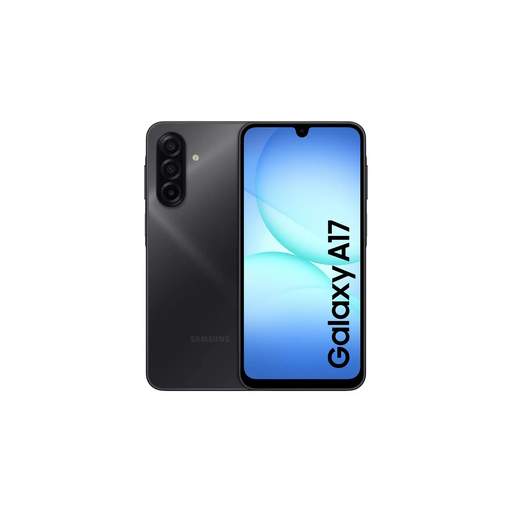 No image available
Consider this smartphone when portable calls and messages are the priority and the intended user can comfortably operate its touchscreen.
The product name specifies dual-SIM 5G, 4GB memory and 128GB storage.
Try calls, reading and text entry. Check compatibility with the intended UK SIM and mobile service, as well as the charging equipment needed.
No: the right format depends on the tasks, where it will be used and how the person operates it. Age UK advises starting with what the person wants to do; try a phone, tablet or computer with those tasks rather than treating age as the deciding factor.
Try the settings that address the person’s specific difficulty on the actual device, alongside its physical controls. Apple documents VoiceOver and Voice Control, while Microsoft documents Windows text, contrast and pointer settings; also check sound, touch accuracy, typing and how the person recovers from a mistake.
It can connect away from home where suitable Wi-Fi is available. If online access is needed without Wi-Fi, assess a device and mobile-service arrangement that meets that need before buying.
Agree who will arrange connectivity, set up accounts and recovery details, and answer questions later. Age UK encourages learning with support at an individual pace; AbilityNet also offers advice and volunteer support, subject to its service availability.