For documents and photos moving between USB-A and USB-C devices, a dual-connector flash drive avoids carrying an adapter; for frequent large-file transfers, consider a portable SSD once you have checked the computer and cable requirements. Cloud sync suits files you need on connected devices without carrying a drive. Whichever route you use between home, school and work, keep a separate recovery copy of important files.
Who needs which approach?
People moving files between mixed ports
If coursework or documents travel between an older USB-A computer and a newer USB-C device, check the ports at both ends before choosing a drive. SanDisk and Kingston each describe dual-connector flash drives designed for these two plug formats.
People carrying large media files
Regular moves of video, photo libraries or bulky project folders make capacity and transfer conditions important. A portable SSD is worth considering, but its rated speed depends on the connected device and cable.
People who need current files in several places
If access to the latest file matters more than handing over a physical drive, consider sync across your connected devices. The National Cyber Security Centre advises keeping a separate copy of important data in a safe location for recovery.
What should you check before choosing?
Start with the devices and files in your routine, then decide whether direct connection, repeated large transfers or access without a drive matters most. A USB-C plug alone does not establish transfer speed.
| Concern |
What to check |
Who this matters to |
| Port compatibility |
Check every source and destination port. Confirm that a USB-C port supports the data connection you need. |
If my files move between a USB-A computer and a USB-C device, I need a way to connect at both ends without relying on the wrong plug. About 28% of consumers put port compatibility first. |
| Large files and capacity |
Size your largest regular folder and check the drive, computer and cable requirements for the stated transfer mode. |
Moving video or bulky project folders repeatedly makes copying time and available space my main concerns; about 22% of consumers prioritise those needs. |
| Everyday carrying |
Check the exact drive’s dimensions, connector protection and attachment options. |
For coursework or documents I carry throughout the day, a manageable size and protected connectors matter most. About 17% of consumers make everyday carrying their priority. |
| Access across locations |
Check account access, service storage, connectivity and whether files will be available offline when needed. |
When I work on the same file in different places, I want the current version available without moving a drive; roughly 17% of consumers place that access first. |
| Recovery copy |
Decide where a separate copy will be kept, how it will be updated and whether you can restore a file from it. |
If losing the drive would also mean losing my only copy of important work, recovery is the deciding concern. For about 16% of consumers, keeping a separate copy comes first. |
Mistakes that complicate file transfers
-
Choosing by plug shape alone
USB-A and USB-C identify connector shapes, not a guaranteed transfer rate. Samsung says the T7’s stated maximum rates require a USB 3.2 Gen 2 host, a supporting cable and UASP.
Check the data standard of each device and the requirements of the exact drive and cable before relying on a speed rating.
-
Keeping important files on only one portable drive
A drive used to carry files can be lost, damaged or inaccessible. The National Cyber Security Centre defines a backup as a copy kept in a separate safe location.
Keep another current copy of important files and make sure you can restore from it.
-
Overlooking repeated large transfers
A compact flash drive may meet an occasional document-transfer need without meeting your capacity or transfer-time needs for large media folders.
Check your largest regular transfer and how often you make it. If considering an SSD, verify the computer and cable conditions behind its stated performance.
Brands to consider by product line
SanDisk
The Ultra Dual Drive Go line is relevant when one compact drive needs both USB-C and USB-A connectors.
- SanDisk describes the 32GB Ultra Dual Drive Go as a USB 3.2 Gen 1 drive with a swivel design that protects its connectors.
- Check the capacity and performance of the exact variant rather than applying the 32GB model’s specifications to the whole line.
Kingston
The DataTraveler Duo is a flash-drive option for moving files between USB-A and USB-C ports.
- Kingston specifies both connector types and lists 128GB and 256GB DataTraveler Duo variants.
- Check that the chosen capacity accommodates the files you regularly move; the connector arrangement does not establish SSD-like transfer performance.
Samsung
The portable T7 SSD line is relevant when larger or repeated file transfers justify checking a faster storage route.
- Samsung lists USB-C-to-C and USB-C-to-A cables for the T7, offering connection options for compatible computers.
- Samsung conditions its stated maximum T7 speeds on a USB 3.2 Gen 2 host, a supporting cable and UASP; host compatibility can vary.
Crucial
The X10 Pro is a portable-SSD line to consider for carrying a larger file collection.
- Crucial identifies a 4TB X10 Pro portable SSD variant.
- Check the exact model’s connector, host requirements and performance specifications against your devices before comparing it with another SSD.
Joybuy drives for carrying files
These flash-drive and portable-SSD selections address physical transfers between locations. Choose by your devices’ connections and the files you carry; cloud sync remains a separate option when access without a drive is the priority.
 No image available
Samsung T7 Shield Portable SSD 1 TB, blue
Consider this portable SSD for carrying larger folders when its 1 TB capacity fits your routine. The product name specifies USB 3.2 Gen 2; check your computer’s port and the cable you intend to use. Keep a separate recovery copy of important files.
Joybuy
 No image available
Samsung Portable SSD T7 2 TB, grey
Consider the 2 TB T7 when the file collection you carry needs more stated capacity than a 1 TB drive provides. Its product name specifies USB 3.2 Gen 2; Samsung says the T7’s maximum rated performance requires a matching host, supporting cable and UASP. Protect important files with a separate recovery copy.
Joybuy
 No image available
Lexar ES4 Portable SSD with Magnetic Set, 1TB
This 1TB portable SSD is an option for a transfer routine involving a computer and a compatible phone. Its product name specifies USB 3.2 Gen 2 and states up to 1050MB/s read and 1000MB/s write; check the host and cable conditions before relying on those maximum figures. If the magnetic set matters to you, confirm the attachment arrangement for your exact phone and case.
Joybuy
 No image available
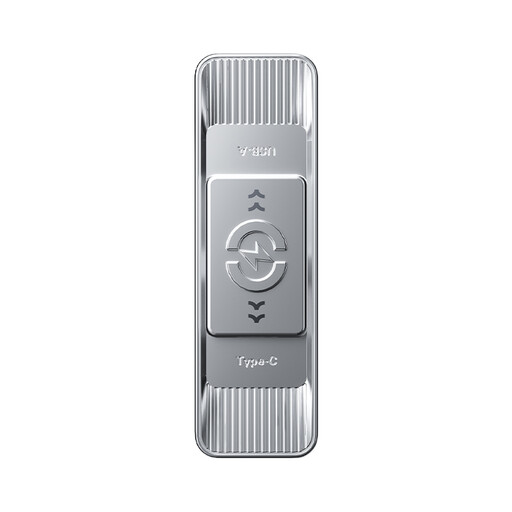
MOVESPEED YSUSP05-512GSR dual-interface flash drive, 512GB
Consider this flash drive when files regularly move between devices with different port shapes. Its product name specifies USB 3.2 Gen 1 and Type-C interfaces, 512GB capacity and a stated 570MB/s read maximum; check both devices’ data support, and do not treat the maximum as a measured transfer rate for your setup.
Joybuy
 No image available
SanDisk Portable SSD 2TB
The 2TB capacity makes this portable SSD worth considering when you carry a substantial file collection. Before choosing it for particular computers, confirm its connector and cable arrangement against their ports; if repeated copying time matters, check the write-performance specification for the exact model.
Joybuy
Common questions
Does USB-C mean files will transfer faster?
No. USB-C describes the connector, not a guaranteed data rate. Check the specifications of the device, drive and cable; Samsung says the T7’s stated maximum rates require USB 3.2 Gen 2 support, a supporting cable and UASP.
Should I choose a dual-connector drive or use an adapter?
A dual-connector drive is convenient when you regularly move files between USB-A and USB-C ports; SanDisk and Kingston both describe drives with those two connectors. An adapter may meet an occasional mixed-port need, provided it supports the connection you require and you remember to carry it.
Can a portable SSD connect to both USB-C and USB-A computers?
Some can with the appropriate cables. Samsung says its T7 includes USB-C-to-C and USB-C-to-A cables, but host compatibility varies and some operating systems may require reformatting. Check the exact SSD and both computers before moving files you cannot afford to erase.
Is a drive used for moving files also a backup?
Not automatically. The National Cyber Security Centre defines a backup as a copy of important data stored in a separate safe location. A transfer drive serves that recovery purpose only if you deliberately maintain a separate copy and can restore the files from it.


