Choose a flight stick around the cockpit actions you want to practise, then match its layout to your platform, simulator and preferred aircraft. An all-in-one stick keeps controls together, a HOTAS separates the stick and throttle, and an airliner-oriented sidestick suits a different style of procedure; whichever you choose, check how the required actions can be assigned in your simulator.
Who is this for?
Cockpit-check learners who want direct bindings
If you repeat the same checks, reachable buttons, hats and levers may let you put frequently used actions on the controller instead of relying entirely on a keyboard or mouse. The useful bindings still depend on your simulator and aircraft.
Civil-airliner procedure learners
If you mainly practise Airbus-style or other airliner procedures, a sidestick-oriented layout may fit the control style you want to learn. Consider which actions would still need a mouse, keyboard or additional hardware.
Dedicated-room sim builders
A fixed desk or cockpit area gives you somewhere to position a separate stick and throttle and consider later additions such as pedals. Measure the space before choosing a multi-piece setup.
What matters when choosing?
Start with your platform and simulator, then decide which cockpit actions need physical controls and how much of your games-room space you want to give them. Microsoft Flight Simulator documentation notes that control mappings can depend on the active context, so the inputs you can reach matter alongside the profile you configure.
All-in-one flight stick
Choose it when: You want the stick and its other controls in one unit for PC or Xbox use; Turtle Beach specifies the VelocityOne Flightstick for both platforms.
Consider: An integrated layout does not give you a separately positioned throttle, so decide which checks will still need other inputs.
Separate stick and throttle
Choose it when: You want your hands on separate controls and have room for both units; Thrustmaster specifies its T.16000M FCS HOTAS for PC via USB.
Consider: The two-piece arrangement needs separate positions on your desk or cockpit.
Airliner-oriented sidestick
Choose it when: Airbus-style procedures are your focus; Thrustmaster specifies the TCA Sidestick X Airbus Edition for Xbox Series X|S and Windows.
Consider: A sidestick alone may leave throttle and other procedure controls to a mouse, keyboard or additional hardware.
| Concern |
What to check |
Who this matters to |
| Reachable cockpit controls |
Locate the buttons, hats and levers you would use repeatedly; check whether your simulator can assign the intended actions. |
If I repeat cockpit checks, I want the commands I use most within reach rather than switching constantly to a keyboard. Around 36% of consumers would put direct access to those actions first. |
| Platform and profiles |
Match the exact controller version to your PC or console, then check the simulator edition and available control profiles. |
My setup has to recognise the controller before its layout is useful to me. For around 29% of consumers, platform and profile compatibility would be the primary concern. |
| Throttle arrangement |
Decide whether an integrated lever meets your needs or whether your practice calls for a separately positioned throttle. |
When a check involves repeated power changes, I may want a throttle I can operate separately from the stick. Around 21% of consumers would make that control arrangement their first priority. |
| Room layout and expansion |
Measure the usable surface for each unit and check connections and mounting compatibility before planning additions. |
I want the controls to stay in a repeatable position in my games room, with space for any additions I choose later. Physical setup would come first for around 14% of consumers. |
Buying pitfalls
-
Buying by button count alone
Many inputs are useful only if you can assign them to the actions you practise. Microsoft Flight Simulator documentation describes mappings that vary by context, while its controller guidance notes that manual assignment may be needed.
List your recurring checks and examine how the intended simulator and aircraft profiles handle those commands before choosing a layout.
-
Assuming similar sticks support the same platforms
Platform support differs between exact products: Thrustmaster specifies the T.16000M FCS HOTAS for PC via USB, while its TCA Sidestick X Airbus Edition supports Xbox Series X|S and Windows.
Check the precise model and version against the PC or console you will use, rather than relying on a brand name or a similar-looking controller.
-
Planning a separate HOTAS without measuring the space
A separate stick and throttle need places where both units can be operated comfortably. A fixed games room can accommodate an expanded arrangement, but it does not remove the need to plan its layout.
Measure the usable desk or cockpit surface and check the fit of any mount or accessory for the exact controller.
Brands to consider for flight controls
Turtle Beach
Its VelocityOne Flightstick is an all-in-one option for buyers considering PC and Xbox flight control.
- Turtle Beach specifies 27 programmable buttons, eight axes and a POV hat for the VelocityOne Flightstick.
- If you want a separately positioned throttle, assess whether the stick’s integrated controls meet your practice needs.
Thrustmaster
Its relevant products cover different layouts: the PC-compatible T.16000M FCS HOTAS pairs a stick with a TWCS throttle, while the TCA Sidestick X Airbus Edition is an airliner-oriented stick for Xbox Series X|S and Windows.
- Thrustmaster specifies 30 action buttons and stick-twist rudder control for the T.16000M FCS HOTAS.
- Choose between the separate HOTAS and the sidestick by platform and procedure needs; a sidestick alone may not cover every throttle action you want on dedicated hardware.
Logitech G
Logitech G presents the X52 Pro as a two-piece HOTAS with an adjustable throttle, twist-rudder control and an LCD display.
- Its separate stick-and-throttle format lets you position those controls independently.
- Check your simulator compatibility and available surface area before choosing this layout for a fixed setup.
Joybuy flight controls for cockpit-check practice
These choices cover an Airbus-oriented flight-control pack, a Windows PC HOTAS with a mount, and an all-in-one stick for Xbox or PC. Select by the aircraft you practise, your platform and the controls you want within reach.
 No image available
Thrustmaster TCA Captain Pack X Airbus Edition Flight Controls — Xbox Series X/S, PC
Consider this pack if you want Airbus-oriented controls for cockpit-check practice on Xbox Series X/S or PC. Check its included controls and the mappings available for your simulator and aircraft.
View on Joybuy
 No image available
HORI HOTAS Flight Control System & Mount — PC Windows 11/10
Consider this HOTAS-and-mount option for a fixed Windows 11/10 PC setup. Check that your desk accommodates the controls and that your intended simulator supports the bindings needed for your checks.
View on Joybuy
 No image available
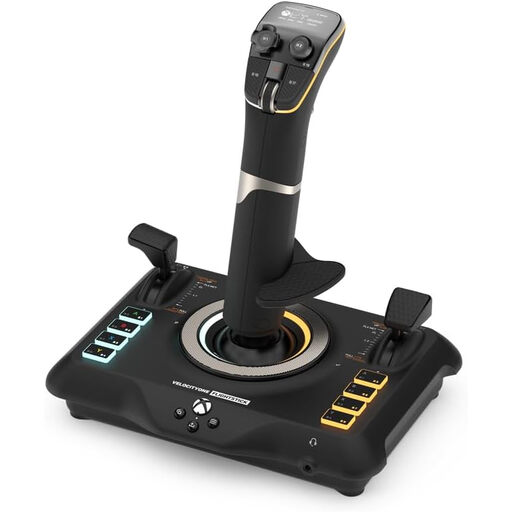
Turtle Beach VelocityOne Flightstick — Xbox, PC
Consider this all-in-one stick if you want reachable inputs without positioning a separate throttle. Turtle Beach specifies 27 programmable buttons, eight axes and a POV hat; check the bindings for your simulator and aircraft, and measure its fit on your desk.
View on Joybuy
Common questions
Can a flight stick handle every virtual cockpit check without a mouse or keyboard?
Not necessarily: which actions you can put on a flight stick depends on its inputs and your simulator and aircraft mappings. Microsoft Flight Simulator documentation describes context-dependent controls, so identify the checks you repeat and confirm that you can bind their commands before relying on the stick alone.
Should I choose a single flight stick or a HOTAS for cockpit checks?
Choose a single flight stick if its integrated controls cover the actions you want within reach; consider a HOTAS if you want a separately positioned throttle and have room for both units. Microsoft Flight Simulator advises matching peripheral choices to the aircraft you fly, so neither layout is a universal fit.
What should I check after connecting a flight controller?
Inspect the simulator’s controller profile and test the actions you plan to use during checks. Microsoft Flight Simulator’s controller guidance says a profile may be set automatically for common controllers, but functions may need manual assignment; also check the relevant aircraft and control context.
Do I need rudder pedals to start practising cockpit checks?
Rudder pedals are not a prerequisite for choosing a stick with twist-rudder input, such as the Thrustmaster T.16000M FCS HOTAS or Logitech G X52 Pro. If you later want separate foot-operated rudder and toe-brake controls in your fixed-room setup, assess pedals as an addition and check compatibility with your simulator.


