
24/7 Customer Support

Free returns

Same-day & Next-day Delivery

Quality Guaranteed

Unlock Your Welcome Offers: FREE Delivery | Up to 80% OFF | Free 30-day JoyPlus trial
Download the APP
Choosing between gaming monitors can be confusing when product pages emphasise impressive numbers without explaining how they affect everyday use. A 180Hz gaming monitor may not deliver 180Hz through every connection, while a display advertised as “1ms” may be quoting a different response-time measurement from another model.
For UK buyers, the most useful approach is to compare the complete specification rather than one headline feature. This guide covers the main buying pitfalls, the technical details worth checking and a selection of gaming monitors matched to different setups.
A monitor may support a high refresh rate through DisplayPort but a lower rate through HDMI. For example, some WQHD models provide 180Hz via DisplayPort and 144Hz via HDMI. If you are buying a console gaming monitor, check the HDMI specification and supported resolution carefully.
You should also confirm that your PC or console can produce enough frames to benefit from a high refresh rate. A 180Hz panel cannot display 180 unique frames per second if the game is running at 75fps.
A claimed 0.5ms or 1ms response time does not always describe the same measurement. Grey-to-grey (GtG), minimum GtG and moving picture response time (MPRT) are different metrics. Overdrive settings can also affect visible ghosting and image artefacts.
Use response time as one part of the comparison, alongside panel technology, refresh rate and reviews of the manufacturer’s specifications. Avoid assuming that the smallest number automatically means clearer motion.
A 4K gaming monitor requires more graphics performance than a Full HD display, particularly at high refresh rates. Similarly, HDR support varies considerably. Look for the stated brightness, colour coverage and HDR certification rather than relying on the word “HDR” alone.
A QHD gaming monitor, such as a 2560 × 1440 model, can offer a practical balance between sharpness and graphics demand for many PC gaming setups. A 4K gaming monitor may be more suitable for detailed single-player games, compatible consoles and content creation.
Screen size should match your viewing distance. A 24-inch Full HD display is compact for a desk, while 27-inch QHD and 32-inch displays provide a larger image but need sufficient desk depth.
A high refresh rate monitor can make cursor movement and fast game motion appear smoother. Common options include 144Hz, 165Hz, 175Hz, 180Hz and 200Hz. Check which port supports the advertised rate:
Always check the included cable and your graphics card or console output before ordering.
An IPS gaming monitor generally offers wide viewing angles and consistent colour across the screen. VA panels can provide higher stated native contrast, which may suit darker games and films. OLED gaming monitors offer self-lit pixels and strong black-level performance, but buyers should read the manufacturer’s care guidance and consider their mix of gaming, desktop and static-content use.
For creators and streamers, check the stated colour gamut, bit depth, stand adjustment and connectivity. A USB-C connection with power delivery can be useful for a laptop workstation, while a USB hub may reduce cable clutter.
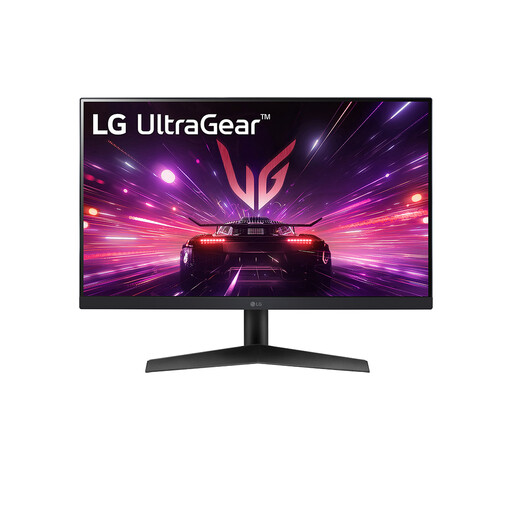
Why This Fits Their Persona: Its 23.8-inch Full HD format keeps desk space and graphics requirements manageable, while 180Hz suits fast PC gaming and esports titles.
The specification identifies 180Hz, 1ms GtG, HDR10 and the connection types instead of relying on a single response-time figure.
IPS panel, 180Hz refresh rate, HDR10, DisplayPort and HDMI; supports NVIDIA G-SYNC compatibility and AMD FreeSync.
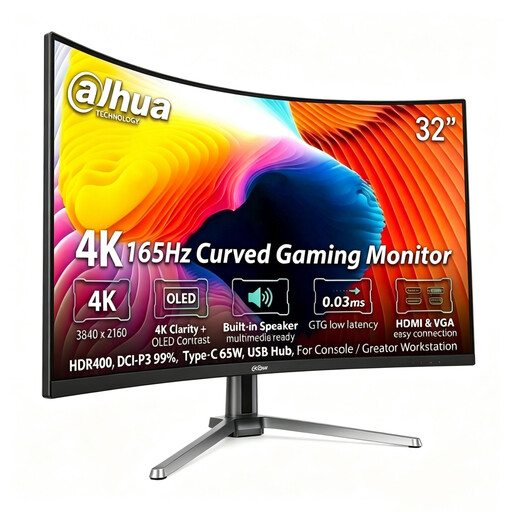
Why This Fits Their Persona: The 31.5-inch 4K QD-OLED panel is suited to cinematic gaming, high-detail PC play and creator work where contrast and resolution matter.
Its 4K performance is specified for both DisplayPort 1.4 and HDMI 2.1, helping buyers check compatibility with a PC or console before purchase.
3840 × 2160 resolution, 165Hz refresh rate, 0.03ms stated GtG, HDR400, 99% DCI-P3 and USB-C with 65W power delivery.
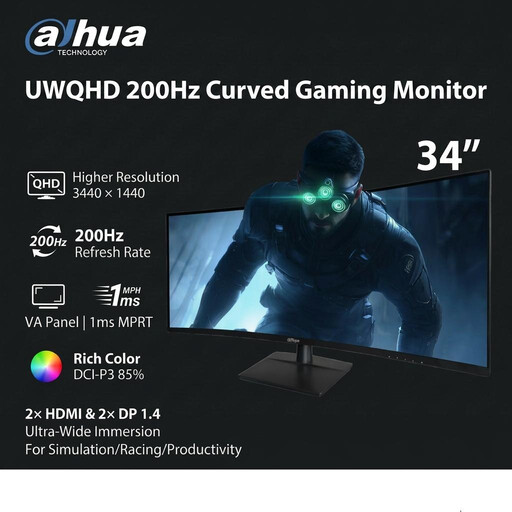
Why This Fits Their Persona: The 21:9 format gives sim-racing enthusiasts, streamers and multitaskers a broad horizontal workspace without using two separate displays.
The listed HDMI limit is 100Hz, while DisplayPort supports 200Hz at UWQHD, making the connection trade-off clear.
3440 × 1440 resolution, 200Hz refresh rate via DisplayPort, 1500R curvature, 1ms MPRT and two HDMI plus two DisplayPort inputs.
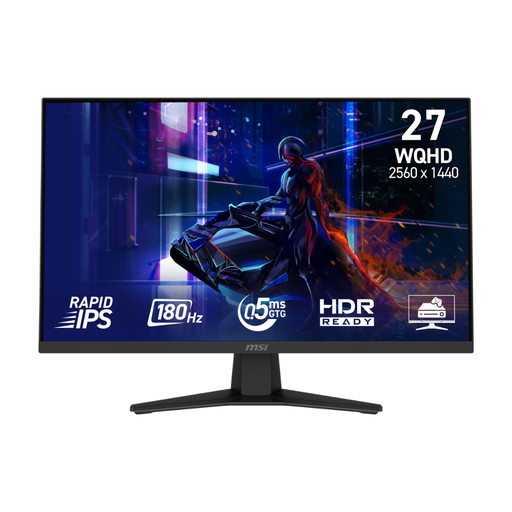
Why This Fits Their Persona: It combines 27-inch QHD detail with a Fast IPS panel, making it suitable for PC gaming, general entertainment and a home-office desk.
It states separate DisplayPort and HDMI refresh rates, while Adaptive Sync and console mode clarify how it handles different sources.
2560 × 1440 resolution, 180Hz via DisplayPort, 0.5ms minimum GtG, HDR support, 124% sRGB and a 100mm VESA mount.
We have compiled a complete, real-time list of products that fully satisfy these strict selection criteria and UK safety regulations.
Before buying, measure the desk width and depth, particularly for a 32-inch or ultrawide gaming monitor. Check whether the stand provides height adjustment or only tilt, and confirm the VESA mounting pattern if you plan to use an arm.
After connection, select the supported refresh rate in Windows, NVIDIA or AMD settings. Enable Adaptive Sync in both the monitor menu and graphics settings where applicable. For consoles, check the console’s output resolution, VRR support and HDMI bandwidth rather than assuming every gaming monitor will run at its maximum specification.
It can provide smoother motion than 60Hz or 120Hz when the computer produces sufficiently high frame rates. The benefit is more noticeable in fast-paced games, but the graphics card, connection type and game settings still determine the practical result.
A moderate curve can suit gaming, films and wide-screen multitasking. However, users working with straight-line design, spreadsheets or shared viewing may prefer a flat IPS gaming monitor. Consider your viewing distance and desk position before choosing a 1500R or 1700R screen.
Running costs depend on wattage, brightness, HDR use and daily hours. Check the monitor’s typical and maximum power figures, then compare them with your usage. Lowering brightness when full luminance is unnecessary can reduce consumption, while standby mode generally uses considerably less power than active use.