For a dedicated room used to pilot a virtual cargo ship, consider a 34-inch 3440 × 1440 ultrawide if a broad, single-screen bridge view matters most; choose a 32-inch 4K display if you would rather prioritise detail in charts and controls. A 45-inch 5120 × 2160 ultrawide calls for substantially more space and a PC capable of driving your intended game settings. Before choosing an ultrawide, check how your particular simulator handles its aspect ratio and interface.
Who each format suits
Bridge-view enthusiasts
If you want one broad view of the water, harbour and vessel surroundings, a 34-inch ultrawide is a useful starting point. Steam describes cargo runs and varied harbours in Seafarer: The Ship Sim; check how the simulator you actually use displays a wide view and its controls.
Instrument-detail prioritists
If reading charts and on-screen controls matters more to you than horizontal span, consider a 32-inch 4K display. Dell UK lists the Alienware AW3225QF at 3840 × 2160; you will still need to judge whether your game’s interface is comfortable at your chosen viewing distance.
Large-screen room planners
If the games room can accommodate a much larger screen, a 45-inch ultrawide may suit a cockpit-style layout. LG UK lists the 45GX950A-B at 5120 × 2160; measure the installation space and check your PC’s performance at that resolution before committing.
What to check before choosing
34-inch ultrawide
Choose it when: You want a wider bridge view on one screen without moving to a 45-inch display.
Accept that: A 21:9 shape depends on the simulator presenting its view, menus and instruments comfortably.
32-inch 4K
Choose it when: Detail in a conventional 16:9 view matters more than extra horizontal span.
Accept that: Your PC must render the game at 3840 × 2160 to use that native resolution.
45-inch 5K2K ultrawide
Choose it when: You have a dedicated position for a very large, high-resolution wide screen.
Accept that: Physical fit and PC performance at 5120 × 2160 become particularly important.
| Concern | What to check | Who this matters to |
|---|
| Bridge-style view |
Compare native resolution and aspect ratio; check the game’s ultrawide view and interface settings. |
I want to see more of the approaches to a harbour without dividing the view between screens. Around 45% of consumers put that wide-view need first. |
| Instrument detail |
Check native resolution, interface scaling and your PC’s performance at that resolution. |
If I spend time reading charts and controls, their on-screen detail takes priority over width. This is the main concern for around 33% of consumers. |
| Room and PC fit |
Measure the installation position and confirm the mount, video output and intended display mode. |
A large screen only works for me if it fits where I sit and connects to my PC as intended. Around 22% of consumers prioritise that setup fit. |
Buying pitfalls
-
Choosing by refresh rate alone
A monitor’s refresh rate is not the frame rate your simulator will produce. A high-refresh specification cannot, by itself, tell you how smoothly the game will run at 4K or 5K2K.
Check expected performance for your PC and the specific simulator at the resolution you intend to use.
-
Assuming an ultrawide will display every interface well
A wider screen does not establish how a particular game positions its instruments, menus or other on-screen controls.
Check the current resolution options, aspect-ratio behaviour and interface scaling for your simulator before relying on a 21:9 or 32:9 layout.
-
Choosing screen size before measuring the room
A large monitor can be difficult to position at a comfortable viewing distance, even in a dedicated games room.
Measure the desk or mounting position and check the exact model’s stand or mounting requirements.
A larger desk, compatible arm or different room layout may be needed.
-
Reading manufacturer display claims as direct comparisons
Response-time and glare-related claims can depend on the maker’s test conditions, content, settings and input source. They do not establish how two monitors compare in your setup.
If those characteristics will decide your purchase, check the stated conditions and consult independent testing of the exact models.
Relevant brands to consider
Alienware
Dell UK lists different display routes within its Alienware range: the AW3426DW ultrawide and AW3225QF 4K model.
- The AW3426DW is listed at 34 inches, 3440 × 1440 and up to 280Hz; the AW3225QF is listed at 31.6 inches, 3840 × 2160 and up to 240Hz.
- These are specifications for two particular models. Check game performance at the chosen resolution rather than treating either maximum refresh rate as an achievable game frame rate.
LG UltraGear
LG UK lists the 45GX950A-B for a particularly large, high-resolution ultrawide setup.
- LG specifies a 45-inch 5120 × 2160 OLED display and a native-resolution 165Hz mode.
- Its stated 330Hz mode uses a lower resolution. Check both its physical fit and the mode your PC can use.
Samsung Odyssey
Samsung UK lists the 34-inch G85SD as a 3440 × 1440 QD-OLED ultrawide option.
- Samsung specifies a 175Hz refresh rate for the G85SD.
- Samsung’s response-time claim uses internal test conditions, with results that can vary by content, settings and input source.
ASUS ROG
ROG UK lists the PG38UQ for those considering a large 16:9 4K IPS display instead of an ultrawide format.
- The PG38UQ specification lists a 38-inch 3840 × 2160 Fast IPS panel at 144Hz.
- Check whether its 16:9 shape and 38-inch footprint suit your intended simulator view and room layout.
Joybuy monitor choices
These models cover 34-inch ultrawide, larger 32:9 and 32-inch Ultra HD approaches to a single-screen ship-simulation setup. Choose by the view you want, then check your game settings, available space and PC output against the exact monitor.
 No image available
LG UltraGear 34GX900A-B 34-inch OLED gaming monitor
Consider this for a 34-inch ultrawide bridge view, provided your simulator handles the wide format comfortably.
The product name specifies an OLED display and 240Hz. For long sessions with static instruments, account for the OLED screen-care guidance in the listing.
View on Joybuy
 No image available
Dahua 34-inch curved UWQHD gaming monitor
This is another 34-inch wide-screen option if the simulator displays its view and controls as you want.
The product name specifies 3440 × 1440, a VA panel, 200Hz and two HDMI and two DisplayPort 1.4 connections. If you intend to use the listed 200Hz mode, check the DisplayPort connection: the listing describes a lower maximum refresh rate over HDMI 2.0.
View on Joybuy
 No image available
Lenovo R34w-30 34-inch UWQHD gaming monitor
Consider this curved ultrawide for a single-screen view in a dedicated room. The product name identifies the R34w-30 and its 34-inch UWQHD format.
Check the game’s wide-screen interface behaviour and your PC’s performance at the intended display setting.
View on Joybuy
 No image available
Acer Predator X49X 49-inch QD-OLED gaming monitor
The listed 32:9 format offers a different, wider layout from the 21:9 choices. Check whether your simulator presents its view and instruments acceptably at 32:9.
The product name specifies a 49-inch curved QD-OLED display and 240Hz. Measure the installation position and verify that the desk or mount can support this screen.
View on Joybuy
 No image available
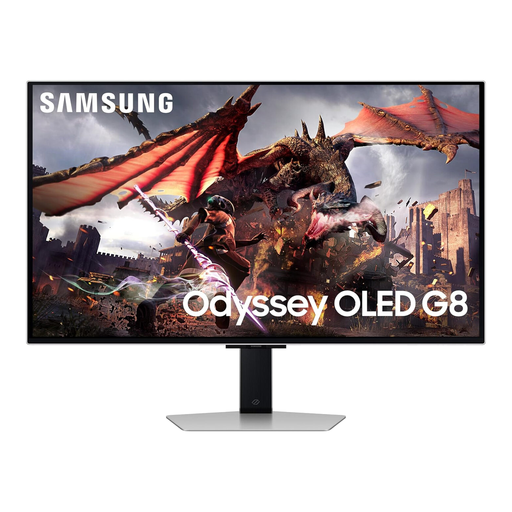
Samsung Odyssey OLED G8 LS32DG802SUXXU 32-inch monitor
Consider this Ultra HD option if detail in a conventional screen format matters more than ultrawide span.
Check your PC’s performance at the intended resolution and confirm which resolution and refresh modes the input you plan to use can carry.
View on Joybuy
Common questions
Should I choose a 34-inch ultrawide or a 32-inch 4K monitor for ship simulation?
Choose the 34-inch ultrawide if a broad single-screen view is your priority, or the 32-inch 4K format if you prefer detail in a conventional 16:9 view. Check how your simulator displays its interface and how your PC runs it at the monitor’s intended resolution before deciding.
Will a 240Hz monitor run my ship simulator at 240 frames per second?
No: 240Hz describes the monitor’s refresh capability, not the frame rate the game and PC will produce. Refresh rate and frame rate are different; check performance for your particular simulator, graphics card and chosen resolution.
What should I check before installing a large monitor in a dedicated games room?
Measure the desk or mounting position and plan a comfortable viewing distance before choosing the screen. Then check the exact model’s stand or mount requirements, your PC’s video output and whether it can run the intended resolution and refresh mode.


