Single-screen cockpit learners
You want space for the simulated cockpit alongside a control map or keybind reference. Screen format and native resolution matter more to you than pursuing the highest refresh-rate figure.


Choose a 34-inch ultrawide if you want the simulation view and control references on one wide screen; choose a 27-inch QHD monitor if a smaller 16:9 display better suits your desk or PC. Check how your simulator handles the chosen aspect ratio, then match the resolution and refresh rate to your PC, GPU connection and cable. If you expect to leave static cockpit elements on screen for long sessions, make OLED care guidance and warranty terms part of the choice.
You want space for the simulated cockpit alongside a control map or keybind reference. Screen format and native resolution matter more to you than pursuing the highest refresh-rate figure.
You want smooth motion, but need a display mode your PC can use in the games you play. Roberts Space Industries notes that Star Citizen performance can vary with in-game location, server population, background applications and network conditions.
You expect cockpit elements or control references to stay visible for extended periods. If you are considering OLED, its care instructions and the exact model's warranty terms deserve attention alongside its display specifications.
Decide whether you need a wide single-screen workspace or a smaller 16:9 display before comparing refresh-rate figures. For either format, check your simulator's interface behaviour and the display mode your PC connection can deliver.
| Concern | What to check | Who this matters to |
|---|---|---|
| Workspace | Compare 3440 × 1440 ultrawide with 2560 × 1440 QHD; check the simulator's aspect-ratio and interface scaling. | I need room for the cockpit view and a control reference without constantly switching windows; around 40% of consumers put a single-screen workspace first. |
| PC performance | Check the game performance your PC can sustain at the chosen native resolution before comparing 165 Hz and 240 Hz displays. | If my PC cannot sustain the frame rate I want, a higher refresh-rate figure alone will not solve it; roughly 30% of consumers prioritise performance fit. |
| Connections and fit | Confirm the maximum mode for the intended input and cable, then measure desk and stand clearance around your controls. | My sticks and throttle already occupy the desk, so the screen and connection must fit my setup; around 20% of consumers make setup compatibility their primary concern. |
| Long-session ownership | For OLED, read the exact model's panel-care instructions and warranty terms; check the retailer's fault-reporting route. | Long sessions leave cockpit elements on screen, so I want to understand panel care and support before choosing; roughly 10% of consumers put long-session ownership first. |
The maximum mode can depend on the connection. Dell specifies its Alienware AW3423DWF at 3440 × 1440 and 165 Hz over DisplayPort, but 100 Hz over HDMI.
Check the exact monitor's input specifications against your GPU output and cable for the resolution and refresh rate you intend to use.
Refresh rate describes the display's capability, not the number of frames your PC renders. Roberts Space Industries notes that Star Citizen performance varies with conditions including location and server population.
Set a realistic resolution and frame-rate target for your PC and chosen game before deciding how much refresh-rate headroom matters to you.
Control diagrams and cockpit elements can remain visible for long periods. LG's guidance for its 27GS95QE-B discusses after-image and burn-in in relation to prolonged static, high-contrast images; care features and terms should be checked for the model you actually choose.
Read that model's OLED-care instructions and warranty terms before using it for extended reference-heavy sessions.
A manufacturer warranty is separate from statutory rights. Citizens Advice says consumers may be entitled to a refund, repair or replacement for faulty goods.
Keep your order confirmation and contact the retailer about a fault; check the applicable remedy rather than relying solely on the manufacturer warranty.
Samsung's Odyssey G5 LC34G55TWWPXXU is a reference point for a curved, 34-inch VA ultrawide.
LG's 34GS95QE-B provides a 34-inch OLED example of the 3440 × 1440 ultrawide route.
Dell's Alienware range offers examples of both compact QHD and 34-inch ultrawide formats.
These choices include wider displays for a single-screen cockpit and reference workspace, plus a 27-inch QHD option for a more compact setup. Compare each model's size and stated features with your desk, PC connection and simulator before choosing.
 Image unavailable
Consider this 34-inch model if you want a wide workspace for learning controls and your PC can make use of a 240 Hz display.
The product title identifies an OLED panel and WQHD resolution. Confirm the intended resolution and refresh rate over your chosen input and cable, and review this model's OLED-care and warranty terms for prolonged static-UI use.
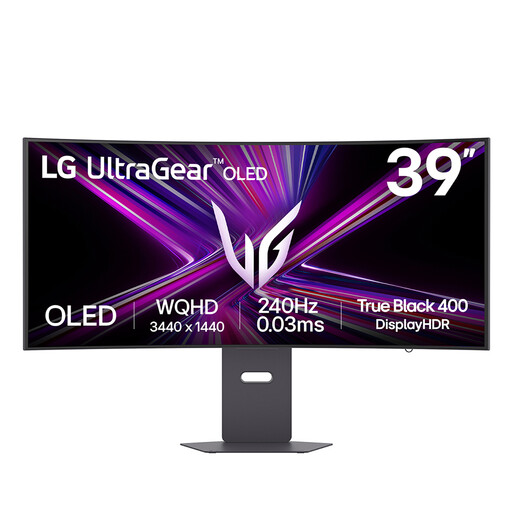 Image unavailable
This larger screen is a choice for a control-learning workspace if you have room for it beside your flight controls.
The product title specifies a 39-inch OLED QHD display at 240 Hz. Measure desk clearance, check the mode available through your intended input and cable, and read the exact model's OLED-care and warranty terms.
 Image unavailable
Consider its wide format if you want the cockpit and learning references on one screen, subject to your simulator's interface behaviour.
The product title specifies 3440 × 1440 resolution, a VA panel, two HDMI inputs and two DisplayPort 1.4 inputs. Check which input supports the 200 Hz mode with your PC and cable; do not assume the headline rate applies through every port.
 Image unavailable
Choose this format if a 27-inch QHD screen fits your desk and you do not need the horizontal workspace of an ultrawide.
The product title specifies OLED and 240 Hz. Confirm the required mode over your GPU connection and cable, and review this model's OLED-care and warranty terms if cockpit elements will remain on screen.
 Image unavailable
This 34-inch option suits a planned single-screen control workspace if its format works with your simulator and available desk space.
The product title identifies UWQHD resolution. Before choosing it, confirm the resolution and refresh rate supported by your intended input and cable, and allow clearance for your flight controls.
No: a 34-inch ultrawide is worth considering when you want one wide workspace for the cockpit and references, while a 27-inch QHD screen may fit a smaller desk or a preference for 16:9. Check how your particular simulator handles 21:9 and interface scaling before making screen width a requirement.
No: the monitor's refresh rate does not determine the frames your PC renders. A 240 Hz display is not fully utilised when the PC produces 100 fps; Roberts Space Industries also notes that Star Citizen performance varies with factors including location, server population and background applications.
The available refresh rate can differ by connection. Dell specifies its Alienware AW3423DWF at 3440 × 1440 and 165 Hz through DisplayPort, compared with 100 Hz through HDMI. Check the exact monitor's specifications, your GPU output and the cable for the mode you intend to use.
Not necessarily, but prolonged static interface elements make panel care relevant. LG's guidance for its 27GS95QE-B discusses OLED Care in relation to after-image and burn-in; follow the instructions and check the warranty terms for the exact model you are considering.
Keep your proof of purchase and contact the retailer about the fault. Citizens Advice says consumers may be entitled to a refund, repair or replacement for faulty goods; a manufacturer warranty does not replace applicable statutory rights.