Cockpit-immersion players
If a broad view of cockpit instruments and the approach outside is your priority, assess a 34-inch ultrawide. Check that the game supports the format and that the display fits your desk.


For PC space-simulation docking, consider a 34-inch ultrawide if cockpit width matters most, a 4K display if fine text and detail take priority, or a 27-inch QHD monitor if you want a lower pixel load. Check that your game supports the chosen format, your PC can deliver the performance you want, and your headphones can connect where you intend; a high monitor refresh rate alone does not establish an in-game frame rate.
If a broad view of cockpit instruments and the approach outside is your priority, assess a 34-inch ultrawide. Check that the game supports the format and that the display fits your desk.
If fine cockpit text and high-resolution desktop work matter more than screen width, consider 4K alongside what your PC can run at your intended settings.
If you would rather start with a lower pixel load, compare 27-inch QHD monitors. The game, PC and connection still determine the frame rate and refresh mode you can use.
For docking in a PC space simulator, choose the display format around your primary need, then check the game, graphics card, desk space and headphone connection.
Choose it when: A wider cockpit view is your priority and the game supports ultrawide output.
Trade-off: A 3440 × 1440 screen has more pixels to drive than standard 2560 × 1440 QHD and needs room on the desk.
Choose it when: Fine instrument text, scene detail and high-resolution desktop use lead your decision.
Trade-off: At 3840 × 2160, it has the highest pixel count of these three formats; check performance at your intended settings rather than relying on the monitor’s refresh-rate label.
Choose it when: A lower pixel load matters more to you than ultrawide cockpit space or 4K detail.
Trade-off: It provides less horizontal screen space than 3440 × 1440 and does not guarantee a particular in-game frame rate.
| Concern | What to check | Who this matters to |
|---|---|---|
| Cockpit width | Confirm ultrawide support in the game and allow space for the screen and stand. | When lining up a docking approach, I want more of the cockpit and outside view visible together. Around 30% of consumers put cockpit width first. |
| Fine detail | Check native-resolution performance on your PC and whether the screen size suits your viewing position. | Small instrument labels and detailed scenery matter more to me than a wider view; for around 30% of consumers, fine detail is the primary need. |
| Smooth play | Compare the game’s performance on your PC, then verify the desired refresh mode and variable refresh rate (VRR) on the input you will use. | I would rather choose a resolution my PC can handle at my intended settings than buy on refresh-rate claims alone. Smooth play comes first for around 20% of consumers. |
| Headphones and connections | Check the exact audio output and the input needed for your chosen display mode. | My headphones need a clear connection path, whether through the monitor or another device. Around 20% of consumers prioritise getting the setup right. |
A monitor’s high refresh rate does not mean the PC will render a space simulator at that rate, particularly at a more demanding resolution.
Check the actual game, graphics card, intended settings and native-resolution connection before choosing a display format.
Audio outputs and microphone connections differ by model. Your headphones may need to connect to the PC, a dock or another audio device instead.
Check the exact port list and decide where both headphone audio and, if needed, the microphone will connect.
Persistent cockpit or desktop elements make panel-care features and warranty terms worth considering; care features are not a guarantee against image retention.
Read the terms for the exact model and consider how often you leave static interfaces on screen.
A large monitor can be awkward to repack and transport, while an old monitor needs an appropriate electrical-waste route.
Keep the packaging while assessing the new screen, check the seller’s return arrangements and plan suitable recycling for the old one.
LG’s monitor range offers examples of both 27-inch QHD and 34-inch ultrawide OLED formats.
Dell UK lists QD-OLED options in both a 34-inch ultrawide format and a 32-inch-class 4K format.
The PG32UCDM is a 32-inch-class 4K QD-OLED option for a detail-led setup.
GIGABYTE lists 34-inch ultrawide QD-OLED models with distinct refresh rates and connections.
These monitors offer different ways to approach a space-simulation setup, including larger OLED screens, 34-inch ultrawides and a 27-inch 4K option. Compare each model’s stated format with your game, desk and headphone connection.
 No image available
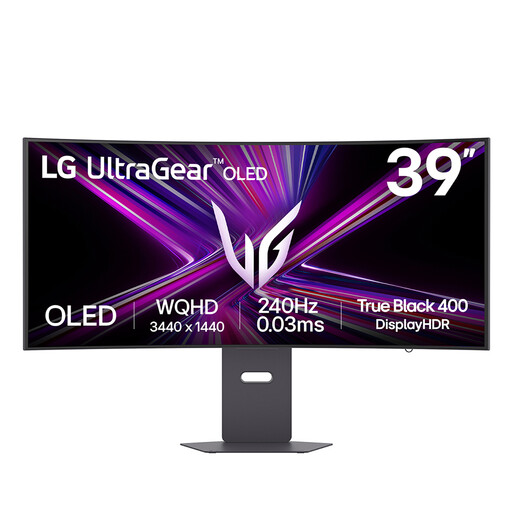
Consider this 34-inch model if a wider cockpit view is your priority and your game supports the format.
The product name specifies OLED, WQHD and 240 Hz. Check your intended input and where your headphones will connect; consider the panel-care guidance for persistent cockpit interfaces.
 No image available
Consider the larger screen if you can accommodate its size and viewing position.
The product name specifies OLED, QHD and 240 Hz. Confirm the native resolution and the game’s display options before choosing it for a particular cockpit layout; consider panel-care guidance for static interfaces.
 No image available
This 34-inch ultrawide is relevant if you want a broad cockpit layout and your game supports it.
The product name specifies 3440 × 1440, a VA panel, 200 Hz, two HDMI inputs and two DisplayPort 1.4 inputs. Check which connection provides your intended mode and whether the audio output suits your headphones.
 No image available
Consider this 34-inch UWQHD model if a wider display fits your desk and your game supports the format.
Check the exact input and refresh mode you intend to use, and plan how your headphones will connect.
 No image available
This is a smaller-screen 4K option if fine detail matters more to you than ultrawide cockpit space.
The product name specifies dual 240 Hz and 480 Hz modes, DisplayPort 2.1 and HDMI 2.1. Check which resolution applies to the mode you want and whether your PC and game can use it.
No. You can connect headphones through a compatible PC, dock or other audio device instead. If you want to plug them into the monitor, check that exact model’s audio output and your headset connection; GIGABYTE lists an earphone jack on the MO34WQC2, but that does not establish one on other models.
It can still be a suitable display, but 240 Hz is not a promise of 240 fps in a space simulator. Check performance at your chosen resolution and settings. Roberts Space Industries notes that Star Citizen performance can vary with in-game location, server population, background applications and network conditions.
Check the exact monitor’s VRR compatibility with your graphics setup and the resolution and refresh mode available through your intended HDMI or DisplayPort connection. VESA says its Adaptive-Sync Display certification uses more than 50 test criteria; check whether certification applies to the particular model rather than assuming it from a generic sync label.
For a qualifying UK distance contract for goods, legislation.gov.uk states that the statutory cancellation period ends 14 days after the day the goods come into physical possession, subject to the applicable rules and exceptions. Check the seller’s cancellation instructions and return arrangements separately; remedies for faulty or misdescribed goods are distinct from changing your mind.
Use an appropriate electrical-equipment recycling route rather than putting an old monitor in ordinary household waste. GOV.UK describes the UK waste electrical and electronic equipment framework as intended to reduce electrical waste sent to landfill; check available retailer take-back or local recycling arrangements.