Map and dashboard readers
If you spend time reading route maps, signalling panels or timetables, compare native resolution and screen layout for both the simulation and your office tasks.


Choose a 27-inch QHD monitor for a conventional desk layout with high-refresh options, a 27-inch 4K monitor when fine map and interface detail takes priority, or a 34-inch ultrawide when you chiefly want one continuous view for the simulation and supporting windows. Before settling on a format, check its footprint, your PC’s output at the intended resolution and refresh rate, and how the screen will fit your working setup.
If you spend time reading route maps, signalling panels or timetables, compare native resolution and screen layout for both the simulation and your office tasks.
If you want a driving or control view alongside supporting information without a second monitor, a continuous ultrawide workspace is worth considering.
If the same desk serves a work device and gaming PC, consider the monitor’s footprint, adjustment range and connections alongside its gaming specifications.
Choose it when: You want a conventional-size screen for simulation and office windows, with high-refresh gaming models available.
Trade-off: A 2560 × 1440 screen has fewer pixels than 4K and less horizontal workspace than a 3440 × 1440 ultrawide.
Choose it when: Fine interface detail and office text matter more to you than a wider screen layout.
Trade-off: The higher pixel count makes your PC’s performance at 3840 × 2160 especially important to check.
Choose it when: You want one uninterrupted 21:9 canvas for a simulation view beside maps or other windows.
Trade-off: It takes more desk width than a 27-inch screen; panel and stand characteristics still depend on the model.
| Concern | What to check | Who this matters to |
|---|---|---|
| Map and interface detail | Compare native QHD and 4K resolution, then check what your PC can run at that resolution. | When route labels and small controls need to stay readable during play and office work, detail becomes the main priority. Around 33% of consumers put this need first. |
| Continuous workspace | Check for a 3440 × 1440, 21:9 layout and measure the screen and stand against your desk. | I want the simulation and its supporting windows on one uninterrupted screen rather than across two displays; for around 27% of consumers, that layout is the primary need. |
| Smooth presentation | Distinguish normal from overclocked refresh rates and check the required graphics output and cable. | When changing scenes make fluid presentation my priority, I look at the refresh mode I can actually use. Around 20% of consumers primarily value smoothness. |
| Work-desk fit | Check stand adjustment or VESA mounting, desk footprint and connections for each device. | I share the screen between office work and simulation, so positioning it and switching devices matter most; around 20% of consumers prioritise this desk setup. |
A 34-inch 3440 × 1440 ultrawide has a different layout from a 27-inch QHD or 4K screen, not merely a larger picture.
Compare native resolution, aspect ratio and dimensions with the stand fitted before deciding which format belongs on your desk.
LG specifies the 27GS85Q-B at 180Hz normally; its 200Hz overclocked mode requires a DisplayPort 1.4-capable graphics card and cable.
Check the refresh rate available through the connection you intend to use.
Using that overclocked mode may require a compatible graphics output and DisplayPort cable.
HDR10 support alone does not establish the same capability as a VESA DisplayHDR-certified tier. Certification applies to displays that meet the relevant VESA specifications.
Check the exact standard or certification for the model rather than comparing screens by an unspecific HDR label.
Relevant models span 27-inch QHD and 4K gaming screens and a 34-inch OLED ultrawide.
The Odyssey G5 LC34G55TWWPXXU is an example of the curved ultrawide route.
The M27Q X Rev. 2.0 is relevant when a 27-inch QHD screen must serve both a work device and gaming PC.
The U2724D offers a home-office-focused QHD alternative when gaming is only part of the screen’s job.
These choices cover 27-inch 4K screens for detail-focused setups and 34-inch ultrawide screens for a broader simulation workspace. Compare each model’s stated modes and physical fit against your PC and desk.
 No image available
Consider this ultrawide format if you want one broad screen for the simulation and adjacent windows.
The product name specifies an OLED WQHD screen and 240Hz refresh rate. For prolonged use with static office interfaces, check the model’s OLED screen-care guidance.
 No image available
Consider this 27-inch format when map and interface detail is a priority and you also want a separate faster, lower-resolution mode.
The product name specifies 4K at 240Hz or 1080p at 480Hz, plus DisplayPort 2.1 and HDMI 2.1. Check your graphics output, cable and game settings for the mode you intend to use.
 No image available
Consider this wider screen if keeping your simulation and supporting windows together matters more than a conventional 27-inch layout.
The product name identifies a 34-inch UWQHD monitor. Check its dimensions with the stand and your PC’s output before choosing it for your desk.
 No image available
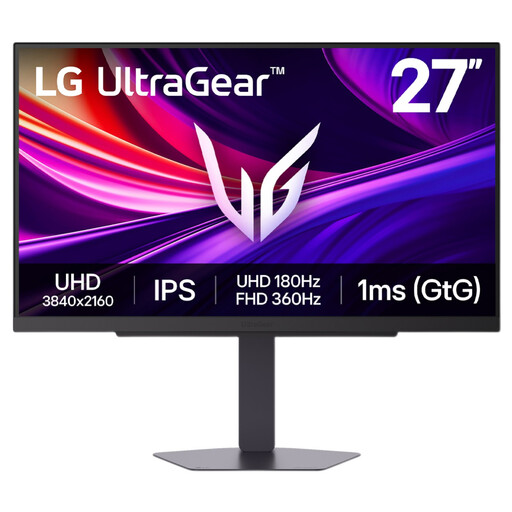
Consider this 27-inch 4K screen if detailed maps and interface text take precedence over an ultrawide layout.
LG UK specifies an IPS panel and 180Hz at 4K for this model; its product name also identifies a dual mode reaching 360Hz. Check which resolution applies to the mode you plan to use and whether your PC can drive it.
 No image available
Consider this format if you want a wide simulation view with room for supporting information on the same screen.
The product name specifies 3440 × 1440, a VA panel, 200Hz and DisplayPort 1.4 inputs. Confirm the refresh mode available through your PC’s output and cable, as well as the screen’s fit on your desk; check variable-refresh support separately if you need it.
No: a 27-inch QHD screen is a conventional-size option, while a 34-inch 3440 × 1440 ultrawide suits you if a continuous view beside maps or other windows is a priority. Measure desk width and stand depth before choosing the wider format.
Only if your monitor’s specified mode, graphics output and cable support it. For example, LG states that the 27GS85Q-B runs at 180Hz normally and requires a DisplayPort 1.4-capable graphics card and cable for its 200Hz overclocked mode.
Yes: VESA DisplayHDR certification identifies a published performance tier that the display must meet, whereas a generic HDR label does not establish that certification. Check the exact certification of the model you are considering.
Check the screen and stand dimensions, adjustment range or VESA mounting, and the connections needed by each device. The UK Health and Safety Executive’s display-screen-equipment guidance also addresses workstation arrangement and reflections for applicable home workers; use those considerations when positioning a work screen.
Check local electrical-equipment recycling or retailer take-back arrangements rather than putting the monitor in ordinary household waste. The UK’s waste electrical and electronic equipment framework addresses the collection and recovery of such equipment.