For a PC driving setup in a shared bedroom, a 27-inch QHD monitor around 165–180Hz with variable refresh rate is a sensible starting point if it fits the desk and your PC can deliver suitably high frame rates. Consider OLED for dark-scene contrast or 4K for finer detail only after checking the required connection, game performance and, for OLED, panel-care requirements; plan for quiet listening as well as screen space.
Who is this for?
PC drivers with limited desk space
If you want a single screen for driving games and readable cockpit detail, look at 27-inch QHD models, then measure the stand and available desk space. Dell and ASUS both specify QHD monitors with refresh rates up to 180Hz, though the usable mode depends on the connection.
PC and PS5 drivers
If you switch between devices, check the monitor’s HDMI modes rather than relying on its headline refresh rate. PlayStation’s video-output settings can test supported 1440p modes on a connected display.
Drivers who favour dark-scene detail
If contrast in darker road and cockpit scenes matters more to you than keeping the setup simple, an OLED model is worth considering. Check its panel-care settings and warranty terms if static dashboards or menus will remain on screen for long periods.
What matters when choosing?
Start with the space and device you actually have, then decide whether motion, fine detail or room practicality is your main priority. The percentages describe how consumers with this shared-bedroom driving task might divide by their primary concern, rather than the proportion who care about each feature at all.
| Concern | What to check | Who this matters to |
|---|
| Smooth driving motion |
Check your game’s frame rate at the intended resolution, the input’s maximum refresh mode and variable refresh rate compatibility. |
If steering and passing scenery feel like the priority, I want a screen mode my PC can actually use. Around 33% of consumers put driving motion first. |
| Car and cockpit detail |
Compare QHD and 4K against your system’s achievable frame rate; consider panel contrast separately from resolution. |
When gauges and darker scenes matter most, I would accept a different balance between detail and frame rate. For roughly 25% of consumers, visual detail is the primary concern. |
| Shared-room practicality |
Measure desk width and stand depth, and check mounting and headphone options. |
I need the screen to fit without taking over the desk, and I need to play quietly when someone else uses the room. That is the first priority for around 25% of consumers. |
| PC or PS5 connection |
Check the exact HDMI or DisplayPort modes; for PS5, inspect the connected display’s resolution, 120Hz and VRR information. |
If I alternate between PC and PS5, I do not want to choose a mode one of them cannot output. Connection certainty comes first for roughly 17% of consumers. |
Buying pitfalls
-
Buying on refresh rate alone
A monitor cannot create frames the game and PC do not produce. A 240Hz screen is not fully used when the PC produces only 100 frames per second, for example.
Check typical frame rates in your driving games at the resolution and graphics settings you intend to use.
-
Assuming every port offers the same mode
Dell specifies QHD up to 180Hz through DisplayPort on the Alienware AW2725DM, but up to 144Hz through HDMI.
Read the exact model’s input-mode table and match the intended cable, device and port before buying.
-
Judging desk fit by screen size alone
The stand also needs room: ASUS lists the ROG Strix XG27ACS at 61.48cm wide and 21.88cm deep with its stand.
Measure the usable desk surface and check mounting compatibility if you plan to use an arm. Arrange headphones if another person needs quiet.
A different mount or audio accessory may be needed if the supplied setup does not suit the room.
-
Treating OLED care as risk-free static use
ASUS describes the protective features on its ROG Strix OLED XG27ACDMS as reducing burn-in risk, not eliminating it. Paused menus and driving-game HUD elements can remain static.
Read the exact model’s panel-care guidance and warranty terms; consider IPS if prolonged static use does not suit those requirements.
Brands to consider for these monitor types
Alienware
Dell’s cited 27-inch models cover QHD Fast IPS and switchable 4K/Full HD modes.
- The AW2725DM supports QHD up to 180Hz through DisplayPort.
- Dell specifies a lower QHD maximum of 144Hz through HDMI on that model.
ASUS ROG
The cited range includes a QHD Fast IPS model and a higher-refresh QD-OLED model.
- The XG27ACS combines QHD, up to 180Hz and Adaptive-Sync.
- For the OLED XG27ACDMS, ASUS describes panel-care features as reducing, not eliminating, burn-in risk.
BenQ MOBIUZ
The cited models offer different ways to prioritise integrated audio or 4K detail.
- BenQ lists 2.1-channel speakers and a headphone jack for the QHD EX2710Q.
- The 4K EX2710U is rated up to 144Hz; check whether that mode suits your device and games.
LG UltraGear
The cited 27GX790A-B is a QHD OLED option for a PC setup targeting very high refresh rates.
- LG specifies a 480Hz refresh rate for the 27GX790A-B.
- That refresh ceiling is of limited use if the PC cannot produce suitably high frame rates in the chosen game settings.
MSI
The cited MAG 274QP QD-OLED X24 offers a QHD OLED route.
- The model is listed with a 26.5-inch QD-OLED panel and 240Hz refresh rate.
- Check its panel-care guidance and warranty terms if static driving HUDs or menus are common in your use.
Joybuy monitor options
These monitors span compact QHD choices and larger screens for drivers willing to make more desk space. Check each model’s connections and the room fit before choosing; a larger or faster panel does not by itself settle the shared-bedroom decision.
 No image available
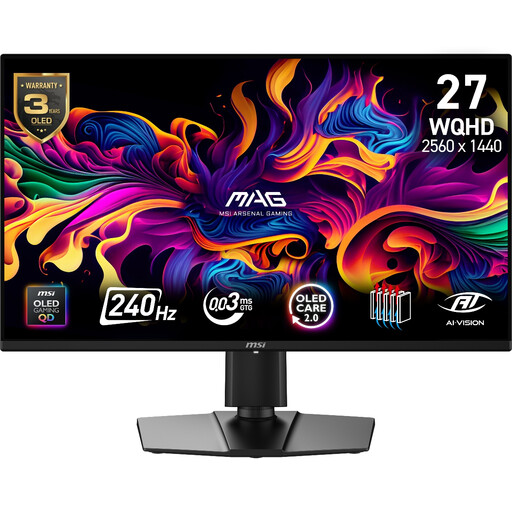
MSI MAG 274QP QD-OLED X24, WQHD 240Hz
Consider this for QHD driving games when OLED contrast is a priority and you are comfortable following panel-care guidance.
The listed model has a 2560 × 1440 QD-OLED panel, 240Hz refresh rate and Adaptive-Sync. Check the intended input mode and warranty terms if static HUDs or menus will be displayed for long periods.
Joybuy
 No image available
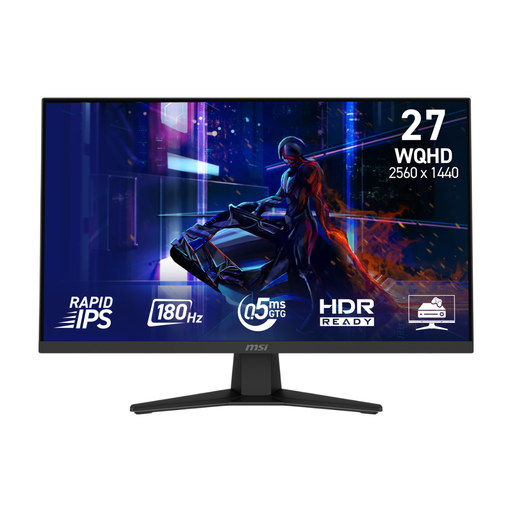
MSI MAG 274QF, 27-inch WQHD 180Hz
This is a single-screen QHD option for a PC driver who puts high refresh rate ahead of OLED contrast.
The product name specifies a 27-inch Rapid IPS panel and Adaptive Sync. Confirm the refresh mode available through the port you will use and check its audio options if they matter in your room.
Joybuy
 No image available
HKC G27H2DPro, 27-inch QHD 220Hz
Consider this QHD option if your PC can make use of a refresh rate above the 165–180Hz starting range.
The title specifies a 2560 × 1440 Fast IPS panel and 220Hz refresh rate. Check which input carries your desired mode, and consider reflections from the listed glossy finish in your bedroom lighting.
Joybuy
 No image available
Dahua 32-inch curved 4K OLED, 165Hz
This larger curved option is for drivers who have room for it and want to prioritise 4K detail.
The title specifies 3840 × 2160 resolution, 165Hz and a USB-C 65W feature. Measure the desk before choosing it, check the connected device’s supported modes and allow for the graphics workload of 4K gaming.
Joybuy
 No image available
Dahua 34-inch curved UWQHD VA, 200Hz
Consider the ultrawide format if you want a wider driving view and can accommodate a substantially wider screen.
The title specifies 3440 × 1440 resolution, a VA panel and 200Hz refresh rate. Measure the available desk width and confirm the refresh mode supported by your chosen input and device.
Joybuy
Frequently asked questions
Should I choose QHD or 4K for classic-car driving games?
Choose QHD if high frame rates are a priority on a 27-inch screen; consider 4K if finer car and dashboard detail matters more and your device can sustain the output mode you want. RTINGS describes this resolution-versus-refresh trade-off for gaming monitors, so check performance in your own games and settings.
Will a 240Hz or 480Hz monitor make my game run at that frame rate?
No: the monitor’s refresh rate does not determine how many frames the PC produces. Check frame rates in your driving games at the intended resolution and settings before choosing a very high-refresh display.
What should I check before connecting a PS5?
Check the monitor’s HDMI modes and the PS5’s connected-display information for the resolution, 120Hz output and VRR you want to use. PlayStation says its 1440p output test can check SDR and HDR at 60Hz or 120Hz and VRR when the connected display supports those modes.
Are built-in monitor speakers suitable for a shared bedroom?
Speakers can avoid a separate desktop set, but headphones are the more considerate option when another person needs quiet. Check the exact model: BenQ lists 2.1-channel speakers and a headphone jack for the EX2710Q, while speaker provision differs between monitors.


